
If you recently picked up an Amazon Firestick or an Android TV box to upgrade your living room setup, you might have run into a common roadblock. You search the main app store for your new media player, and it simply isn’t there.
Because of shifting store policies, many excellent streaming players are occasionally hidden or removed from default marketplaces. But that does not mean you cannot use them. You just need to install the application directly from the source.
If you are looking to download smart one iptv android tv versions or get the app running on your Amazon device, this guide covers the exact manual installation process.
The Easy Route: Android TV & Google Play
Before we get into any manual file transfers, let’s check the easiest method. If you are using a device running the official Android TV operating system like an Nvidia-Schild, a Chromecast with Google TV, or a Sony Bravia you might not need to sideload anything.
Navigate to the Google Play Store on your device’s home screen.
Click the search icon and type in “Smart One IPTV“.
If the official app appears, simply click “Install” and you are ready to go.
If the app does not show up in your specific region’s Play Store, do not worry. You can use the exact same sideloading method detailed below for the Firestick.
Preparing to Sideload on Firestick
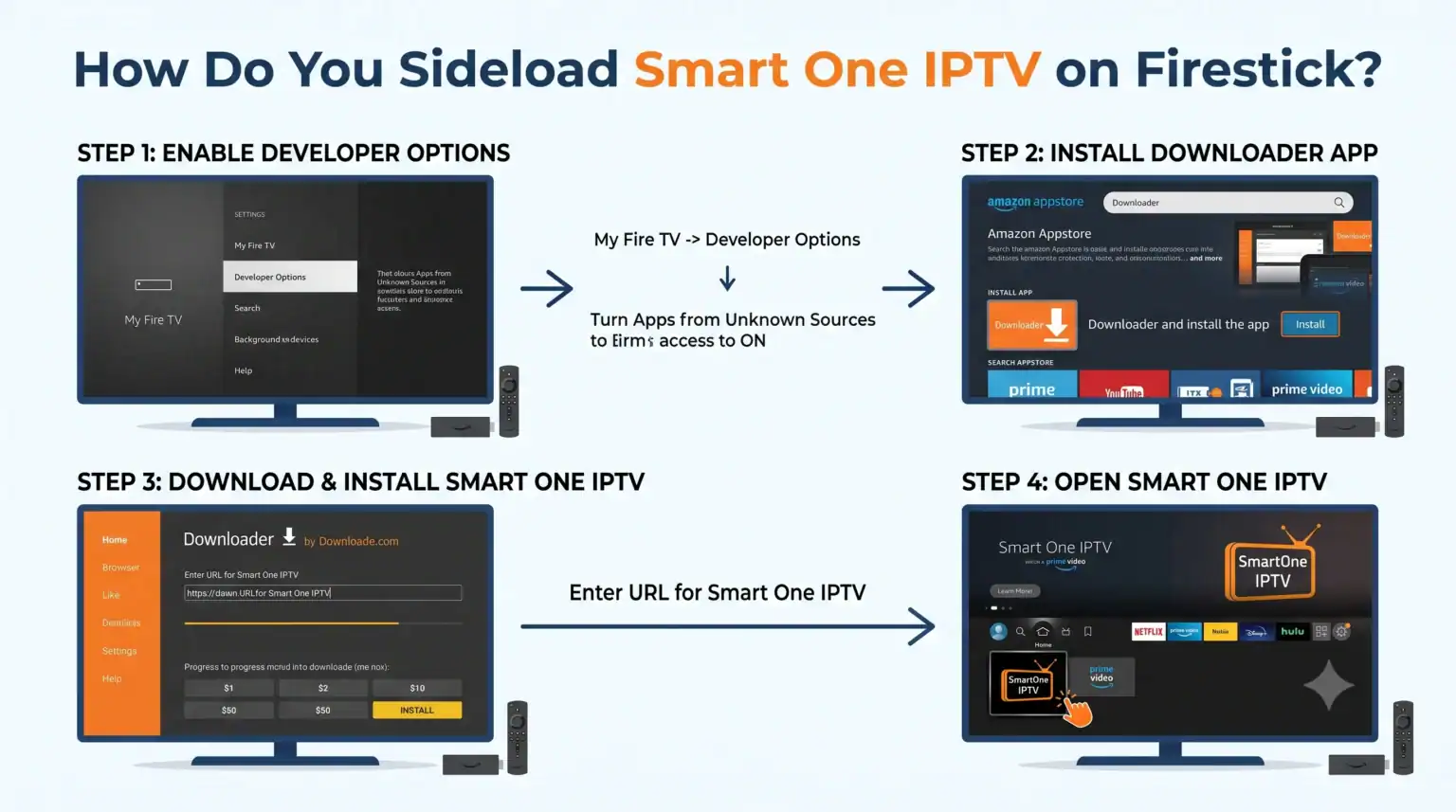
Amazon heavily curates the Fire OS app store. To install the smart one iptv firestick apk, we have to use a process called “sideloading.” This sounds highly technical, but it simply means downloading the application directly from the web rather than through the Amazon store.
To do this, we need a utility app called Downloader.
Step 1: Get the Downloader App
Go to the “Find” or “Search” icon on your Firestick home screen.
Type in “Downloader” (it has an orange logo with a download arrow).
Select the app and click “Download” or “Get”.
Step 2: Enable Developer Options
Amazon blocks web downloads by default to protect casual users. We need to turn this restriction off for the Downloader app.
Press the Home button and navigate to the Einstellungen gear icon on the far right.
Nach unten scrollen und auswählen Mein Fire TV.
Klicken Sie auf Optionen für Entwickler. (Note: If you do not see Developer Options, click on ‘About’, highlight your Fire TV Stick’s name, and click the center button on your remote 7 times to reveal the hidden menu).
Wählen Sie Unbekannte Apps installieren and turn the toggle to AN für die Downloader-App.
Installing the Smart One APK
Now that your Firestick is ready to accept third-party files, we can grab the media player directly from the developer.
Open the Downloader app you just installed.
If prompted, click “Allow” to let the app access files on your device.
Click the URL search box on the Downloader home screen.
Type in the official download link provided by the Smart One developers (usually found on their official website,(https://smartone-iptv.com/download) or use their specific numerical shortcode if they provide one.
Hit “Go”. The APK file will begin downloading automatically.
Once the download finishes, a staging window will pop up. Click Installieren Sie.
After the installation is complete, click Erledigt. (It is good practice to click “Delete” on the following screen to remove the leftover installation file and save storage space on your Firestick).
Linking Your Device
You can now find the app sitting in your device’s application library. Just like on standard smart TVs, opening the app will reveal a unique MAC address on your screen.
You will need to take that specific MAC address to the official Smart One website on your phone or computer to link your provider’s M3U list oder Xtream-Codes API.
Once your list is uploaded, you are completely set. If you are currently looking for a fast, reliable server to test on your newly configured Firestick, check out our recommended premium Abonnements. Apply our exclusive Promo Code at checkout to get the best possible rate on a buffer-free streaming package.
 German
  English (United States)
  Dutch
Dutch  Danish
  English (UK)
  Norwegian
  Swedish