
Setting up an IPTV setup on an Amazon Fire TV Stick used to take about two minutes. You turned on one setting, downloaded an app, pasted a link, and you were done.
Lately, Amazon has thrown a few massive curveballs at the streaming community. Between hiding critical settings menus and rolling out entirely new operating systems on newer devices, the old tutorials from a year or two ago just won’t work anymore.
If you are trying to cut the cord and figure out how to download iptv to firestick, this guide covers everything you need to know to get up and running smoothly.
First, Check Your Box: Fire OS vs. Vega OS
Amazon is actively transitioning its device lineup. Before you waste twenty minutes trying to follow sideloading guides, look at which specific streaming stick you actually own.
The Sideloadable Models (Fire OS): If you are running an older stick, a Fire TV Stick 4K, or the powerful Fire TV Stick 4K Max, your device runs on Android-based Fire OS. These models still fully support third-party apps via the Downloader tool.
The Restricted Models (Vega OS): Newer budget models released recently like the Fire TV Stick 4K Select and the updated Fire TV Stick HD (the one without the wall power adapter) run on Amazon’s new Linux-based Vega OS. Amazon has explicitly locked down these devices at the root level to prevent installing apps from unknown sources entirely. If you have one of these, you are restricted to whatever is available directly inside the official Amazon Appstore.
Assuming you have a compatible Fire OS stick, let’s unlock your hardware.
How to Install an IPTV Player on Your Firestick
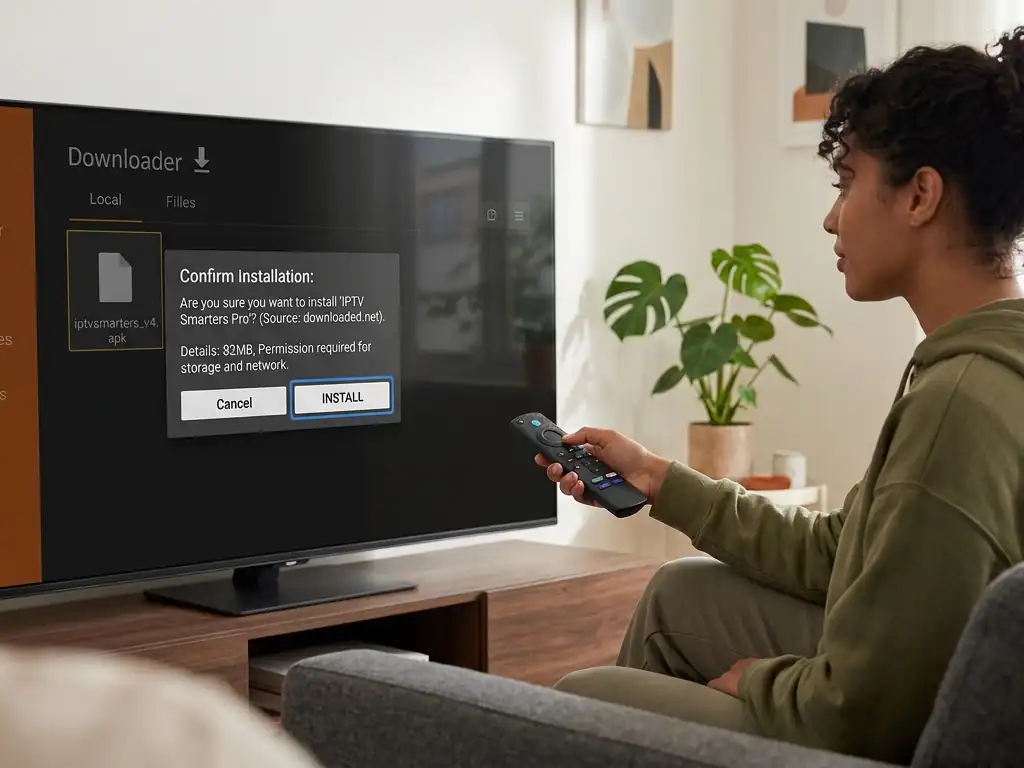
Because standalone IPTV players aren’t hosted on the official Amazon Appstore, you have to use a process called sideloading. This simply means downloading a clean application file (an APK) directly from the web.
Here is exactly how to do it step-by-step:
1.Unhide the Developer Menu :Takes 7 rapid clicks.
Go over to your Firestick Inställningar (the gear icon on the far right) and click on Min Fire TV. Select Om. Now, highlight the exact name of your device (e.g., Fire TV Stick 4K) and click the Center Select button on your remote 7 times without stopping. A quick toast notification will appear at the bottom saying: “Det behövs inte, du är redan en utvecklare.”
2.Grab the Downloader App :Found in the official store.
Go back to your main home screen, click the Hitta/Söka lens, and search for Nedladdare. Look for the iconic orange app tile developed by AFTVnews. Click Nedladdningar eller Hämta to pull it onto your system, but don’t launch it quite yet.
3.Authorize Unknown Applications :Unlocks sideloading.
Head back into Inställningar > Min Fire TV. You will notice a brand new menu has appeared called Alternativ för utvecklare. Click into it, select Installera okända appar, find Nedladdare on the list, and flip its toggle to ON.
4.Fetch Your Chosen IPTV-spelare :Use direct numeric shortcodes.
Open up the Nedladdare app and grant it storage permissions if it asks. Click inside the URL entry box on the home tab. Instead of typing a long internet address, type in a dedicated AFTVnews shortcode for the player you want (for instance, the official directory code for IPTV Smarters Pro eller TiviMate) and press Gå.
5.Install and Clean House :Saves local storage space.
The app file will download in a few seconds. When the installer screen prompts you, select Installera. Once it finishes, select Klart instead of opening it right away. This returns you to Downloader, where you should click Radera and confirm Radera again to wipe the temporary installation package out of your Firestick’s limited internal memory.
Choosing the Right IPTV Player
An IPTV app is just an empty engine it does not supply channels, movies, or live television on its own. To watch anything, you have to pair it with a valid subscription playlist provided by a third-party distributor.
When picking your user interface, a few reliable tools stand out above the rest:
| IPTV Application | Best Fit For | Layout Style | Resource Usage |
| TiviMate | High-end users who want an authentic, premium digital cable box feel. | Traditional horizontal TV Guide (EPG) | Medium (Runs best on 4K Max models) |
| IPTV Smarters Pro | Casual viewers who prefer a modern Netflix-style video dashboard. | Divided tiles for Live, Movies, and Series | Low / Highly Compatible |
| XCIPTV | No-frills setups that just need to boot up instantly without lag. | Minimalist icon grids | Extremely Lightweight |
Linking Your Subscription Playlist
Once your chosen player is open, it will ask how you want to log in. Your IPTV provider will generally issue your details via one of two formats:
Method A: Xtream Codes API (Recommended)
This is by far the easiest and least error-prone method. Your provider will give you a URL till server, a Användarnamn, and a Lösenord. Plug these three individual strings into the app’s login field, hit save, and the player will parse your categories and Electronic Program Guide (EPG) automatically.
Method B: M3U Link URL
If you are given a raw M3U-länk, it will look like a massively long web address. Typing this out character-by-character using an on-screen Firestick remote is frustrating. If you have to use an M3U link, consider using the official Fire TV remote app on your smartphone so you can copy and paste the long text string directly into your TV screen.
Vanliga frågor och svar
Why can’t I see “Developer Options” under My Fire TV?
Amazon hides this menu on all updated devices to prevent accidental system changes. As long as you don’t own a newer Vega OS hardware model, clicking your device name exactly 7 times inside the Inställningar > Min Fire TV > Om screen will immediately make the hidden developer menu visible again.
Why is my IPTV stream constantly buffering?
Sideloaded streams typically buffer for one of three reasons: local network drops, poor optimization on your provider’s hosting servers, or intentional Strypning av internetleverantör. Internet service providers frequently detect massive, continuous data streams from unverified media servers and artificially slow down your connection speed.
Do I really need a VPN for IPTV on Firestick?
While it isn’t a hard system requirement to make the apps load, running a premium Virtual Private Network (VPN) directly on your streaming device solves a couple of major headaches. It fully encrypts your data traffic so your internet provider cannot log what you are watching or throttle your speeds during high-traffic live events.
 Swedish
  English (United States)
  German
  Dutch
Dutch  Danish
  English (UK)
  Norwegian