
Is there anything worse than your stream freezing right before the winning goal or the climax of a movie? I’ve been there. The “spinning circle of death” is the arch-enemy of IPTV users everywhere, but I’m here to tell you: it’s not bad luck, and you don’t just have to live with it.
Buffering usually boils down to three things: network congestion, ISP interference, or unoptimized device settings. After testing hundreds of setups, I’ve isolated the 5 most effective ways to eliminate lag for good.
Here is your roadmap to a bufferloze ervaring.
1. Ditch the Wi-Fi (Or Optimize It)
Let’s be real: Wi-Fi is unstable. Walls, microwaves, and even your neighbor’s router create “noise” that disrupts data packets. For Netflix, this doesn’t matter because it buffers minutes ahead. But for Live IPTV, packet loss is fatal.
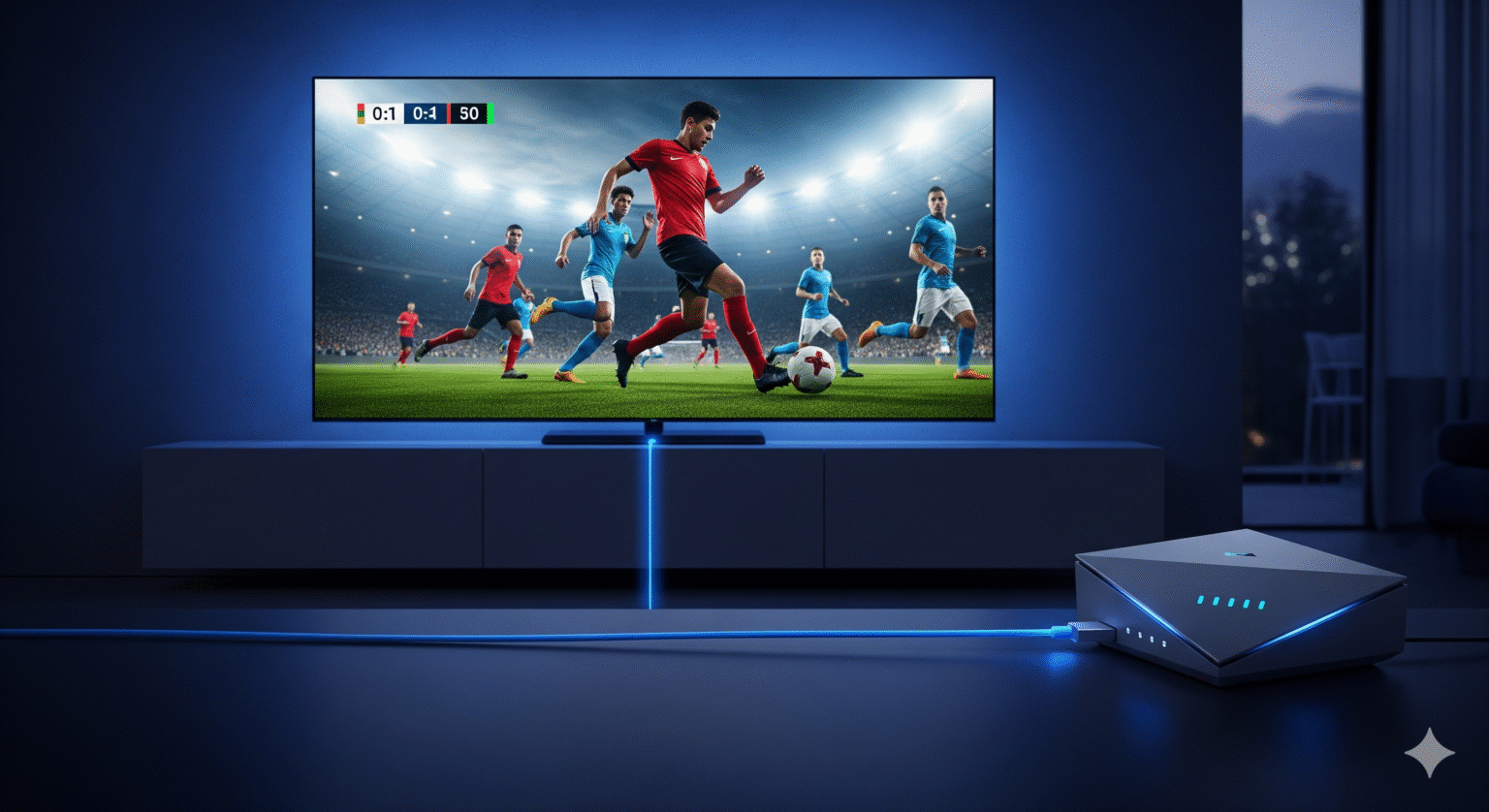
The Gold Standard (Ethernet): If you want 100% stability, hardwire your device. Run an Ethernet cable directly from your router to your Firestick, NVIDIA Shieldof Android-box. If your stick lacks a port, a cheap USB-to-Ethernet adapter is the single best upgrade you can buy.
The Powerline Hack: Router too far away? Grab a Powerline Adapter. It routes internet through your home’s electrical wiring, giving you a wired connection without drilling holes in your walls.
The 5GHz Rule: If you absolutely moet use Wi-Fi, ensure you are connected to the 5GHz band. The standard 2.4GHz band is crowded and slow. 5GHz is faster and cuts through the congestion.
2. Bylass ISP Throttling with a VPN
This is the most common reason for unexplained buffering. Your speed test says 100Mbps, but your stream still lags. Why? ISP Throttling.
Internet Service Providers (ISPs) use “Traffic Shaping” to detect high-bandwidth activities like live streaming. When they see it, they intentionally throttle your speed to save their bandwidth.
The Fix: You need a premium VPN (Virtual Private Network). A VPN encrypts your traffic, creating a tunnel that your ISP cannot look inside. If they can’t see what you’re streaming, they can’t throttle you.
Pro-tip: In your VPN settings, always select the WireGuard of Lightway protocol. They are significantly faster and lighter on resources than the older OpenVPN standard.
3. The "Digital Detox": Clear Cache & RAM
Streaming devices like the Firestick 4K have very limited memory (RAM). If you treat them like a PC, they will clog up.
Clear Cache Weekly:
Firestick: Navigeer naar
Instellingen>Applications>Manage Installed Applications. Find your IPTV App and click Cache wissen. (Warning: Never click “Clear Data” unless you want to re-enter all your login details).Android TV: Ga naar
Instellingen>Apps> Select App >Cache wissen.
Kill Background Processes: Just because you went back to the home screen doesn’t mean the app stopped running. Force stop apps like YouTube or Netflix before launching your IPTV player to free up crucial RAM.
4. Optimize Your Player Settings (TiviMate & Smarters)
Most IPTV players come with “safe” default settings that aren’t optimized for high-performance streaming. Here is how to tweak the two most popular players.
For TiviMate Users:
The Buffer Myth: Most people think “Larger Buffer = Less Lag.” Wrong. A huge buffer increases latency (the delay behind the live action) and makes channel zapping sluggish.
The Fix: Ga naar
Instellingen>Playback>Buffer size.If you have fast internet (100Mbps+), set this to Geen of Small.
Only use Large if your internet is painfully slow (under 20Mbps).
For IPTV Smarters Users:
Force Hardware Decoding: Ga naar
Instellingen>Player Settings>Hardware Decoder. Ensure this is Checked/On. Software decoding forces your CPU to do the heavy lifting, which leads to overheating and stuttering on 4K streams.
5. The "Static IP" DNS Hack
This is the secret weapon most users ignore. Your ISP’s default DNS servers are often slow and prone to blocking IPTV domains. Switching to a high-speed public DNS like Cloudflare can route your traffic faster.
Note: On Fire TV OS, you can’t just “type in” a DNS. You have to set a Static IP first. Follow these steps carefully.
How to Change DNS on Firestick / Fire TV
Get Your Info: Ga naar Settings > My Fire TV > About > Network. Write down your IP Address en Gateway.
Forget the Network: Ga naar Settings > Network. Hover over your Wi-Fi, press the Menu button (three lines), and click Forget.
The Advanced Menu: Select your network again. Enter your Wi-Fi password but DO NOT click Connect. Instead, click Advanced.
Enter Static Details:
IP Address: Enter the IP you wrote down in step 1.
Gateway: Enter the Gateway you wrote down.
Network Prefix Length: Ga naar
24.
The Magic Numbers:
DNS 1: Ga naar
1.1.1.1(Cloudflare) or8.8.8.8(Google).DNS 2: Ga naar
1.0.0.1(Cloudflare) or8.8.4.4(Google).
Klik op Connect.
How to Change DNS on Android TV
Ga naar Settings > Network & Internet.
Select your connected network > IP Settings.
Switch from DHCP to Static.
Keep the IP and Gateway defaults (click Next).
For DNS, enter
1.1.1.1en1.0.0.1.
Still Lagging? Try the "Power Cycle"
If you’ve done all the above and still see buffering, your router might just be tired. Unplug both your Router and your Streaming Device from the wall. Wait a full 30 seconds. Plug the router in first, let it connect, and then plug in your device. You’d be surprised how often a fresh boot solves the problem.
 Dutch
Dutch  English (United States)
  German
  Swedish
  Danish
  English (UK)
  English (Australia)
  English (New Zealand)
  Norwegian