
If you’re staring at your screen right now looking at the dreaded “IPTV Smarters failed to authorize“ of “Autorisatie voor bovenstaande host is mislukt” error, trust me, I know exactly how frustrating it is. You just want to kick back and watch your favorite game or show, and instead, you’re stuck looking at a spinning wheel or a stubborn login screen.
As someone who has tested countless IPTV setups, I can tell you that this is one of the most common hiccups users face. The good news? It is usually a very quick fix. The error basically means that your app is having trouble shaking hands with your IPTV provider’s server.
Let’s walk through exactly why this happens and, more importantly, how to get your streams running again in just a few minutes.
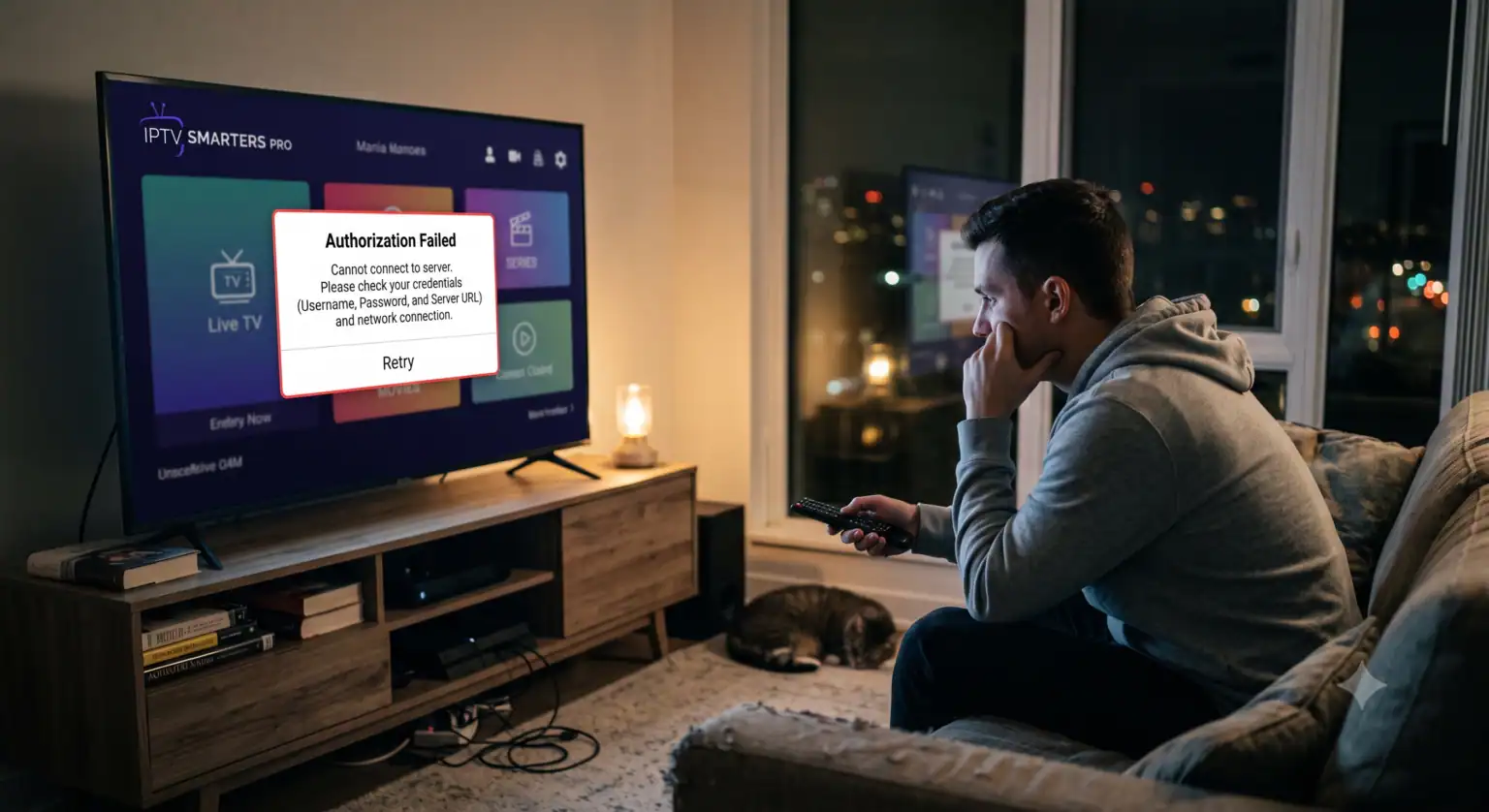
Why Is IPTV Smarters Failing to Authorize?
Before you completely uninstall the app out of frustration, it helps to understand what’s actually going wrong. In most cases, the culprit is one of the following:
Typos in your credentials: Even a single misplaced capital letter or invisible space can break the connection.
A quirky Server URL: The way IPTV Smarters reads server URLs can sometimes be incredibly finicky.
ISP Blocking: Your Internet Service Provider might be actively blocking or throttling the connection to the IPTV-server.
App Cache Glitches: Old data stored in the app can prevent new logins from processing.
Provider Outages: Sometimes, it’s not you it’s them. Your provider’s server might be temporarily down or undergoing maintenance.
Step-by-Step Fixes for the Authorization Error
I’ve compiled the most effective troubleshooting steps. Don’t skip the first few they might seem obvious, but they fix the issue 90% of the time.
1. Scrutinize Your Login Credentials
IPTV Smarters is notoriously case-sensitive. Go back and check your username and password. Make absolutely sure you aren’t capitalizing a letter that shouldn’t be, and verify that your device’s keyboard didn’t automatically add a space at the end of your username.
2. The “Magic” URL Tweak (Most Common Fix)
This is a highly specific fix that has worked for thousands of people on community forums like Reddit. The app can be incredibly picky about how the server URL is formatted.
Remove the trailing slash: If your URL looks like (http://your-server.com:80/), delete that very last forward slash so it reads (http://your-server.com:80).
Check the port number: Most servers use port 80. If your provider didn’t give you a port, try adding :80 to the end of the URL.
HTTP versus HTTPS: Some IPTV apps hate secure protocols. If your link starts with https://, try changing it to http://.
3. Clear the App Cache
Over time, Smarters Pro collects background data that can corrupt your login attempts.
If you are on an Android TV or Firestick, go to your device’s Settings > Apps > IPTV Smarters Pro.
Selecteer Kracht Stop, then hit Cache wissen (do not hit Clear Data just yet, as that will wipe your playlist).
Relaunch the app and try logging in again.
4. Bypass ISP Blocks with a VPN
Internet Service Providers are cracking down heavily on IPTV traffic. If your ISP detects the connection, they will block it, resulting in a failed authorization.
If you suspect this is happening, turn on a reliable VPN, connect to a server (preferably in a different region or country), and try logging in again. If it instantly works, your ISP was definitely blocking the host.
5. Change Your DNS Settings
If you aren’t using a VPN, your default DNS might be having trouble resolving the IPTV server’s address. Changing your device’s DNS to a public one can bypass this.
Go to your device’s network settings.
Change the DNS configuration from Automatic to Manual.
Enter Google’s DNS: 8.8.8.8 for DNS 1, and 8.8.4.4 for DNS 2. (Alternatively, try Cloudflare: 1.1.1.1).
6. Uninstall and Reinstall the App
Sometimes, an outdated version of the app develops bugs that prevent it from reaching the login server. Delete IPTV Smarters Pro entirely from your device. Go to your respective app store (or use the Downloader app if you are sideloading) and grab the absolute newest version.
What If Nothing Works?
If you have tried every single step above and you are still getting the “IPTV Smarters failed to authorize” error, the issue is almost certainly out of your hands.
Contact Your Provider: Shoot a quick message to your IPTV service’s support team. Their server might be down, or they may have recently changed their portal URL without notifying you.
Try an Alternative Player: Sometimes, specific providers just stop playing nicely with Smarters. Try downloading TiviMate of XCIPTV and enter your exact same details. If it works perfectly on a different app, you know the issue is strictly a compatibility bug with Smarters.
Getting locked out of your streams is a massive headache, but with a little bit of URL tweaking and network troubleshooting, you can usually bypass the authorization error and get right back to watching.
 Dutch
Dutch  English (United States)
  German
  Danish
  English (UK)
  Norwegian
  Swedish