
Are you tired of paying exorbitant cable bills for channels you rarely watch? You are not alone. The cord-cutting revolution is in full swing, and the Amazon Fire TV Stick 4K is leading the charge. By learning how to install IPTV on Firestick, you can unlock thousands of live TV channels, movies, and sports events for a fraction of the cost.
In this guide, we will walk you through the process of “jailbreaking” your Firestick (don’t worry, it’s completely legal and safe) to sideload the best IPTV players available. Whether you are using the Firestick 4K Max, the Fire TV Cube, or the Firestick Lite, these 3 simple steps will get you streaming in minutes.
⚠️ Important Disclaimer: Stream Safely
Before we begin, it is crucial to understand that while installing IPTV apps is legal, streaming copyrighted content without a license is not. Your Internet Service Provider (ISP) can see everything you stream, which could lead to throttling or legal notices.
We strongly recommend using a trustworthy VPN to hide your IP address and encrypt your connection. A VPN ensures your streaming activity remains private and prevents your ISP from slowing down your internet speed during peak hours.
Step 1: Unlock Developer Options (The "Hidden" Menu)
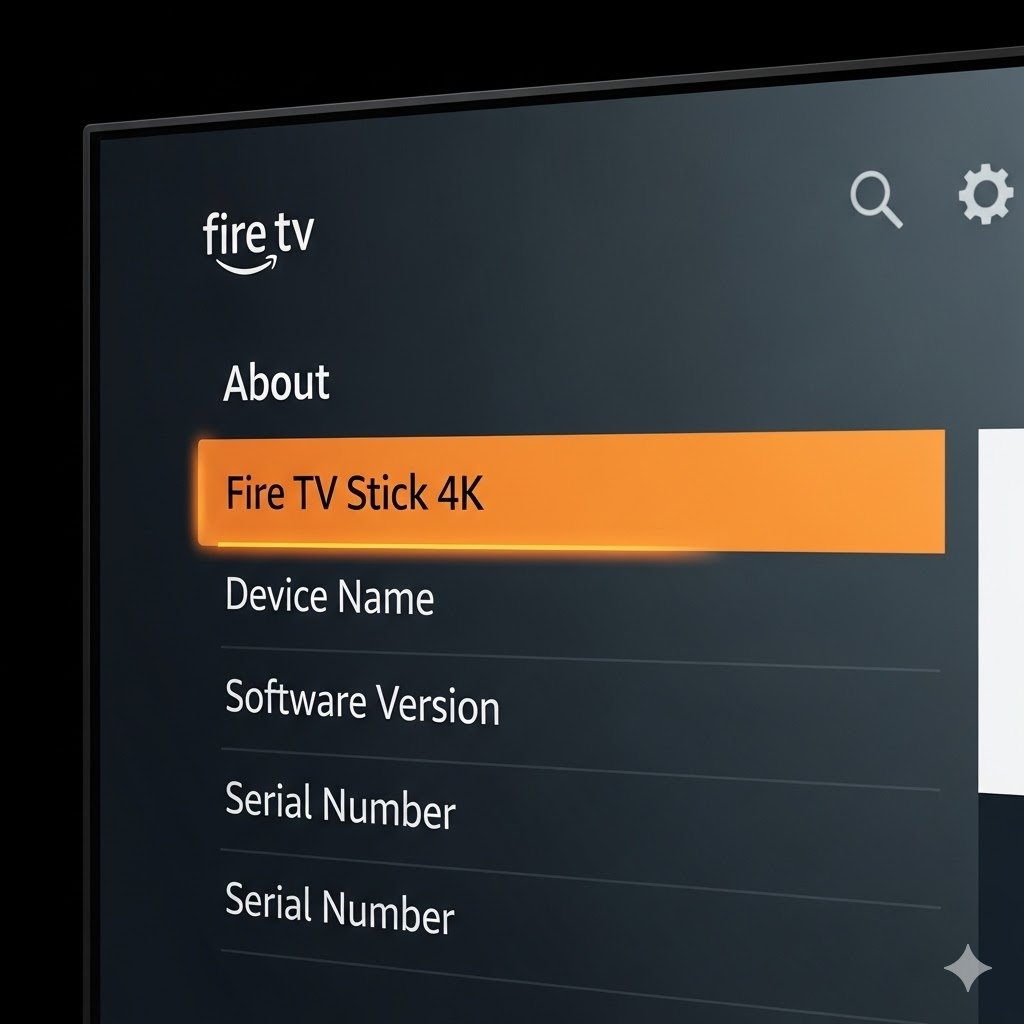
Amazon recently updated their interface, hiding the ability to sideload apps on Firestick behind a secret menu. If you have a newer device like the Firestick 4K Max, you won’t see “Developer Options” by default. Here is how to reveal it:
Select ‘My Fire TV’ from the settings menu to begin.
Naviger til Innstillinger icon (gear cog) on the far right of your home screen.
Scroll down and select Min Fire TV.
Click on Om.
Crucial Step: Highlight the name of your device (e.g., “Fire TV Stick 4K”) and click the Select button on your remote 7 times in rapid succession.
Click the device name 7 times until the ‘You are a developer’ message appears.
You will see a notification at the bottom saying, “No need, you are already a developer.”
Trykk på Back button once. You will now see a new menu item called Utvikleralternativer.
Transition: Now that you have unlocked the ability to install third-party applications, we can proceed to get the tool needed to download them.
Trinn 2: Installer Downloader-appen
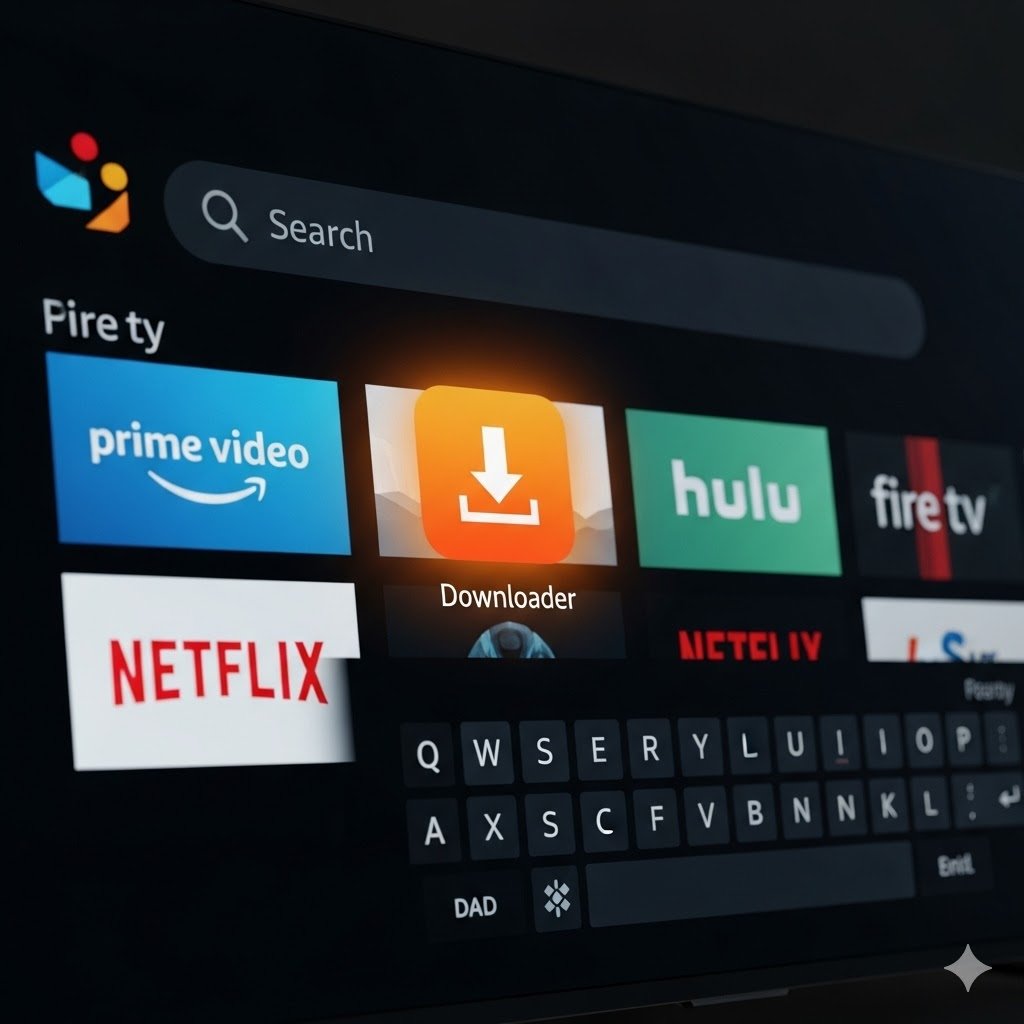
Since IPTV players like IPTV Smarters Pro eller TiviMate are not available on the official Amazon App Store, we need a helper application called Nedlaster. This is the industry standard for sideloading.
Trykk på Hjem button on your remote.
Klikk på Find/Search icon (magnifying glass).
Type in “Nedlaster”.
Select the orange app icon titled Nedlaster by AFTVnews.
Look for the orange Downloader icon in the search results.
Klikk Last ned eller Få to install the app.
Important Configuration: Before opening the app, go back to Settings > My Fire TV > Developer Options > Install Unknown Apps. Find the Nedlaster app in the list and switch it to ON. This grants the app permission to install new APK files.
Step 3: Sideload Your Preferred IPTV Player
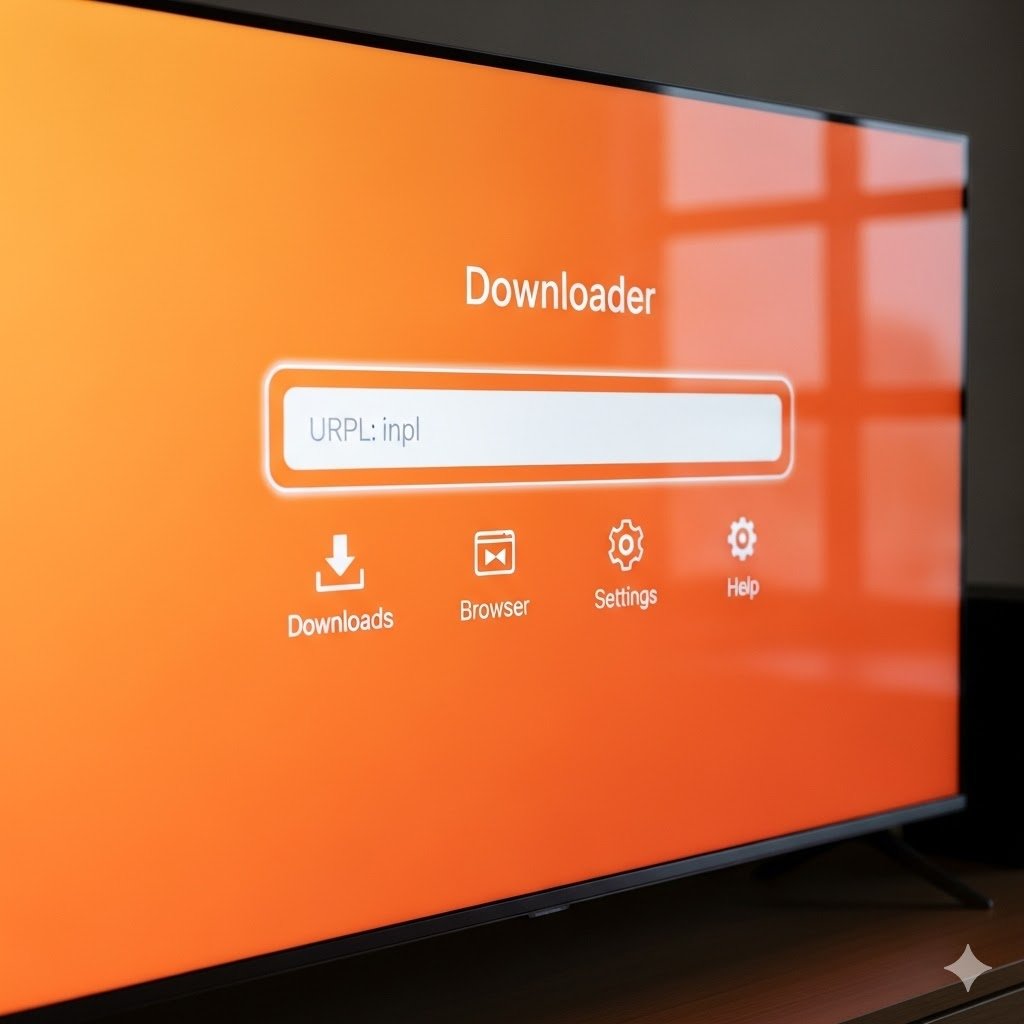
Now comes the fun part. We will use the Downloader app to install a video player capable of handling your IPTV subscription. The most popular and user-friendly option is IPTV Smarters Pro.
Åpne Nedlaster app.
Click firmly on the URL search bar in the middle of the screen.
Enter the following Downloader Code for IPTV Smarters Pro: 78522 (or use the direct URL:
iptvsmarters.com/smarters.apk).Note: If you prefer TiviMate, you can search for its specific downloader code.
Enter code 78522 in the URL bar and click Go.
Klikk Gå. The APK file will begin downloading automatically.
Once the download finishes, a prompt will appear. Click Installer.
Etter installasjonen klikker du på Ferdig (do not click Open yet).
Profftips: Klikk Slett to remove the APK installation file. This frees up valuable space on your Firestick 4K to prevent buffering later.
How to Set Up Your IPTV Service
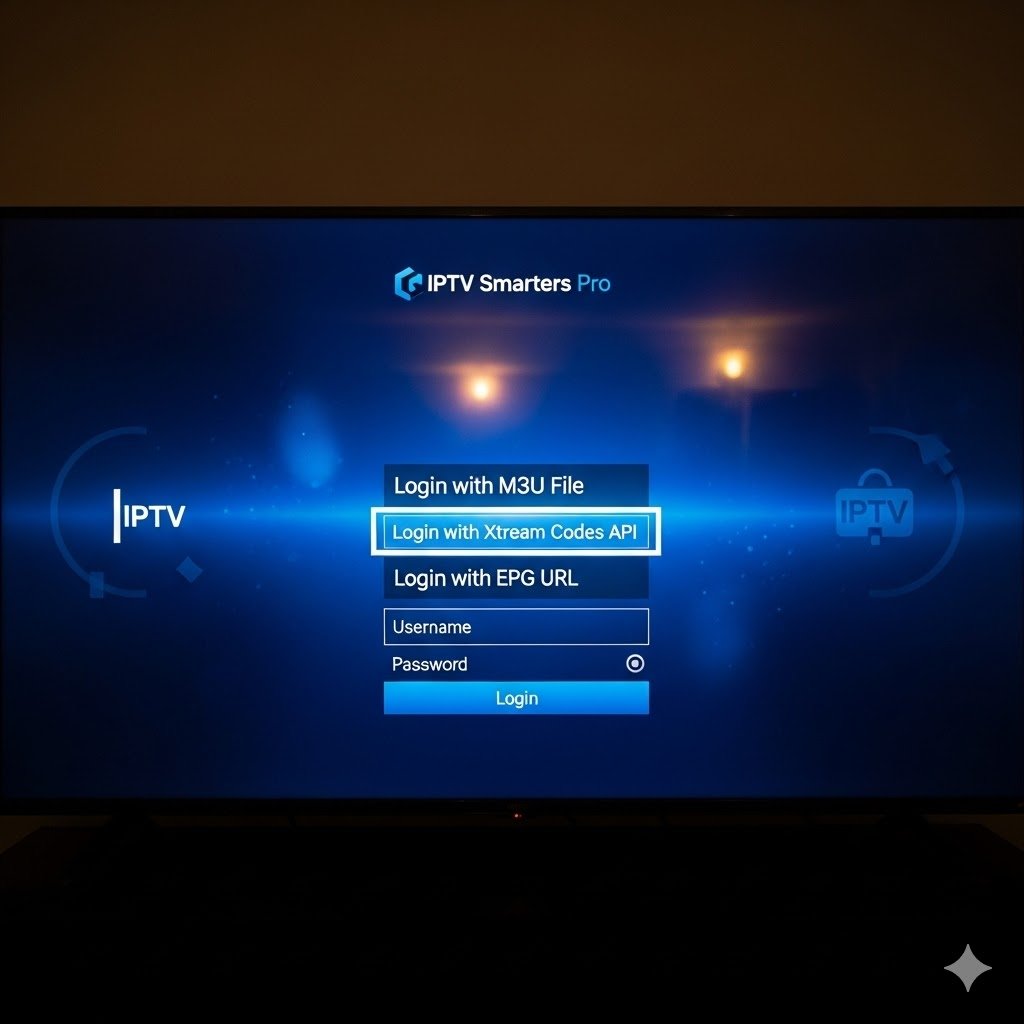
Congratulations! You have successfully installed the player. To start watching, follow these final instructions:
Go to your Apper og kanaler list and open IPTV Smarters Pro.
Velg Login with Xtream Codes API (this is the most stable method).
Choose ‘Login with Xtream Codes API’ for the best stability.
Enter the details provided by your IPTV service provider:
Any Name: (e.g., “My TV”)
Username: (From your email)
Password: (From your email)
URL/Port: (From your email)
Klikk Legg til bruker.
Your channels, movies, and series will now load. You can create a favorites list, set parental controls, and enjoy a premium TV experience.
Ofte stilte spørsmål (FAQ)
Is jailbreaking a Firestick illegal? No. The term “jailbreaking” in this context simply means enabling “Developer Options” to install apps you legally own or have access to. It is 100% legal to modify the device you purchased.
Why is my IPTV buffering? Buffering is often caused by ISP throttling. Because IPTV uses a lot of bandwidth, internet providers may intentionally slow down your connection. Using a high-speed VPN usually resolves this issue immediately.
What is the best IPTV player for Firestick in 2026? Mens IPTV Smarters Pro is excellent for beginners due to its simple interface, TiviMate is widely considered the premium choice for advanced users who want a cable-like TV guide experience.
Konklusjon
Installing IPTV on your Amazon Firestick transforms your basic streaming stick into a powerful entertainment hub. By following these 3 simple steps—unlocking developer options, installing Downloader, and sideloading your player—you gain access to a world of content.
Remember to keep your device optimized by clearing the cache regularly and always using a VPN to ensure your IPTV-streaming remains private and secure.
 Norwegian
  English (United States)
  German
  Dutch
Dutch  Swedish
  Danish
  English (UK)
  English (Australia)
  English (New Zealand)