
Are you ready to unlock the full potential of your Amazon Firestick? If you want to cut the cord and access live TV, movies, and sports without the massive cable bill, you are in the right place.
In this guide, I will walk you through the exact, step-by-step process to sideload IPTV apps onto your Fire TV Stick 4K Max.
CRITICAL 2026 UPDATE: Check Your Model
Before we start, we need to ensure you have the right hardware. Amazon released a new budget model this year that blocks this method.
✅ WORKS: Fire TV Stick 4K Max (2nd Gen) and Fire TV Stick 4K Plus. These run on Fire OS (Android) and allow sideloading.
❌ DOES NOT WORK: Fire TV Stick 4K Select. This 2026 entry-level stick runs on Vega OS (Linux). It cannot install Android APKs.
If you have the “Select” model, stop here this guide will not work for you.
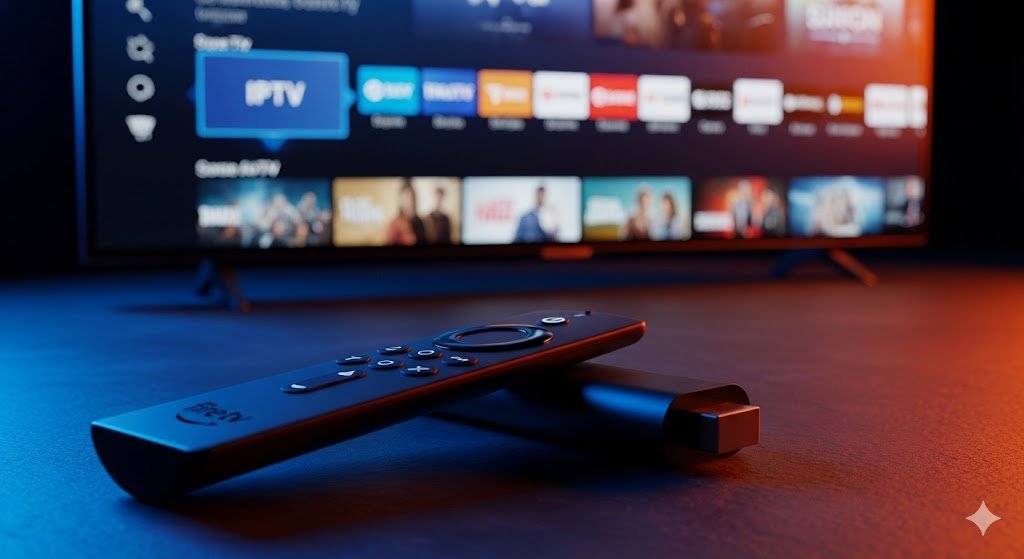
Phase 1: Jailbreak Your Firestick (Unlock Developer Mode)
Amazon hides the ability to install third-party apps by default. We need to “jailbreak” it (unlock Developer Options) to proceed.
Navigate to Settings (Gear Icon) on your home screen.
Select My Fire TV.
Click About.
Hover over Fire TV Stick 4K Max (the first item in the list).
The Secret Trick: Press the Select (Center) button on your remote 7 times fast.
Stop when you see the message: “No need, you are already a developer.”
Press the Back button once. You will now see the hidden Developer Options menu.
Phase 2: Get the Downloader App
Since IPTV players aren’t in the Amazon Appstore, we need a bridge. The Downloader app is the industry standard tool for this.
Press Home and go to Find/Search.
Type Downloader.
Select the app (Orange icon with a down arrow).
Hit Download / Get.
Important: Once installed, DO NOT OPEN IT YET. We need to grant permissions first.
Phase 3: Allow Unknown Apps (Crucial Step)
If you skip this, the installation will fail.
Go back to Settings > My Fire TV > Developer Options.
Select Install Unknown Apps.
Note: Older menus might call this “Apps from Unknown Sources”.
Find Downloader in the list and switch it ON.
Phase 4: Choose Your IPTV Player (Editor's Picks)
You cannot “install IPTV” directly; you need a Player to decode the streams. Below are the two best players on the market in 2026.
🏆 Choice A: TiviMate (Best for Speed & Premium Feel)
My personal recommendation. It looks exactly like a cable TV guide, supports 4K, and has the fastest channel zapping.
Launch Downloader.
Click the URL box and type this official shortcode: 272483
Click Go. Wait for the 5-second redirect.
Click Install > Done.
Pro Tip: Delete the APK file after installing to save space.
🥈 Choice B: IPTV Smarters Pro (Best Free Option)
The most popular free player in the world. Reliable, simple, and gets the job done.
Launch Downloader.
Click the URL box and type this shortcode: 78522
Click Go.
Click Install > Done.
Delete the APK file.
Phase 5: Activation & Setup
Now comes the fun part watching TV.
Hold the Home button > Select Apps.
Scroll to the bottom to find your new app (TiviMate or Smarters).
Press the Menu button (≡) and choose Move to Front.
Open the app.
Select Login with Xtream Codes (This is the most stable method).
Enter the credentials provided by your IPTV service:
Server URL: (e.g., https://www.google.com/search?q=http://line.provider.com)
Username: (Case sensitive)
Password: (Case sensitive)
Why You Should Use a VPN
Your ISP (Internet Service Provider) can see everything you stream. In 2026, throttling is common meaning your ISP intentionally slows down your internet when they detect streaming, causing buffering.
We strongly recommend using a VPN to encrypt your traffic, stop buffering, and protect your privacy.
Frequently Asked Questions (FAQ)
Q: Is this method legal? A: Installing the players (TiviMate/Smarters) is 100% legal. They are just video players. However, the service you plug into them must be a legal provider. We do not host or verify services.
Q: Why do I get a “Parse Error”? A: This usually means the download was corrupted or you are typing a typo in the URL. Delete the file and try the shortcode again.
Q: Can I do this on the Firestick Lite? A: Yes, as long as it is running Fire OS (Android) and not the new Vega OS. The steps are identical.
Q: My channels are buffering. How do I fix it? A: 90% of the time, this is ISP throttling. Try rebooting your router first. If that fails, enable your VPN.
 English (New Zealand)
  English (United States)
  German
  Dutch
Dutch  Swedish
  Danish
  English (UK)
  English (Australia)
  Norwegian