
Er du klar til at udnytte dit Amazon Firesticks fulde potentiale? Hvis du vil droppe kabel-tv og få adgang til live-tv, film og sport uden den enorme kabelregning, er du kommet til det rette sted.
I denne vejledning vil jeg gennemgå den præcise, trin-for-trin-proces til at sideload IPTV-apps på din Fire TV Stick 4K Max.
VIGTIG OPDATERING FOR 2026: Tjek din model
Inden vi går i gang, skal vi sikre os, at du har den rigtige hardware. Amazon har i år lanceret en ny budgetmodel, som blokke denne metode.
✅ VÆRKER: Fire TV Stick 4K Max (2. generation) og Fire TV Stick 4K Plus. De kører på Fire OS (Android) og understøtter sideloading.
❌ FUNGERER IKKE: Fire TV Stick 4K Select. Denne stick fra 2026 i entry-level-klassen kører på Vega OS (Linux). Det kan ikke installere Android-APK’er.
Hvis du har modellen “Select”, kan du stoppe her – denne vejledning gælder ikke for dig.
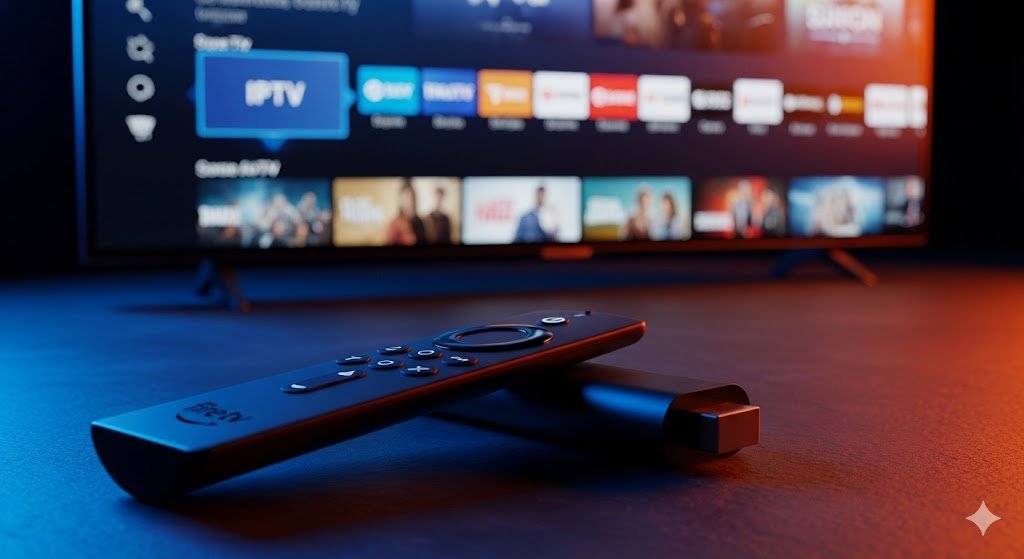
Fase 1: Jailbreak din Firestick (aktiver udviklertilstand)
Amazon skjuler som standard muligheden for at installere tredjepartsapps. Vi er nødt til at “jailbreake” den (låse udviklerindstillingerne op) for at kunne fortsætte.
Naviger til Indstillinger (Gear-ikonet) på din startskærm.
Vælg Mit Fire TV.
Klik på Omkring.
Hold markøren over Fire TV Stick 4K Max (det første punkt på listen).
Det hemmelige trick: Tryk på knappen Vælg (Midt) knappen på din fjernbetjening 7 gange hurtigt.
Stop, når du ser beskeden: “Ingen grund til det, du er allerede udvikler.”
Tryk på knappen Tilbage Tryk én gang på knappen. Du vil nu se den skjulte Muligheder for udviklere menu.
Fase 2: Hent Downloader-appen
Siden IPTV-afspillere ikke findes i Amazon Appstore, har vi brug for en bro. Den Downloader Appen er branchens standardværktøj til dette formål.
Tryk på Hjem og gå til Find/Søg.
Skriv Downloader.
Vælg appen (orange ikon med en pil nedad).
Hit Download / Få fat i.
Det er vigtigt: Når programmet er installeret, ÅBN DEN IKKE ENDNU. Vi skal først tildele tilladelser.
Fase 3: Tillad ukendte apps (afgørende trin)
Hvis du springer dette over, vil installationen mislykkes.
Gå tilbage til Indstillinger Kør Mit Fire TV Kør Muligheder for udviklere.
Vælg Installer ukendte apps.
Bemærk: I ældre menuer kan dette muligvis hedde “Apps fra ukendte kilder”.
Find Downloader på listen og skift den TIL.
Fase 4: Vælg din IPTV-afspiller (redaktionens anbefalinger)
Man kan ikke “Installer IPTV” direkte; du skal bruge en Spiller til at afkode streamene. Nedenfor finder du de to bedste afspillere på markedet i 2026.
🏆 Valgmulighed A: TiviMate (bedst til hastighed og en eksklusiv oplevelse)
Min personlige anbefaling. Den ligner præcis et kabel-tv-programoversigt, understøtter 4K og har den hurtigste kanalskift.
Start Downloader.
Klik på URL-feltet, og indtast denne officielle kortkode: 272483
Klik på Gå. Vent på omdirigeringen, der tager 5 sekunder.
Klik på Installer Kør Færdig.
Et godt råd: Slet APK-filen efter installationen for at spare plads.
🥈 Valgmulighed B: IPTV Smarters Pro (den bedste gratis løsning)
Verdens mest populære gratis afspiller. Pålidelig, enkel og gør det, den skal.
Start Downloader.
Klik på URL-feltet, og indtast denne kortkode: 78522
Klik på Gå.
Klik på Installer Kør Færdig.
Slet APK-filen.
Fase 5: Aktivering og opsætning
Nu kommer det sjove: at se tv.
Hold Hjem knap > Vælg Apps.
Rul ned til bunden for at finde din nye app (TiviMate eller Smartere).
Tryk på knappen Menuknap (≡) og vælg Flyt til forgrunden.
Åbn appen.
Vælg Login med Xtream-koder (Dette er den mest stabile metode).
Indtast de loginoplysninger, du har modtaget fra din IPTV-tjeneste:
Server-URL: (f.eks. https://www.google.com/search?q=http://line.provider.com)
Brugernavn: (Der skelnes mellem store og små bogstaver)
Kodeord: (Der skelnes mellem store og små bogstaver)
Hvorfor du bør bruge en VPN
Din ISP (Internetudbyder) kan se alt, hvad du streamer. I 2026 er hastighedsbegrænsning almindeligt, hvilket betyder, at din internetudbyder bevidst sænker din internethastighed, når de registrerer streaming, hvilket medfører buffering.
Vi anbefaler på det kraftigste, at man bruger en VPN for at kryptere din internettrafik, undgå buffering og beskytte dit privatliv.
Ofte stillede spørgsmål (FAQ)
Spørgsmål: Er denne metode lovlig? A: Det er 100%-lovligt at installere afspillerne (TiviMate/Smarters). Det er blot videoafspillere. Men service Den udbyder, du tilslutter dig, skal være en lovlig udbyder. Vi hoster eller verificerer ikke tjenester.
Spørgsmål: Hvorfor får jeg en “Parse Error”? A: Det betyder som regel, at filen, du har downloadet, er beskadiget, eller at du har lavet en tastefejl i URL-adressen. Slet filen, og prøv kortkoden igen.
Spørgsmål: Kan jeg gøre det her på Firestick Lite? A: Ja, så længe den kører Fire OS (Android) og ikke det nye Vega OS. Fremgangsmåden er den samme.
Spørgsmål: Mine kanaler bufferer. Hvordan løser jeg det? A: I 90% af tilfældene skyldes det, at internetudbyderen begrænser hastigheden. Prøv først at genstarte din router. Hvis det ikke virker, skal du aktivere din VPN.
 Danish
  English (United States)
  German
  Dutch
Dutch  English (UK)
  Norwegian
  Swedish