
Du har förmodligen köpt din Amazon Firestick För att titta på de senaste serierna i ett sträck, ställ in din IPTV-tjänst, eller titta på direktsänd sport. Det är helt logiskt; det är utan tvekan den bästa prisvärda streamingenheten på marknaden. Men gömd bakom filmreklamen och apparna för direktsänd TV finns en överraskande kapabel spelmaskin som bara väntar på att få komma till sin rätt.
Oavsett om du bara vill fördriva tio minuter med ett lättsamt arkadspel eller dyka in i storslagna AAA-titlar som Fallout 4, eller om du vill ta en nostalgitripp med gamla Nintendo-klassiker – din Firestick klarar det galant. Du behöver bara veta var du ska leta.
Här beskrivs exakt hur du kan utnyttja din Fire TV-enhets fulla spelpotential.
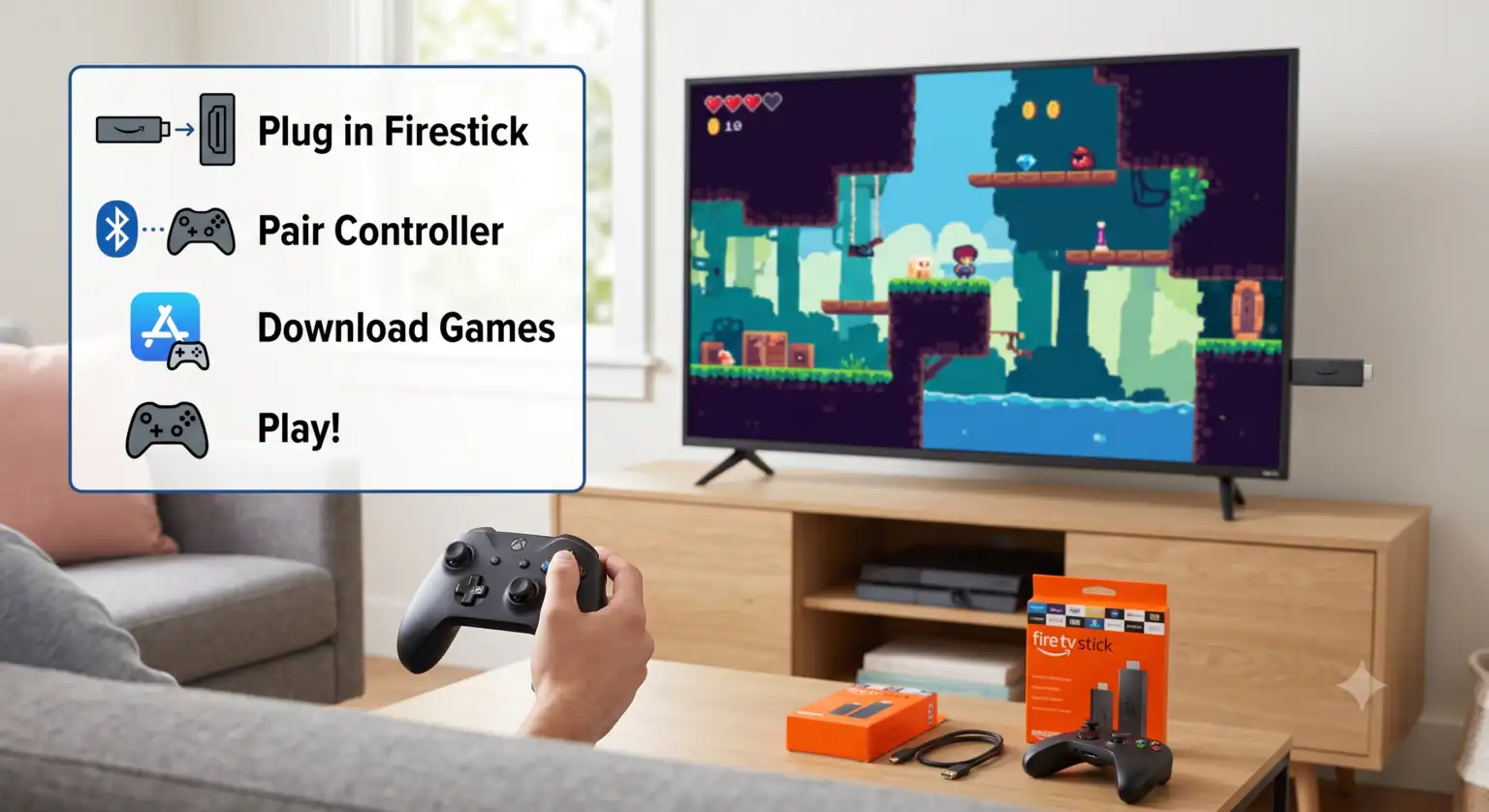
Den avslappnade vägen: Spel från Native App Store
Om du vill börja spela direkt utan krångliga inställningar, så är Amazon Appstore har ett hyfsat utbud av inbyggda spel. Sökfunktionen på Firestick kan vara lite krångligt, så det är bra att veta exakt vad man letar efter.
Vissa spel fungerar utmärkt med den vanliga röststyrda fjärrkontrollen, medan andra verkligen kommer till sin rätt när man ansluter en Bluetooth-kontroll.
Asphalt 8: Airborne: Detta bevisar att även avancerade racingspel med avancerad 3D-grafik kan köras lokalt på en Firestick. Du får tillgång till över 50 licensierade bilar och flera banor. Obs! För att undvika fördröjningar bör du definitivt använda en Fire TV 4K eller 4K Max, och spelet kräver cirka 1,42 GB ledigt utrymme.
Crossy Road: En modern tolkning av Frogger. Det är väldigt beroendeframkallande, gratis att spela och fungerar felfritt med bara den vanliga Firestick-fjärrkontrollen.
Hungry Shark Evolution: Du spelar som en haj, äter fisk och uppgraderar dina vapen. Spelet är kaotiskt, gratis och förvånansvärt väl anpassat för TV-skärmen.
Jackbox Party Pack: Om du har vänner på besök är Jackbox ett måste. Firestick kör själva spelet på din TV, och alla använder sina smartphones som handkontroller för att svara på frågor och spela sällskapsspel.
The Cloud Route: AAA-spel utan spelkonsol
Det är när du utnyttjar molnbaserat spelande som den verkliga magin uppstår. Istället för att förlita sig på Firesticks begränsade inbyggda hårdvara bearbetas spelen på enorma servrar och strömmas direkt till din TV, precis som en Netflix-film.
Amazon Luna
Amazons egenutvecklade molnbaserade speltjänst, Luna, förvandlar din Fire TV till en fullfjädrad spelkonsol. Om du redan är Amazon Prime-medlem får du varje månad tillgång till ett växlande utbud av gratis premiumspel utan extra kostnad. För ett bredare spelutbud kan du prenumerera på Luna+. Du kan spela med en kompatibel Bluetooth-kontroll, den officiella trådlösa Luna-kontrollen eller till och med din smartphone via Luna-kontrollappen.
Xbox Cloud Gaming
Du behöver inte lägga ut hundratals dollar på en Xbox Series X. Den officiella Xbox-appen finns nu tillgänglig på kompatibla Fire TV-enheter. Genom att koppla ihop en Bluetooth-kontroll (till exempel en Xbox- eller PlayStation-kontroll) och teckna ett Xbox Game Pass Ultimate-abonnemang kan du streama stora succéer som Starfield, Forza Horizon 5, och Fallout 4 direkt till din TV. Om du inte vill ha ett abonnemang, Fortnite finns tillgängligt för streaming och kan spelas upp helt gratis.
Retro-rutten: Emulering via RetroArch
Om du läser en webbplats som handlar om IPTV är du förmodligen inte rädd för att ladda ner appar på egen hand. Genom att installera RetroArch kan du förvandla din stick till den ultimata retrogamingsmaskinen.
RetroArch är en allt-i-ett-emulator som låter dig spela ROM-filer från klassiska konsoler som NES, SNES, Sega Genesis och PlayStation 1. Eftersom Firestick endast har ett begränsat internt minne (vanligtvis 8 GB eller 16 GB) kan du inte lagra tusentals tunga 3D-spel direkt på enheten. Men för lätta 16-bitars klassiker räcker det mer än väl.
Ett snabbt tips för installationen: När du konfigurerar RetroArch på Firestick måste du ladda ner specifika “cores” (själva emulatorerna) för varje konsol. Använd till exempel Snes9x kärnspel för Super Nintendo och Nestopia UE för den ursprungliga NES-konsolen. Du bör också koppla ihop din handkontroll i X-Input-läge (Windows) istället för D-Input-läge (Android) för att säkerställa att knappkonfigurationen fungerar korrekt.
Hårdvarutips för Firestick-spelare
Om du planerar att göra mer än att bara spela enkla pusselspel måste du förbereda din hårdvara.
Skaffa en riktig handkontroll: Fire TV-fjärrkontrollen fungerar visserligen bra för enkla pekspel, men upplevelsen blir usel för allt som kräver snabba reflexer. Vilken vanlig Bluetooth-spelkontroll som helst kan enkelt kopplas ihop via Bluetooth-inställningarna på Firestick.
Använd en OTG-kabel för lagring: Firesticks är kända för att ha ont om lagringsutrymme. Du kan köpa en billig Micro USB OTG-kabel (On-The-Go) för att ansluta ett USB-minne. Formatera minnet som “Externt lagringsutrymme” i inställningarna för din Fire TV, så får du plötsligt gott om utrymme för tunga inbyggda spel eller ROM-bibliotek.
Anslut via kabel: Om du använder Luna eller Xbox Cloud Gaming är en stabil internetanslutning ett absolut måste. Wi-Fi fungerar visserligen, men om du skaffar en Ethernet-adapter till din Firestick kommer du att kunna minska inmatningsfördröjningen och bildhackning avsevärt.
Din Firestick är en riktig kraftpaket förklädd till en billig streamingdongel. När du har konfigurerat dina IPTV-kanaler och ordnat dina filmappar är det bara att ansluta en handkontroll och se vad den verkligen går för.
Konfigurera en Luna-kontroll på Fire TV
Den här guiden visar exakt hur du kopplar ihop en handkontroll med din TV och hur du smidigt navigerar i gränssnittet för Luna-molnspel.
 Swedish
  English (United States)
  German
  Dutch
Dutch  Danish
  English (UK)
  Norwegian