
You settle in on the couch, fire up your device to catch a live game or a new movie, and… nothing. Just a spinning wheel, stuttering frames, or a frustrating “connection timeout” error. If your internet works perfectly for web browsing and YouTube, but your live TV streams are dead in the water, you’re probably asking yourself one question: Can my ISP block IPTV?
The short answer is yes. Internet Service Providers (ISPs) absolutely have the tools to monitor, throttle, and outright block IPTV streams.
Here is exactly how they do it, why they care about your streaming habits, and what you can do to take back control of your connection.
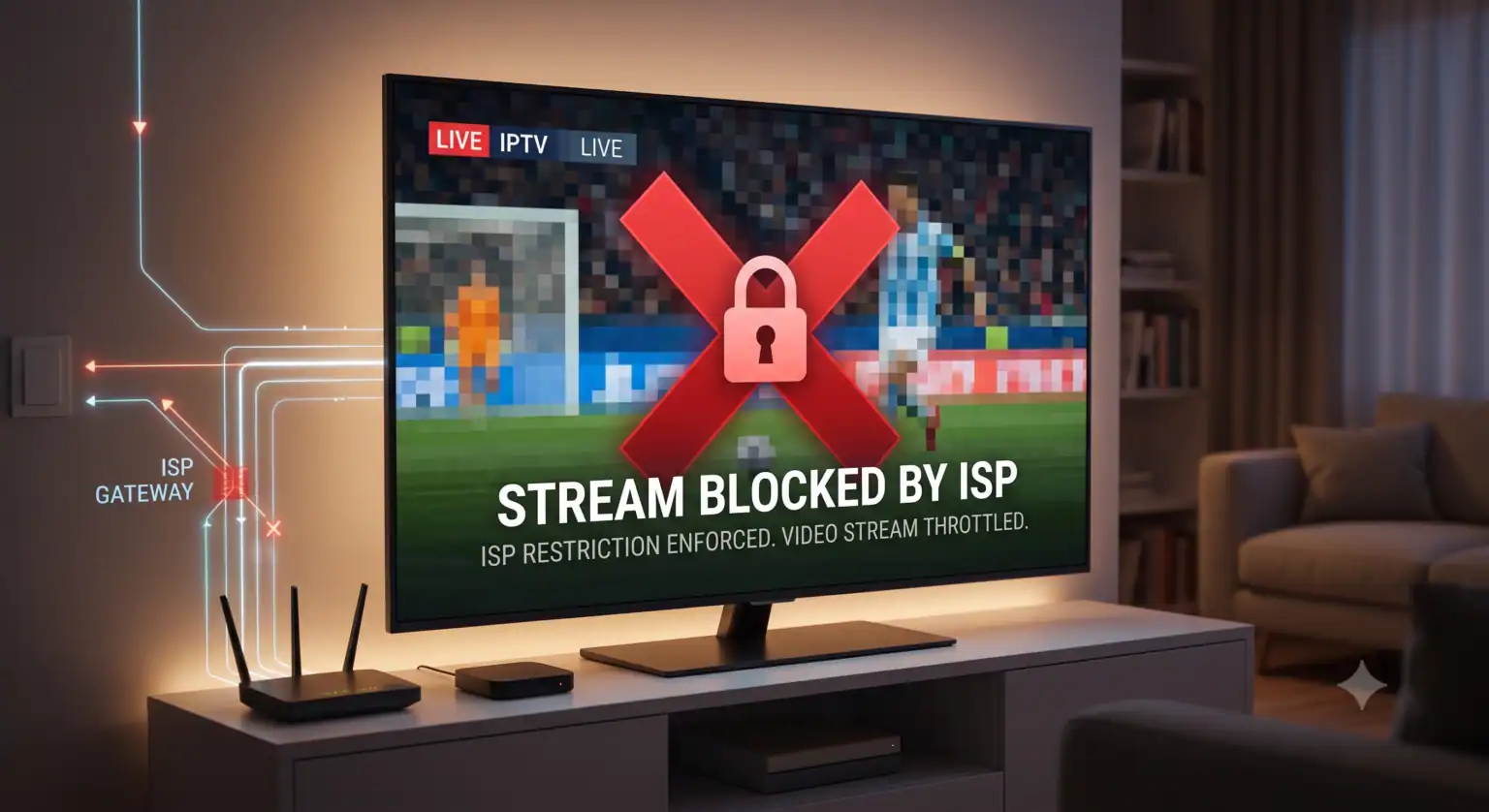
Why Is Your ISP Blocking Your Stream?
ISPs don’t just block traffic for fun; it takes network resources to filter connections. They usually target IPTV for two main reasons:
Network Congestion: Live streaming consumes a massive amount of bandwidth. During peak hours (like a major sporting event), ISPs will actively throttle data-heavy video streams to keep the overall network stable for everyone else.
Copyright and Legal Pressure: Many ISPs act on court orders or pressure from major broadcasters to block access to unlicensed IPTV-diensten. In some countries, ISPs are legally mandated to restrict access to specific servers during live Premier League matches or PPV events.
How ISPs Actually Block IPTV
Your ISP is essentially the digital postal service for your home. Since they handle every request you make, they have a few different ways to stop your “mail” from being delivered.
1. DNS Filtering (The “Fake Directions” Method)
When you connect to an IPTV-service, your device asks a Domain Name System (DNS) to translate the server name into an IP address. If your ISP uses DNS filtering, they simply give your device the wrong address or pretend the site doesn’t exist. This was common a few years ago, and simply switching to Google DNS (8.8.8.8) or Cloudflare (1.1.1.1) used to be enough to bypass it.
2. IP and Port Blocking (The “Bouncer” Method)
If the ISP knows the exact server IP address your IPTV provider uses, they can completely black-hole any traffic trying to go there. They might also block specific network “ports” (like port 1935, often used for streaming) to stop the video data from reaching your screen.
3. Deep Packet Inspection (The “Wiretap” Method)
This is the modern, heavy-handed approach. With Deep Packet Inspection (DPI), your ISP isn’t just looking at where your data is going; they are analyzing the data itself. DPI can easily identify the signature of a live video stream. Once they spot it, they can instantly throttle your speeds, causing endless buffering, even if you have a gigabit internet connection.
How to Bypass ISP Throttling and Blocking
If your ISP is using basic DNS blocks, you might get lucky just changing your router’s DNS settings. But if they are using DPI or IP blocks, you need a stronger tool.
Here is how the three most common bypass methods stack up against ISP restrictions:
| Oplossing | Hides Traffic from DPI? | Unblocks IP Bans? | Speed Impact | Beste gebruikscasus |
| Premium VPN | Yes (Encrypted) | Ja | Mild to Moderate | The most reliable way to stop ISP throttling and bypass DPI. |
| Smart DNS | No (Unencrypted) | Yes (For geo-blocks) | Geen | Good for bypassing basic regional blocks, but fails against DPI. |
| SOCKS5 Proxy | No (Unencrypted) | Ja | Hoog | Masking your IP cheaply, though datacenter proxies often buffer heavily with live streams. |
Why a VPN is the Gold Standard for IPTV
Een virtueel privénetwerk (VPN) is currently the only reliable way to defeat modern ISP blocking.
When you use a VPN, it wraps your internet traffic in a layer of heavy encryption before it ever leaves your house. By the time your data passes through your ISP’s servers, it just looks like scrambled code. Because they can’t read the data via Deep Packet Inspection, they don’t know you’re streaming IPTV, which prevents targeted throttling. Furthermore, because the VPN routes you through a different server, your ISP has no idea what the final destination (the IPTV server) actually is.
A quick tip for live streaming: Make sure your VPN uses the UDP protocol rather than TCP. Live video relies on UDP for real-time speed. Forcing a live stream through a TCP-only connection adds overhead and is a major cause of audio desync and frame drops.
 Dutch
Dutch  English (United States)
  German
  Danish
  English (UK)
  Norwegian
  Swedish