
Stop buying Firesticks! Discover the “No Box” method to install IPTV directly on Samsung Tizen & LG WebOS TVs. The ultimate 2026 setup guide for Smarters, IBO Player & Smart IPTV.
If you are reading this, you probably have a sleek, wall-mounted Samsung or LG TV, and you are wondering: “Do I really need to ruin this clean setup with an ugly Android box and messy wires?”
The short answer is: Absolutely not.
Welcome to the “No Box” Method. In this guide, I’m going to show you how to bypass external hardware entirely and run a premium IPTV setup natively on your TV’s operating system. It’s faster, cleaner, and yes it saves you the $50 you’d spend on a Firestick 4K.
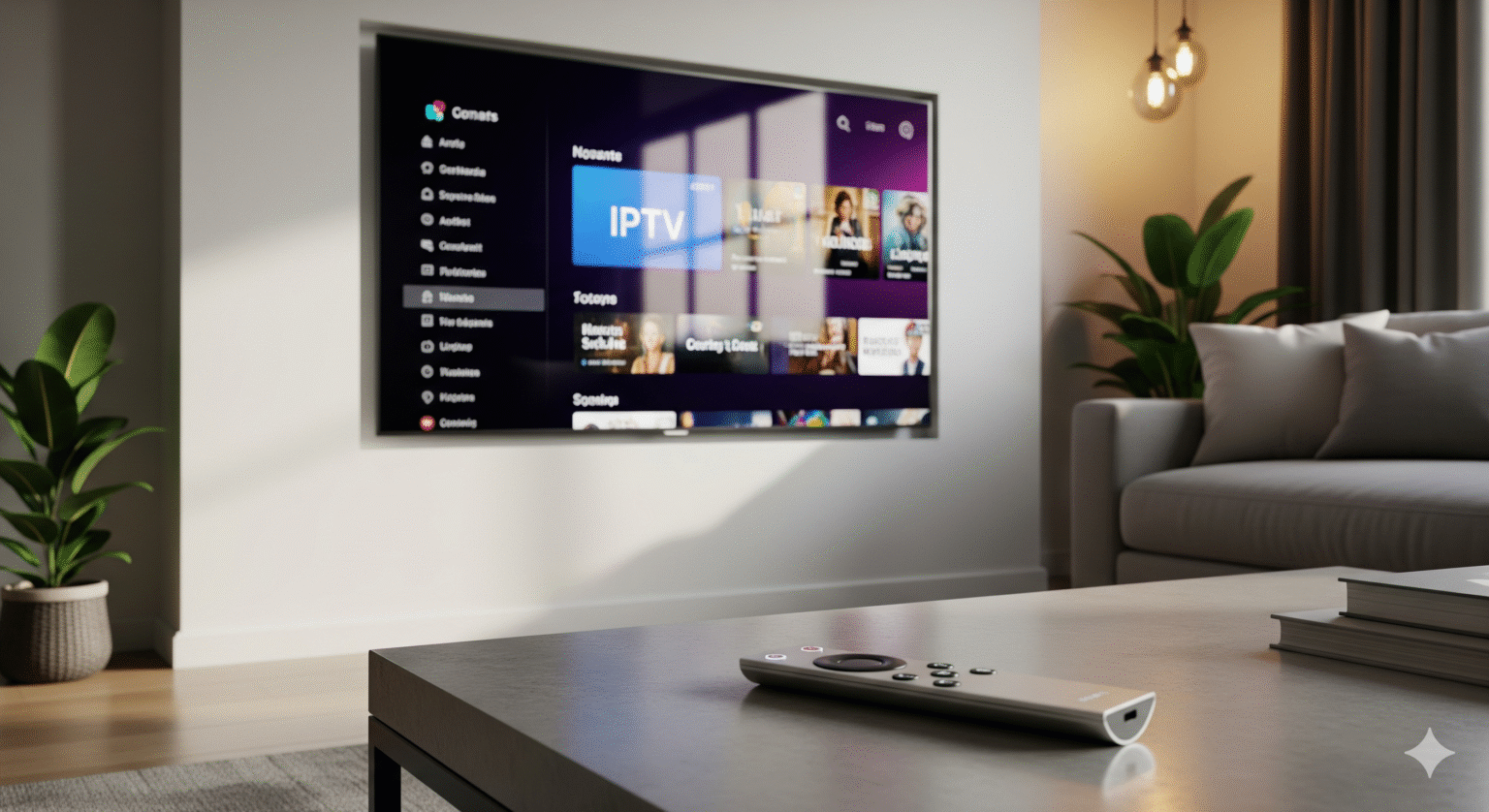
Why the "No Box" Method is Taking Over
I used to recommend Nvidia Shields to everyone. But as of 2026, Samsung’s Tizen OS and LG’s WebOS have become powerful enough to handle 4K streaming without the stutter.
Here is why my readers are switching to native apps:
Zero Hardware Clutter: No HDMI cables, no power bricks, no dongles hanging off the side of your TV. Just one power cord.
The “One Remote” Dream: Control your volume, channels, and power with your high-end Magic Remote or Samsung Smart Remote. No more juggling.
Superior Upscaling: Native apps let your TV’s internal processor handle the image upscaling, often resulting in crisper picture quality than cheap external boxes.
Prerequisites: Before You Start
You cannot skip these. To ensure a buffer-free experience, make sure you have:
Internet Connection: Hardwire (Ethernet) is king. If you must use Wi-Fi, ensure you are on a 5GHz band.
Your Credentials: You need your M3U URL afspeellijst (the long link) or Xtream-codes (Server/User/Pass). Don’t have one? Check your provider’s welcome email.
A Secondary Device: Keep your laptop or phone handy. You cannot type M3U lines with a TV remote we will be “pushing” the playlist remotely.
Step 1: The Best Native IPTV Apps for 2026
Samsung and LG are “walled gardens,” meaning you can’t just download anything. You need apps approved for their official stores. Here are the top 3 contenders I trust:
🥇 1. IPTV Smarters Pro (The Interface King)
Geschikt voor: Families and users who want a “Netflix-style” layout with movie posters and series info.
Verdict: If it’s available in your region’s app store, download this first.
🥈 2. IBO Player (The Modern Premium)
Geschikt voor: Speed and stability. It handles 4K streams incredibly well.
Verdict: A fantastic paid alternative (usually ~$8/year) if Smarters isn’t available.
🥉 3. Smart IPTV (SIPTV) (The “Old Reliable”)
Geschikt voor: Raw performance. The UI looks dated (very 2010), but it processes massive playlists without crashing.
Verdict: The go-to backup for power users.
Step 2: The Universal Setup Guide (Mac Address Method)
Most native apps use a cloud management portal. This is actually better than Android boxes because you can manage your channels from your laptop, not a clumsy on-screen keyboard.
Follow this exact workflow:
1. Install & Launch
Go to your Samsung Apps of LG Store voor inhoud, search for “IPTV”, and install your chosen app (e.g., IBO Speler of Slimme IPTV).
2. Locate Your Device ID
Open the app. On the main screen, you will see a code labeled MAC-adres of Apparaat-ID.
It looks like this:
a1:b2:c3:d4:e5:f6Write this down immediately.
3. Push the Content
Open the app’s official management website on your computer:
Smart IPTV:
siptv.app/mylistIBO Player:
iboplayer.com/device/loginSmarters: (Varies, but usually has an internal login screen, or use the Xtream Codes API directly on TV).
4. The Activation
MAC/ID Field: Type the code you wrote down.
URL/Playlist Field: Plak uw M3U URL here.
Region/EPG: Select your region if asked, and ensure “Detect EPG” is checked for the TV guide.
Klik op Stuur, uploadenof Add Playlist.
5. The Hard Reset
Go back to your TV. Restart the app. (Long press the ‘Back’ button or exit and re-launch).
Resultaat: Your channels should load instantly.
Troubleshooting: Fix Buffering & "Check URL" Errors
If it’s not working perfectly, it’s usually one of these three things.
Problem: “Check Playlist URL” or “Failed to Load”
The Fix: You likely have a typo in the M3U link, or the link is too long for the TV’s memory. Use a URL shortener (like tinyurl) if the app allows it, or double-check that you didn’t copy a “space” at the end of the link.
Problem: Buffering every 30 seconds
The Fix: Slimme TV Wi-Fi chips are weak. Move your router closer, or buy a Powerline Adapter to get a hardwired connection without drilling holes.
Problem: No TV Guide (EPG)
The Fix: TV RAM is limited. If your playlist has 20,000 channels, the EPG will crash. Go to the website and delete groups you don’t watch (e.g., remove foreign language categories) to lighten the load.
FAQ: Common Questions
Q: Is this legal? A: The apps themselves (Smarters, IBO, etc.) are 100% legal media players. They do not contain content. You are responsible for the content you put into them.
Q: Can I record shows on a Smart TV? A: Generally, no. Native TV storage is very small. If recording is a dealbreaker for you, you will need an external Android box with USB storage.
Q: My app disappeared from the store! A: Samsung and LG sometimes delist apps. If you already have it installed, do not delete it, or you might not get it back.
Eindoordeel
The “No Box” method is the cleanest way to enjoy IPTV in 2026. While hardware enthusiasts might miss the customizability of an Android box, the convenience of using a single remote on a high-end OLED or QLED screen is unbeatable.
Ready to cut the cord? Grab your M3U link, head to your TV’s app store, and get set up in under 5 minutes.
Drop a comment below: Which app works best on your TV model?
 Dutch
Dutch  English (United States)
  German
  Swedish
  Danish
  English (UK)
  English (Australia)
  English (New Zealand)
  Norwegian