
If you’ve spent any time navigating the world of cord-cutting, you already know that your IPTV experience is only as good as the player you use. A great provider paired with a clunky, buffering app is a recipe for a headache. For a long time, TiviMate has been the undisputed heavyweight champion of Android TV players. But over the past couple of years, iMPlayer has quietly evolved from a solid alternative into a powerhouse that might actually take the crown.
Whether you’re running an Nvidia Shield, a Xiaomi Box, an Amazon Firestick, or even an Apple TV, here is everything you need to know about iMPlayer, its standout features, and how to get it running smoothly.
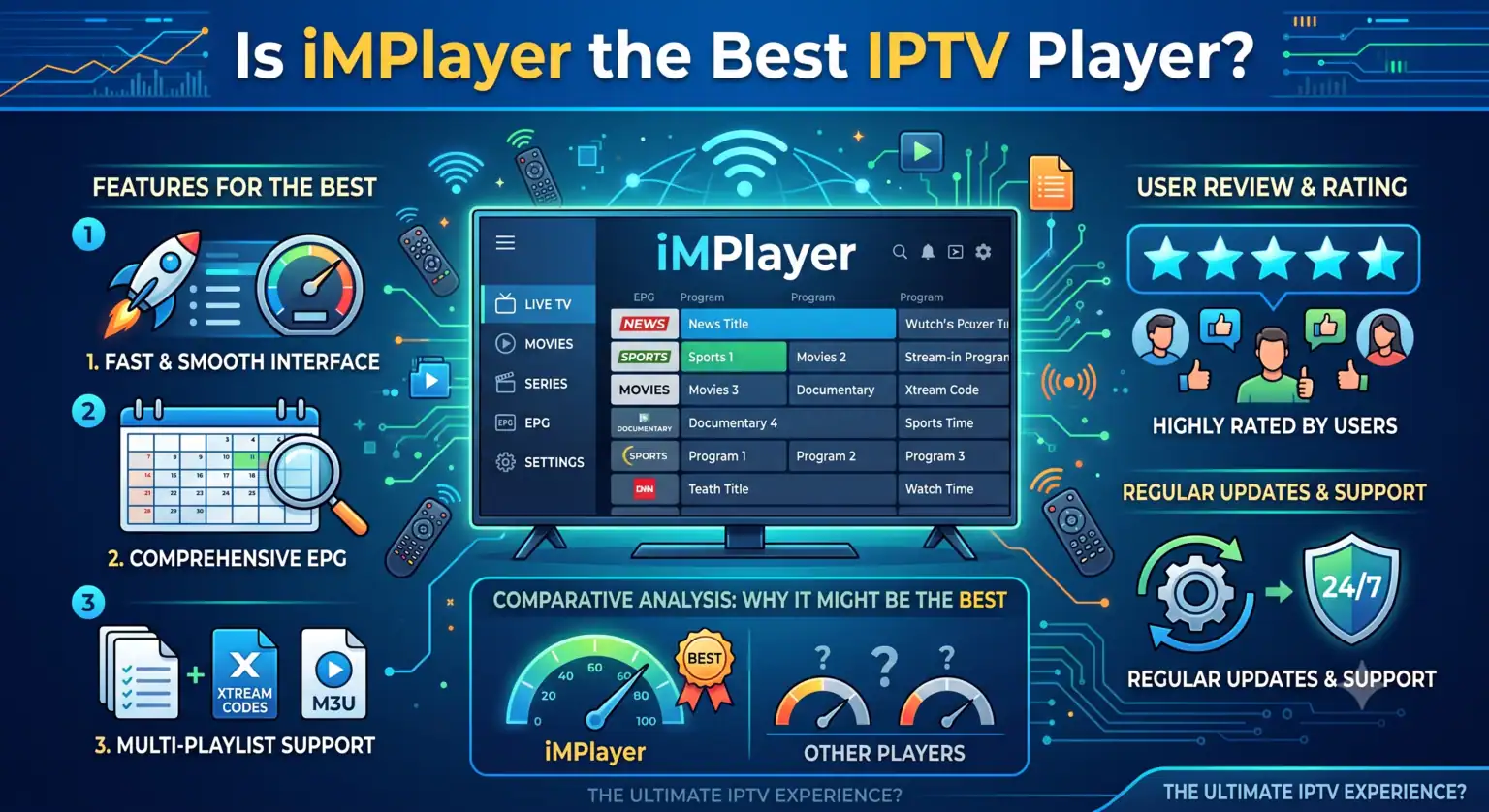
What Makes iMPlayer Stand Out?
iMPlayer isn’t just another generic M3U reader. It’s built specifically to mimic a premium cable box experience, focusing on speed, customization, and multi-device management. Here’s where it really shines:
The Web Dashboard: This is arguably iMPlayer’s biggest selling point. Instead of typing out incredibly long M3U URLs or Xtream Codes credentials using your TV remote (we all know how painful that is), you can log into the iMPlayer web dashboard on your phone or computer. From there, you can push playlists, edit groups, and manage settings across all your devices instantly.
Automatic Subtitles for VOD: If your provider includes a massive library of Movies and TV Shows (VOD), finding subtitles can be a hassle. iMPlayer automatically fetches subtitles for your content out of the box, making it perfect for international viewing or late-night binge-watching when you need to keep the volume down.
Trakt Integration: Movie and TV show nerds will love this. iMPlayer syncs with Trakt.tv to automatically track your watch history, so you never forget which episode you left off on.
Snappy EPG and Catch-Up: The Electronic Program Guide (EPG) loads incredibly fast. If your provider supports Catch-Up (the ability to watch programs that aired a few days ago), iMPlayer handles it seamlessly with dedicated rewind capabilities and a local timeshift feature.
Emby Integration: Unlike many pure IPTV players, iMPlayer accepts Emby Connect credentials, allowing you to bridge your specialized VOD server content with your live TV channels.
iMPlayer vs. TiviMate: Which is Better?
This is the most common question in the IPTV community. The truth is, both are elite applications, but they cater to slightly different preferences.
TiviMate is known for being incredibly lightweight and bulletproof. It rarely crashes and the UI is universally loved. However, managing multiple devices on TiviMate requires backing up and restoring files manually.
iMPlayer is slightly heavier (meaning it performs best on devices with at least 2GB to 4GB of RAM, like the Shield or Xiaomi Box Gen 2), but it offers far better remote management through its cloud dashboard. If you share your subscription across different rooms in your house or manage setups for older family members, iMPlayer’s remote sync feature makes it the superior choice. Plus, the recent addition of Apple TV and iOS support gives it a massive edge over Android-only competitors.
Step-by-Step Setup Guide
Setting up iMPlayer is straightforward. Here’s the quickest way to get started using Xtream Codes (the preferred method over M3U files for faster loading).
Download the App: On your Android TV, you can easily find the iMPlayer app in the Google Play Store. If you are on a Firestick, you can use the “Downloader” app to sideload it directly from their official website.
Open the App & Choose Login: When you first boot up, bypass the M3U option and select Xtream Codes API.
Enter Your Credentials: You will need three pieces of information from your IPTV provider:
Server URL (Portal URL)
Username
Password
Connect & Sync: Hit connect. iMPlayer will download your live channels, EPG, and VOD library.
Customize Your Groups: Dive into the settings to hide countries or categories you don’t watch. This drastically speeds up the app and cleans up your interface.
Pricing
iMPlayer offers a free tier, which is great for testing the waters and checking out the UI. However, to unlock the features that actually make the app worth using (like Catch-Up, VOD organization, the web dashboard, and multiple playlists), you’ll want the Premium version.
It operates on a device-based license structure. You can buy a premium license for a set number of devices (e.g., up to 4 devices), and it syncs beautifully across them all. Given that it’s a lifetime payment rather than a recurring subscription, it pays for itself incredibly fast.
The Verdict
If you’re still using a provider’s generic app or a dated player, switching to iMPlayer will feel like upgrading from a flip phone to a modern smartphone. The UI does take a little bit of time to get used to, but once you master the remote shortcuts and set up your dashboard, you won’t look back.
iMPlayer Setup and Interface Walkthrough
If you want to see exactly how the menus function before installing, this tutorial offers a solid visual breakdown of the app’s initial configuration.
 English (UK)
  English (United States)
  German
  Dutch
Dutch  Danish
  Norwegian
  Swedish