
Setting up an IPTV service used to feel like you were trying to hack into a government mainframe. You had to deal with sketchy forums, broken links, and complicated software. Today? It’s basically as easy as logging into Netflix as long as you have the right instructions.
If you are tired of paying massive cable bills and want to know exactly how to set up IPTV on your Firestick, Smart TV, or phone, you’re in the right place. I’ll walk you through the entire process from start to finish, completely skip the technical jargon, and show you how to fix that annoying buffering issue everyone complains about.
Let’s get into it.
1. The Essentials: What You Need Before You Start
Before we start downloading anything, make sure you actually have the necessary tools. To make your IPTV setup work, you need four specific things:
A Streaming Device: An Amazon Firestick, Android TV box, NVIDIA Shield, or Apple TV. (Smart TVs work too, but dedicated streaming sticks are usually faster).
An IPTV Player App: This is just the empty shell that plays the video. The best IPTV apps in 2026 are TiviMate and IPTV Smarters Pro.
An IPTV Subscription: You need an active account from a provider. They will give you your login credentials.
A Solid Internet Connection: Don’t expect 4K sports to play smoothly on 5 Mbps. You want at least 25-30 Mbps for a stable stream.
2. Xtream Codes vs. M3U Playlist: What's the Difference?
When you buy an IPTV subscription, the provider is going to send you an email with your login details. Usually, they give you two options to connect your service to your player app. Xtream Codes API This is the easiest and most popular method. It looks exactly like a normal login screen. You get:
A Server URL (http://server-name.com:8080) A UsernameA Password M3U Playlist URL This is a really long, ugly web link that ends in .m3u. It contains all the channel data. It works perfectly fine, but typing it out on a TV remote is a nightmare. My recommendation? Always use Xtream Codes if your app allows it.
3. How to Install IPTV on Firestick & Android TV
The Amazon Firestick is hands down the most popular device for IPTV. Because it runs on Android, setting it up is quick. We are going to use IPTV Smarters Pro for this example because it’s super beginner-friendly.
Get the Downloader App: Go to the search bar on your Firestick home screen, type in “Downloader,” and install it.
Enable Unknown Sources: Go to your Firestick Settings > My Fire TV > Developer Options, and turn on “Install Unknown Apps” for Downloader.
Download the Player: Open the Downloader app, click the URL bar, and type smarters.link (the official shortcut for IPTV Smarters Pro). Hit Go and install the app.
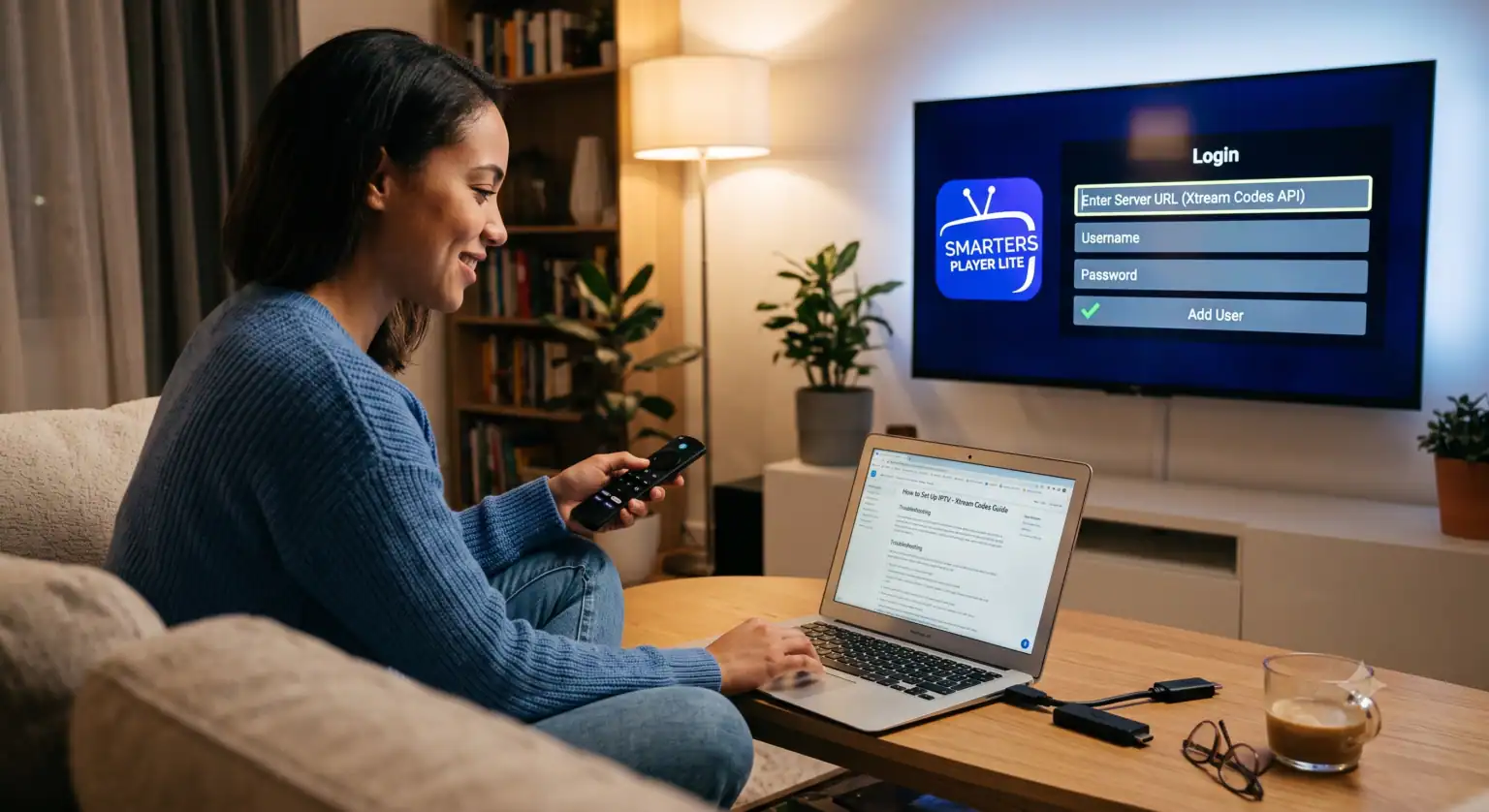
Log In: Open IPTV Smarters Pro. Select Login with Xtream Codes API.
Enter Your Details: Type in whatever name you want for the first box, then enter the Username, Password, and Server URL your provider gave you. Click “Add User.”
That’s it. Give it a minute to download the TV guide (EPG), and you are good to go.
4. Setting Up IPTV on a Smart TV (Samsung & LG)
If you don’t have a Firestick and just want to use the built-in app store on your Samsung or LG TV, the process is slightly different.
Open your TV’s app store and search for IBO Player or Smart IPTV. Download it.
Open the app. The very first screen will display a MAC Address (it looks like a mix of letters and numbers, like a1:b2:c3:d4:e5:f6). Write this down.
Grab your laptop or phone and go to the website shown on your TV screen (usually the app developer’s site).
Enter your MAC Address on their website, and paste the M3U Playlist URL your IPTV provider gave you.
Hit submit, restart the app on your TV, and your channels will load automatically.
5. Setting Up IPTV on Apple TV & iOS
Apple runs a tight ship, so you can’t easily sideload unofficial apps. Luckily, there are plenty of great, official IPTV players right in the App Store.
Open the App Store and search for Smarters Player Lite or GSE Smart IPTV.
Download and open the app.
Just like the Android method, select Add User and choose Xtream Codes API.
Punch in your provider credentials and hit save.
6. How to Fix IPTV Buffering (The Real Secret)
Nothing is worse than the stream freezing right before a goal is scored. If you are dealing with constant buffering, your setup isn’t broken it just needs optimizing. Try these three fixes:
Use a VPN: This is the big one. Many Internet Service Providers (ISPs) actively throttle IPTV traffic. By running a VPN in the background, your ISP can’t see what you are streaming, which instantly stops the throttling.
Ditch the Wi-Fi: If your router is on the other side of the house, your stream will suffer. Buy an ethernet adapter and hardwire your streaming device directly to your router.
Clear Your App Cache: If you’ve been watching TV for a few months, your IPTV player app is probably bloated with old TV guide data. Go to your device settings, find the app, and click “Clear Cache.”
Final Thoughts
Once you go through an IPTV setup tutorial for the first time, you realize it’s actually incredibly straightforward. The hardest part is just typing in your password with a plastic TV remote.
Remember, the player app is just a media player it doesn’t hold any content itself. Your viewing experience is going to depend entirely on the quality of your internet connection and the reliability of your provider. Take a few minutes to set things up properly, grab a VPN to protect your connection, and enjoy the massive library of content at your fingertips.
 English (UK)
  English (United States)
  German
  Dutch
Dutch  Danish
  Norwegian
  Swedish