
There is nothing quite as frustrating as watching your favorite team make a break for the goal, only for the screen to freeze on a loading circle. If you rely on IPTV for your daily entertainment or live sports, you already know that buffering is public enemy number one. But here is the good news: most of the time, the issue isn’t a dead server or a bad provider. Usually, the culprit is just a few misconfigured settings on your device or app.
Let’s dive into the best IPTV settings to stop lag, reduce buffering, and get your streams running flawlessly.
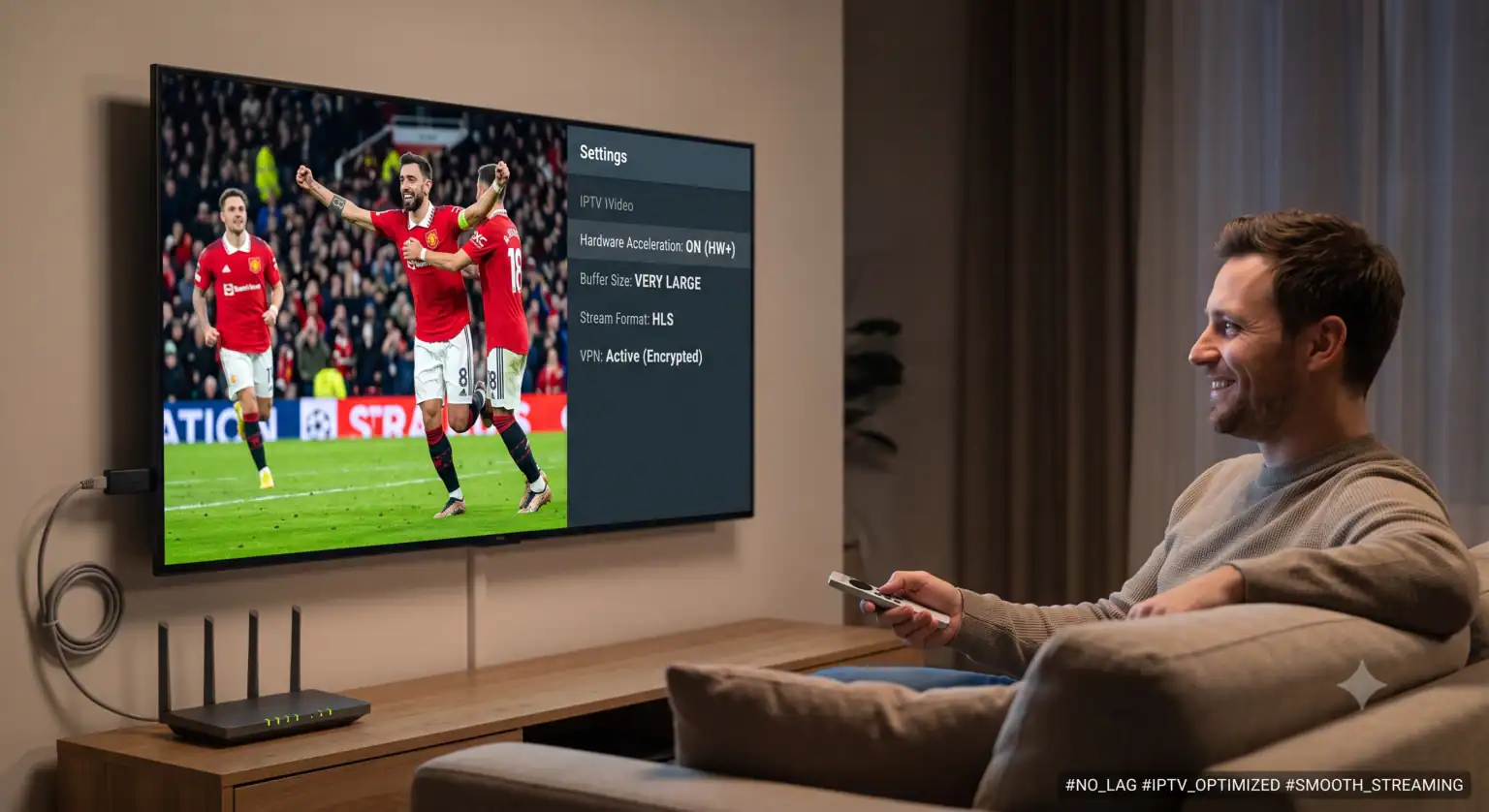
1. Tweak Your App’s Player Settings
Whether you are using TiviMate, IPTV Smarters Pro, or another popular app, the internal player settings dictate how efficiently the video is processed.
Enable Hardware Acceleration: This is the most crucial setting. Hardware acceleration forces your device’s dedicated graphics chip to decode the video instead of the main processor. In your app’s settings, look for “Hardware Decoder” or “HW+” and make sure it is turned on. If you ever get audio with a black screen, you can toggle it back to Software (SW), but HW is the gold standard for smooth playback.
Increase the Buffer Size: It sounds counterintuitive, but to stop lagging, you actually want a buffer. A buffer downloads a few seconds of the stream in advance. If your internet hiccups for a second, the video keeps playing from the reserve. Change your buffer size from “Small” or “Zero” to “Large” or “Very Large.” It might take an extra second to load the channel initially, but it prevents mid-stream freezing.
Choose the Right Stream Format: If your app gives you a choice between TS (MPEG-TS) and HLS (m3u8) formats, select HLS. HLS is designed specifically for streaming over inconsistent networks and adapts much better to speed fluctuations.
2. Optimize Your Network Connection
Your IPTV stream demands a constant, uninterrupted flow of data. If that flow breaks, the video stops.
Ditch the Wi-Fi for Ethernet: Wi-Fi signals degrade through walls and suffer interference from other devices. If your streaming box or smart TV has an Ethernet port, use it. For a Firestick, spend a few bucks on an OTG Ethernet adapter. A hardwired connection is the single most effective way to kill lag.
Use the 5GHz Band: If you absolutely must use Wi-Fi, ensure your device is connected to your router’s 5GHz network, not the 2.4GHz one. 5GHz offers significantly faster speeds and less interference, though you’ll need to keep the router relatively close to the TV.
Change Your DNS Servers: Your Internet Service Provider (ISP) automatically routes your traffic through their default DNS servers, which can be sluggish. Dive into your device’s network settings and change your DNS to Cloudflare (1.1.1.1) or Google (8.8.8.8). This simple trick often speeds up connection routing and reduces load times.
3. Beat ISP Throttling with a VPN
Have you ever noticed that your stream works perfectly during the day, but turns into a buffering nightmare right at 8:00 PM or during a massive pay-per-view event? That is often ISP throttling.
Many internet providers actively slow down high-bandwidth streaming traffic during peak hours. To stop this, use a reliable VPN (Virtual Private Network). A VPN encrypts your traffic, meaning your ISP can’t see that you are streaming IPTV. If they can’t see what you’re doing, they can’t artificially cap your speeds.
4. Lighten the Load on Your Streaming Device
Streaming sticks like the Amazon Firestick or budget Android boxes have limited memory and processing power. If they get bogged down, your streams will stutter.
Clear the App Cache Weekly: Every time you watch a stream or load the TV guide, your app saves temporary files. Over time, these files eat up RAM. Go to your device’s application settings, select your IPTV app, and hit “Clear Cache” (do not hit Clear Data, or you will erase your login credentials).
Manage the EPG (Electronic Program Guide): Loading thousands of channel schedules takes a lot of processing power. Go into your IPTV app settings and disable “Auto Update EPG.” Instead, set it to update manually or only once every 24 hours.
Free Up Storage Space: A streaming device needs breathing room to process video efficiently. If your storage is 95% full, you will experience lag. Delete apps and games you don’t use and keep at least 15% to 20% of your storage entirely free.
By adjusting your hardware decoders, expanding your buffer size, hardwiring your connection, and keeping your device’s cache clean, you can eliminate the vast majority of playback issues and enjoy your content without interruption.
If you prefer a step-by-step visual demonstration, this guide on fixing IPTV buffering issues covers the most effective network and device tweaks to stabilize your streaming setup.
 English (UK)
  English (United States)
  German
  Dutch
Dutch  Danish
  Norwegian
  Swedish