
Is your stream freezing right before the goal? Does your movie stutter every 10 seconds?
There is nothing worse than the “spinning wheel of death” when you’re trying to relax. But here is the good news: 90% of IPTV buffering issues aren’t caused by a broken server they are caused by settings on your end that can be fixed in minutes.
I’ve tested hundreds of setups, from Firesticks to NVIDIA Shields, and this guide compiles the exact steps I use to stop buffering permanently.
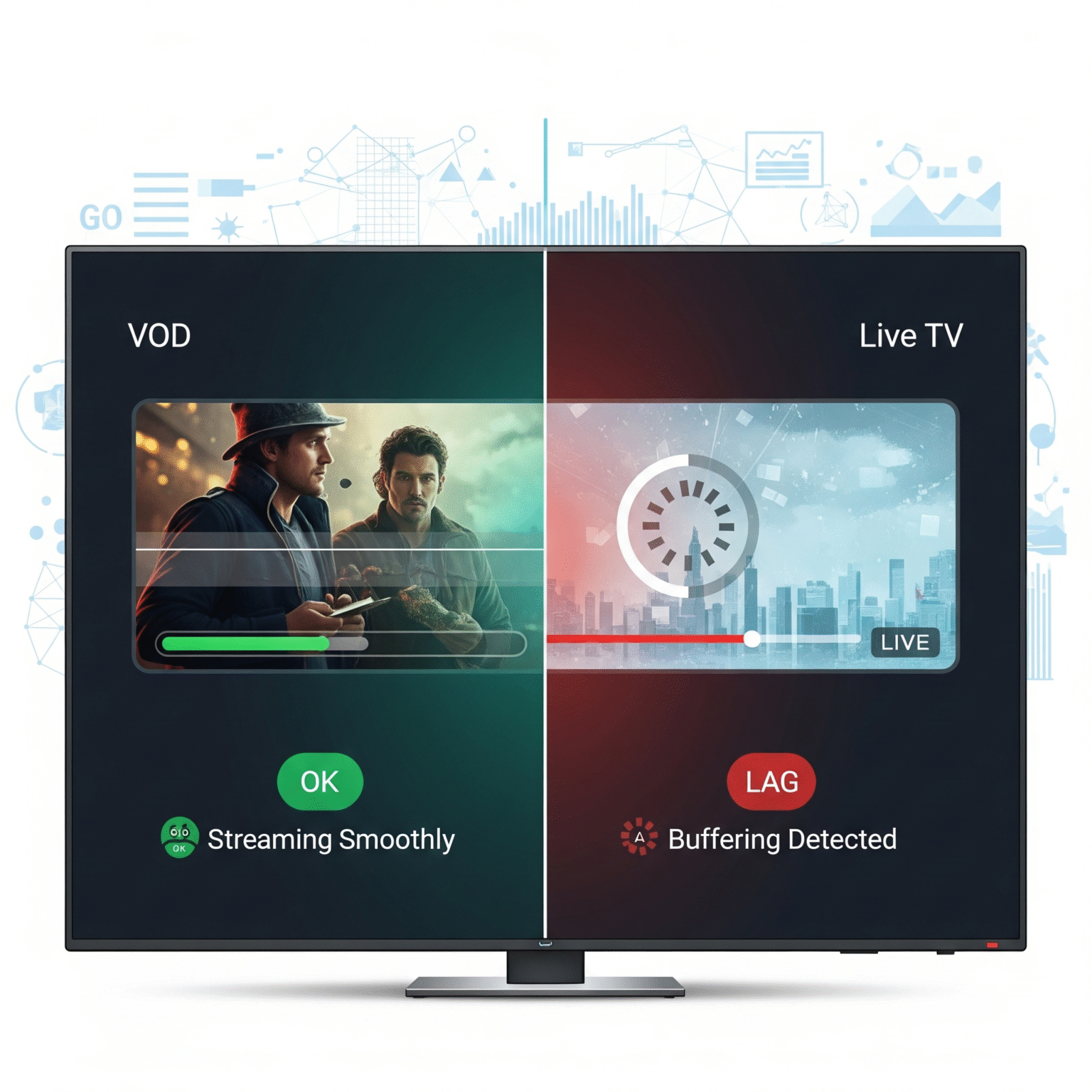
Why Is My IPTV Buffering? (The 3 Main Culprits)
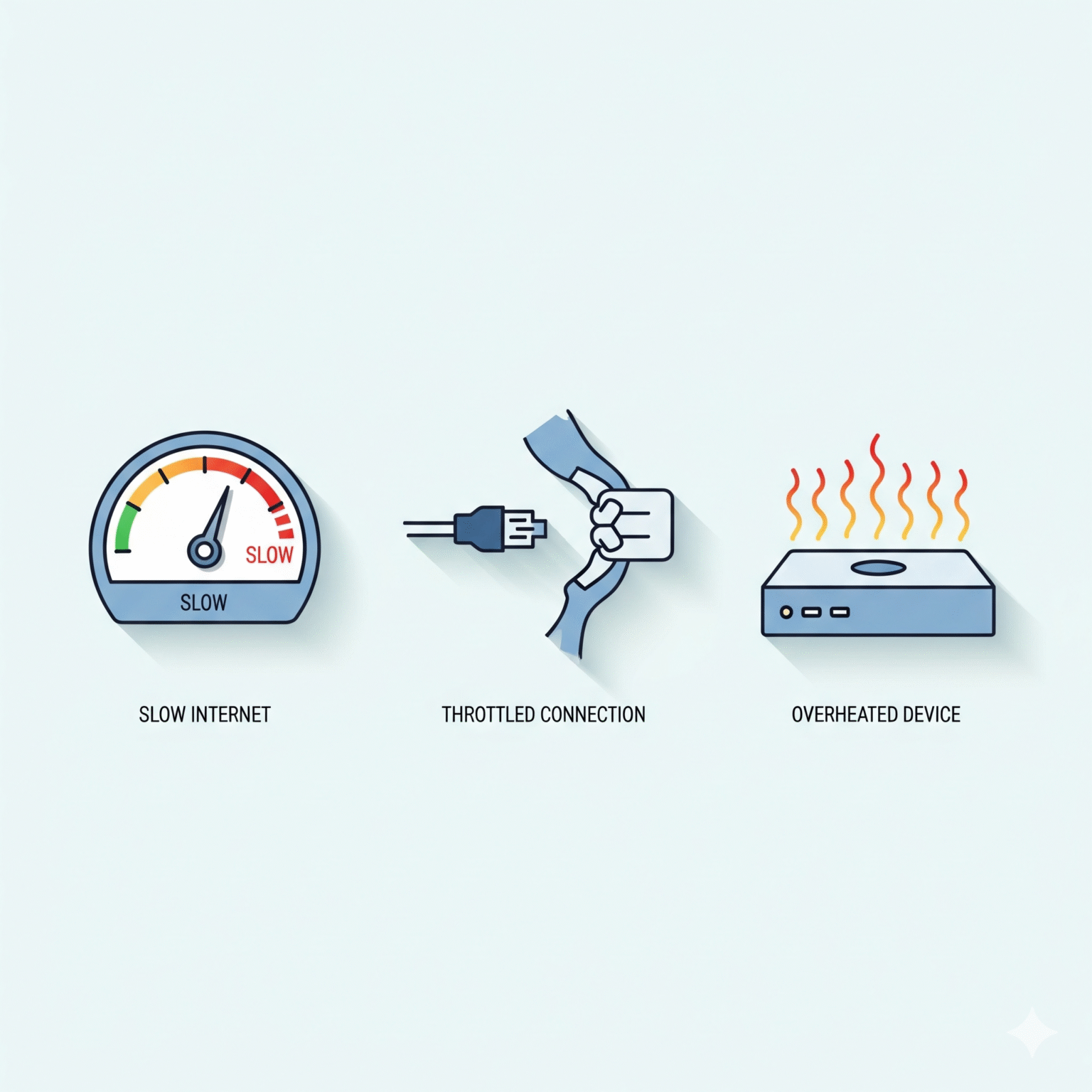
Before you start changing settings, you need to know what you are fighting. Buffering usually comes down to one of these three bottlenecks:
Your Internet Speed: Your raw download speed isn’t fast enough or stable enough.
ISP Throttling: Your Internet Service Provider detects you are streaming and deliberately slows you down (this is more common than you think).
Device Overload: Your Firestick or Android box is out of RAM or storage.
Let’s fix them, starting with the easiest wins.
Step 1: Diagnose Your Speed vs. Your ISP
Don’t skip this. You need to know if the problem is your speed or your provider.
The “VOD Test”
Open your IPTV app and try to watch a Movie or TV Series (Video On Demand) instead of Live TV.
If the Movie plays perfectly but Live TV buffers: Your internet speed is likely fine. The issue is almost certainly ISP Throttling (see Step 3) or a User Agent issue.
If EVERYTHING buffers: You have a raw speed or Wi-Fi signal issue.
Minimum Speed Requirements:
SD Channels: 10 Mbps
HD (1080p): 20 Mbps
4K (UHD): 35 Mbps+
Pro Tip: Run a speed test on the device itself (using the “Internet” app on Firestick), not just on your phone.
Step 2: Optimize Your Network (The Hardware Fix)
Wi-Fi is convenient, but it’s the enemy of consistent live streaming (UDP traffic).
1. Hardwire Your Connection
If you take one piece of advice from this guide, let it be this: Use an Ethernet cable.
Firestick Users: Firesticks don’t have Ethernet ports, but you can buy a generic Ethernet Adapter for $15. This single $15 upgrade fixes buffering for about 80% of users instantly.
2. Switch to the 5GHz Band
If you absolutely must use Wi-Fi, ensure you are not on the 2.4GHz band.
5GHz: Faster, less interference, but shorter range. (Ideal for streaming).
2.4GHz: Slower, crowded signal. (Avoid for IPTV).
Step 3: Bypass ISP Throttling (The VPN Strategy)
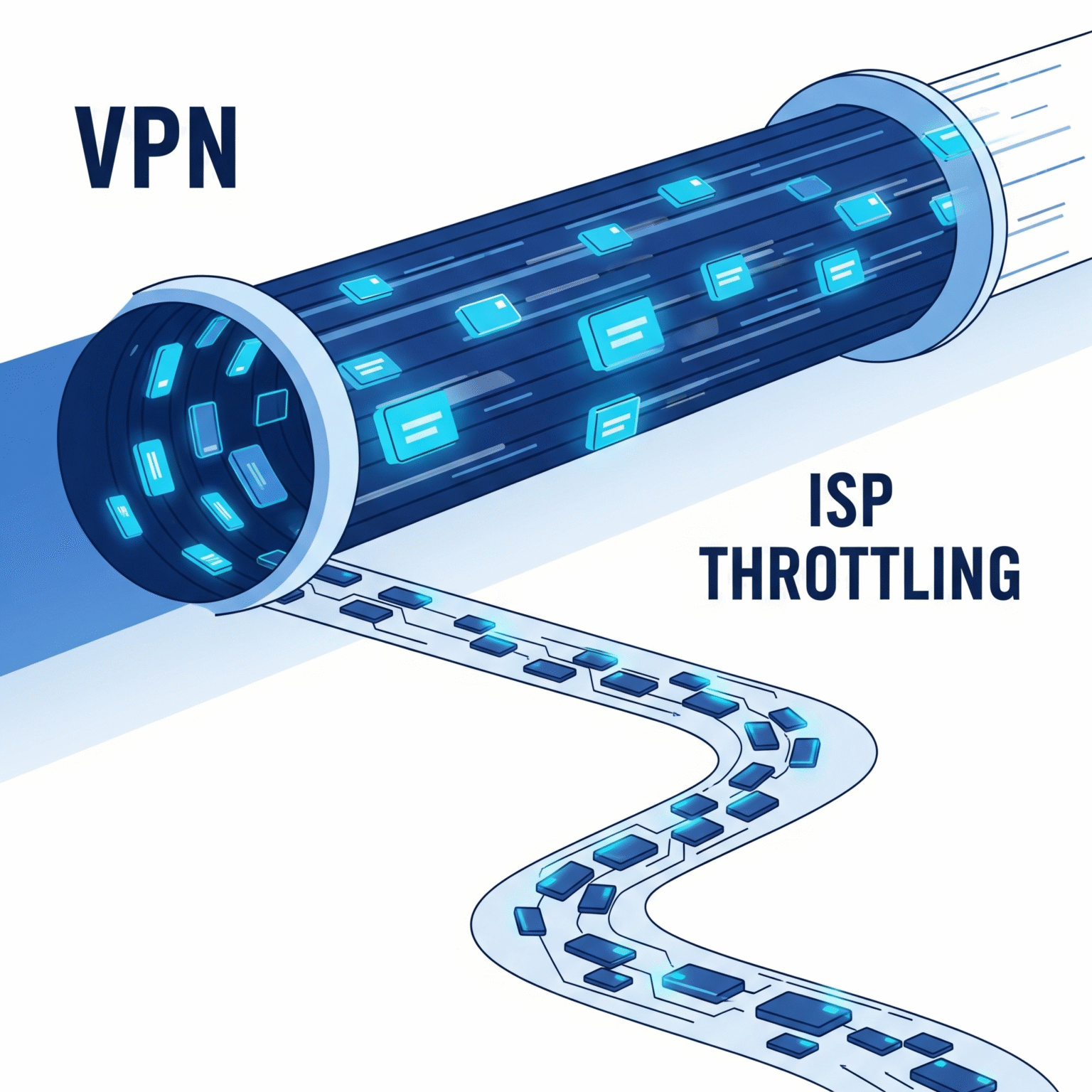
If you have fast internet (100Mbps+) but your stream still buffers during live sports or usually in the evenings (7 PM – 10 PM), you are being throttled.
ISPs inspect your traffic. When they see live streaming data, they throttle it to save bandwidth.
The Fix: Use a VPN with WireGuard
You need a VPN to encrypt your traffic so your ISP can’t see what you are watching.
Don’t use OpenVPN: Older VPN protocols like OpenVPN are too heavy for low-power devices like Firesticks.
Use WireGuard: Go into your VPN settings and change the “Protocol” to WireGuard or NordLynx. It is lightweight, modern, and significantly faster.
Step 4: The "Secret" App Settings
If your network is fine, your app is likely configured wrong. Here are the specific settings that solve the problem for the two most popular players.
For TiviMate Users (The Gold Standard)
TiviMate is the best player on the market, but it needs tweaking.
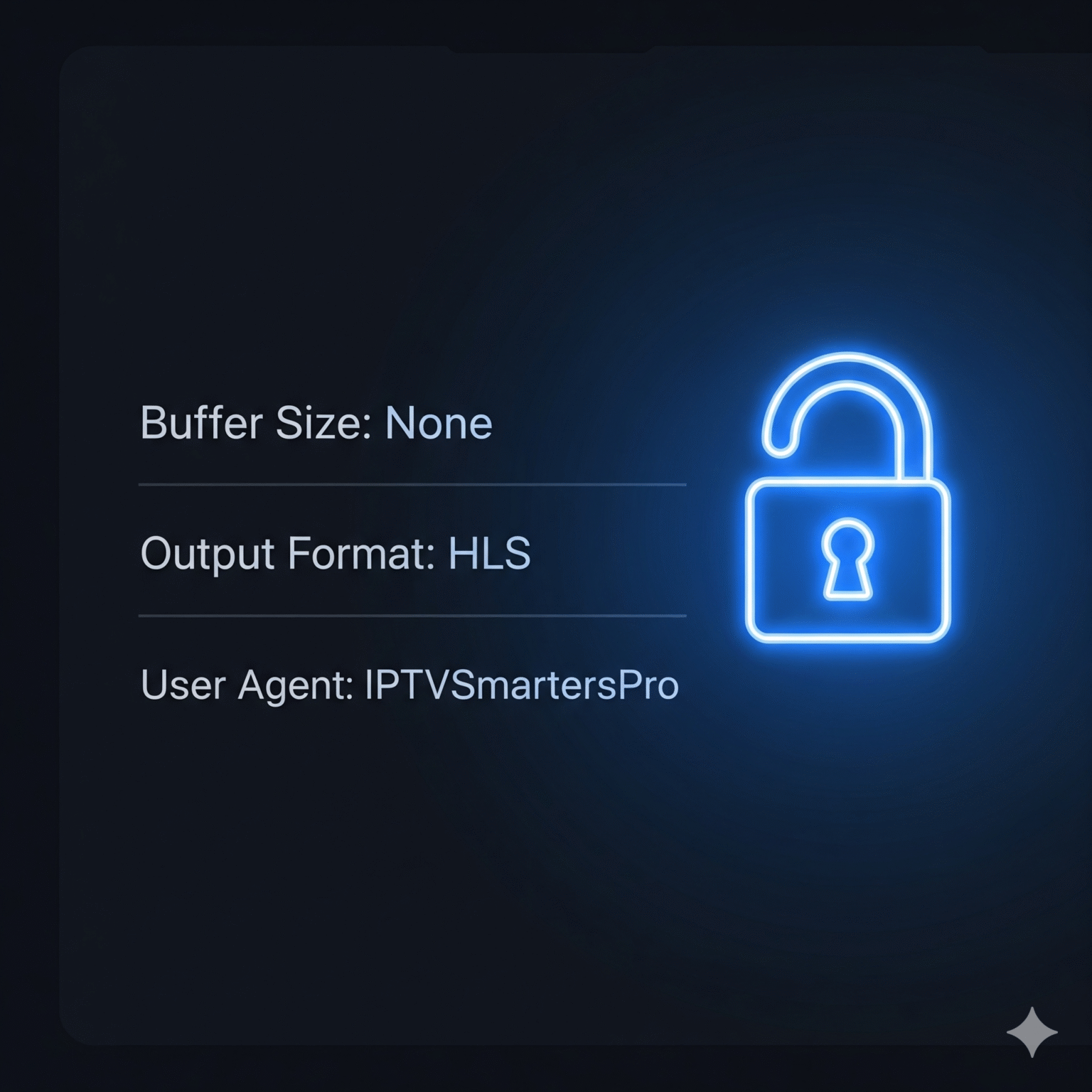
Adjust Buffer Size:
Go to Settings > Playback > Buffer size.
The Trap: Many people set this to “Max” thinking it helps. It doesn’t. It increases lag.
The Fix: Set it to None. If you get micro-stutters, set it to Small. Never go above “Medium” unless you are on a Shield Pro.
Change Output Format:
Go to Settings > Playlists > [Your Playlist] > Xtream Code Parameters.
Change Output Format from MPEG-TS to HLS. HLS is much more forgiving on unstable connections.
Spoof Your User Agent:
Some providers block TiviMate. Trick them.
Go to Settings > General > User-Agent.
Type in exactly:
IPTVSmartersPro
For IPTV Smarters / XCIPTV Users
Enable Hardware Decoding:
Go to Settings > Player Settings > Decoder.
Ensure Hardware Decoder is ticked. Software decoding crushes your CPU and causes freezing.
Step 5: Advanced DNS Configuration
Default ISP DNS servers are often slow to resolve stream addresses. Switching to public, high-speed DNS can reduce that initial “loading” delay.
How to change DNS on Firestick:
Go to Settings > Network.
Press the Menu button (three lines) to “Forget” your network.
Reconnect, enter your password, but click Advanced instead of Connect.
Enter your IP details (copy them from your router settings).
For DNS 1 and DNS 2, use Cloudflare:
DNS 1:
1.1.1.1DNS 2:
1.0.0.1
Troubleshooting Checklist
Still having issues? Run through this final checklist before giving up:
Restart Everything: Unplug your router and Firestick for 30 seconds. (This clears the cache).
Check Storage: Go to Firestick Settings > Applications. If you have less than 500MB free, delete apps immediately.
Clear Cache: Go to Manage Installed Applications > [Your IPTV App] > Clear Cache.
Test VPN Protocol: Switch to WireGuard.
Try a Different App: If TiviMate is lagging, try Smarters. If Smarters is lagging, try TiviMate. Sometimes it’s just a compatibility bug.
 English (New Zealand)
  English (United States)
  German
  Dutch
Dutch  Swedish
  Danish
  English (UK)
  English (Australia)
  Norwegian