
Let’s be honest: trying to get IPTV working on a Roku device is frustrating.
If you’ve just switched from a Firestick or Android box, you’ve probably already realized that there is no TiviMate, no IPTV Smarters Pro, and no easy “Downloader” app on Roku.
Because Roku uses a closed operating system (Roku OS) instead of Android, you can’t simply sideload apps. I’ve tested dozens of so-called “jailbreaks” and “secret channels,” and 99% of them are dead ends or scams.
But it is possible.
After testing every workaround available in 2026, I’ve found exactly three ways to get your playlist running on Roku. Here is the definitive guide to watching live TV on your Roku device.
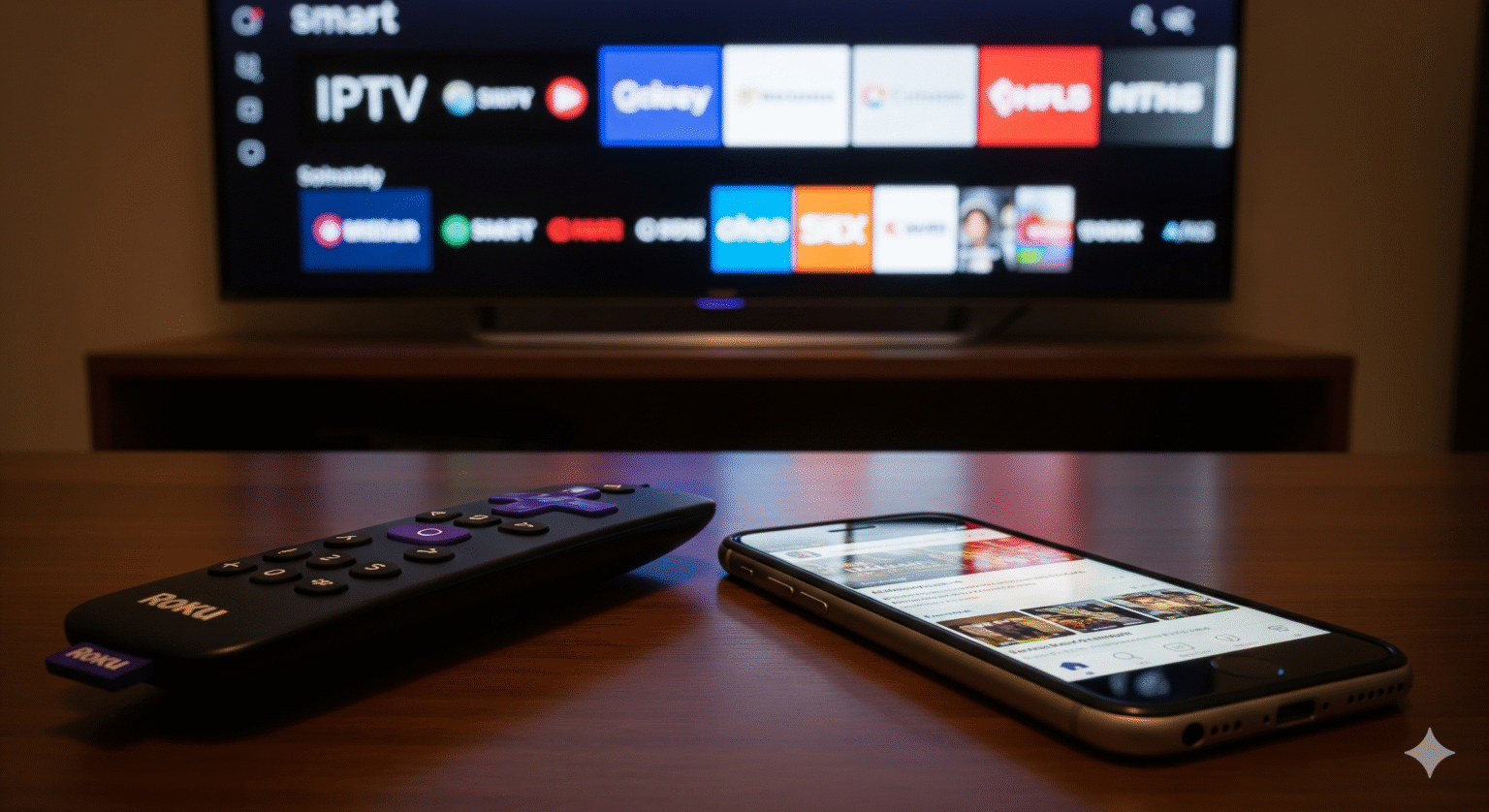
The "Gold Standard" Method: Web Video Caster
🏆 My Top Recommendation for 2026
If you don’t want to buy new hardware, this is the only reliable way to watch IPTV on Roku.
Instead of struggling to install a poor-quality app on the Roku itself, this method uses your smartphone to handle the heavy lifting and simply “casts” the video to your TV. It is significantly better than standard screen mirroring because it doesn’t kill your phone battery.
Why this wins:
✅ Reliable: It rarely buffers compared to native Roku apps.
✅ Free: The core features are completely free.
✅ Battery Safe: You can lock your phone screen, and the stream keeps playing on the TV.
Step-by-Step Setup
Phase 1: Prep your Phone
Go to the App Store (iOS) or Play Store (Android).
Download the app “Web Video Caster” (Browser to TV).
Phase 2: Prep your Roku
Go to the Roku Home screen.
Search for the channel “Web Video Caster Receiver”.
Install it and open it.
Phase 3: Connect and Stream
Open the app on your phone.
Tap the Three Lines (Menu) in the top-left corner.
Select “IPTV” and click the + icon.
Paste your M3U URL (you must get this from your IPTV provider).
Wait for the list to load, then tap a channel.
When asked where to cast, select your Roku device.
Boom. You’re watching live TV.
Method 2: The "Hidden App" Roulette
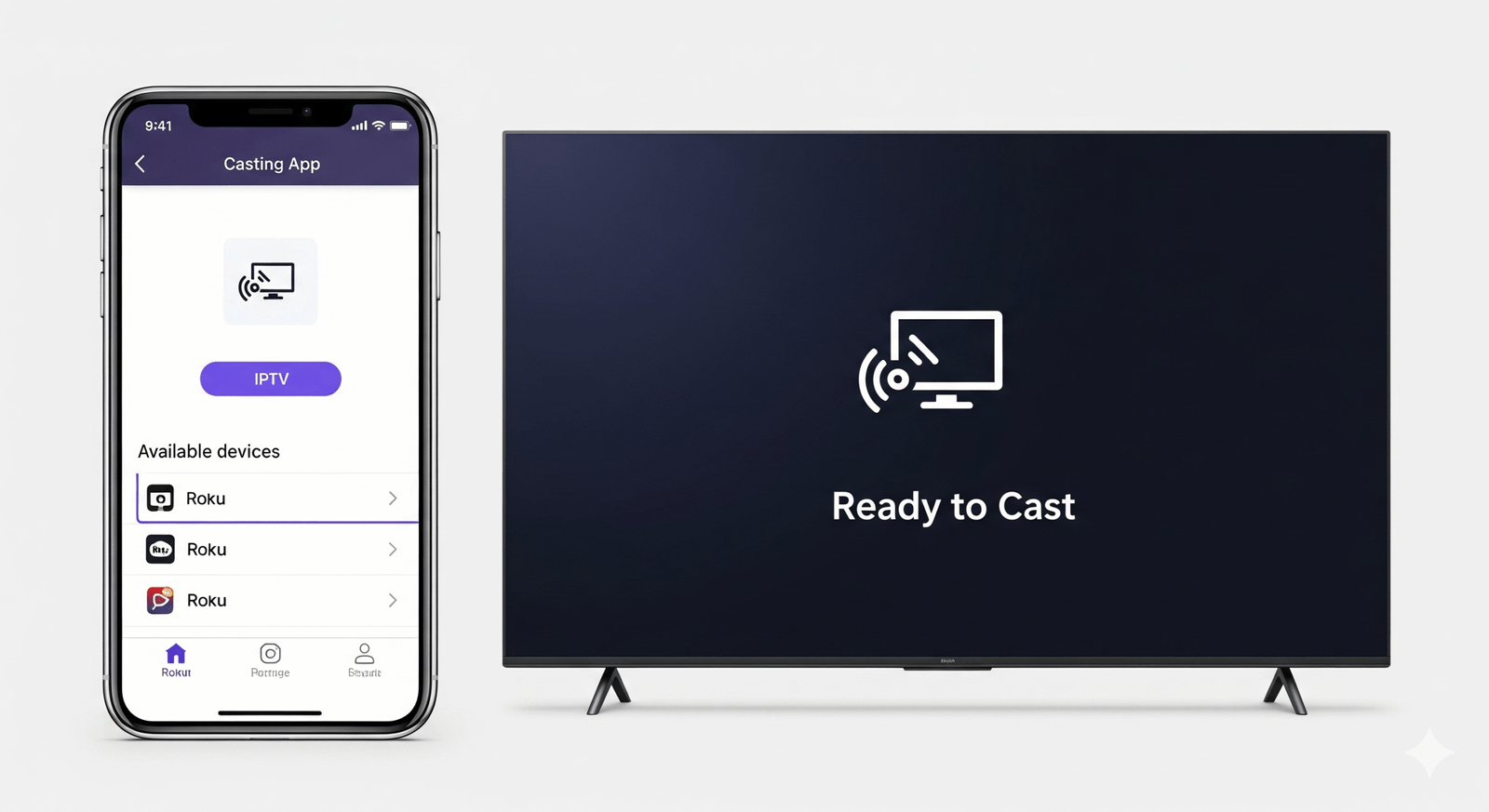
⚠️ Status: High Risk / High Maintenance
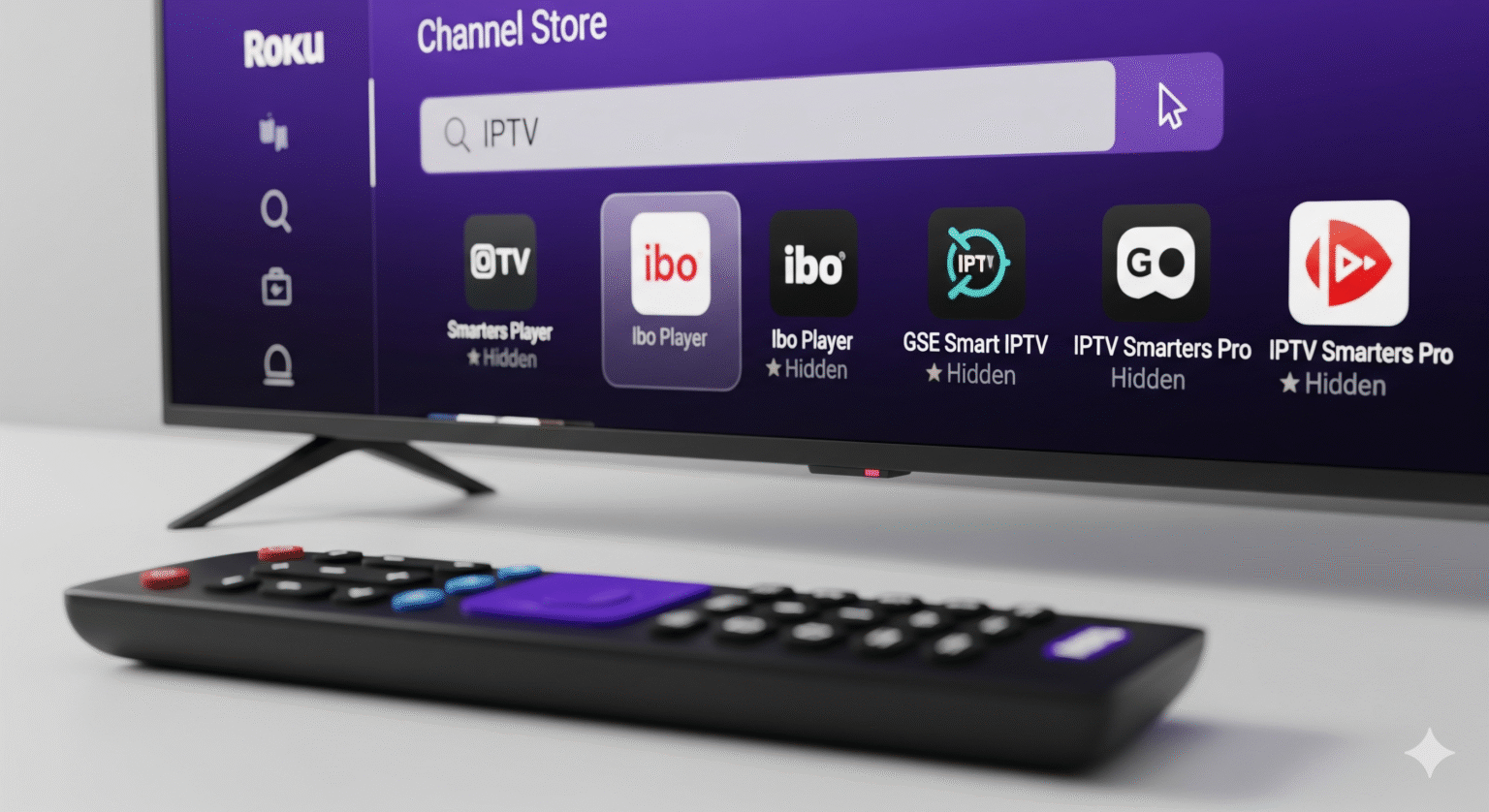
Every few months, a developer sneaks a generic IPTV player into the Roku Channel Store. These apps are basically empty shells waiting for you to login.
The Catch: Roku constantly bans these apps. An app that works today might be deleted tomorrow.
Apps to search for right now (As of 2026):
IPTV Smarters Player (Look for “Lite” versions)
M3U Playlist Player
Instructions:
Search for these exact terms in the Roku Store.
If you find one, install it immediately.
Open the app and choose Login with Xtream Codes.
Enter your Server URL, Username, and Password.
🛑 IMPORTANT WARNING: NEVER pay for a “Lifetime License” for a Roku IPTV app. If Roku removes the app from the store (which they often do), your “lifetime” purchase is gone forever. Stick to monthly or free trials.
Method 3: The "Desperation" Mirror
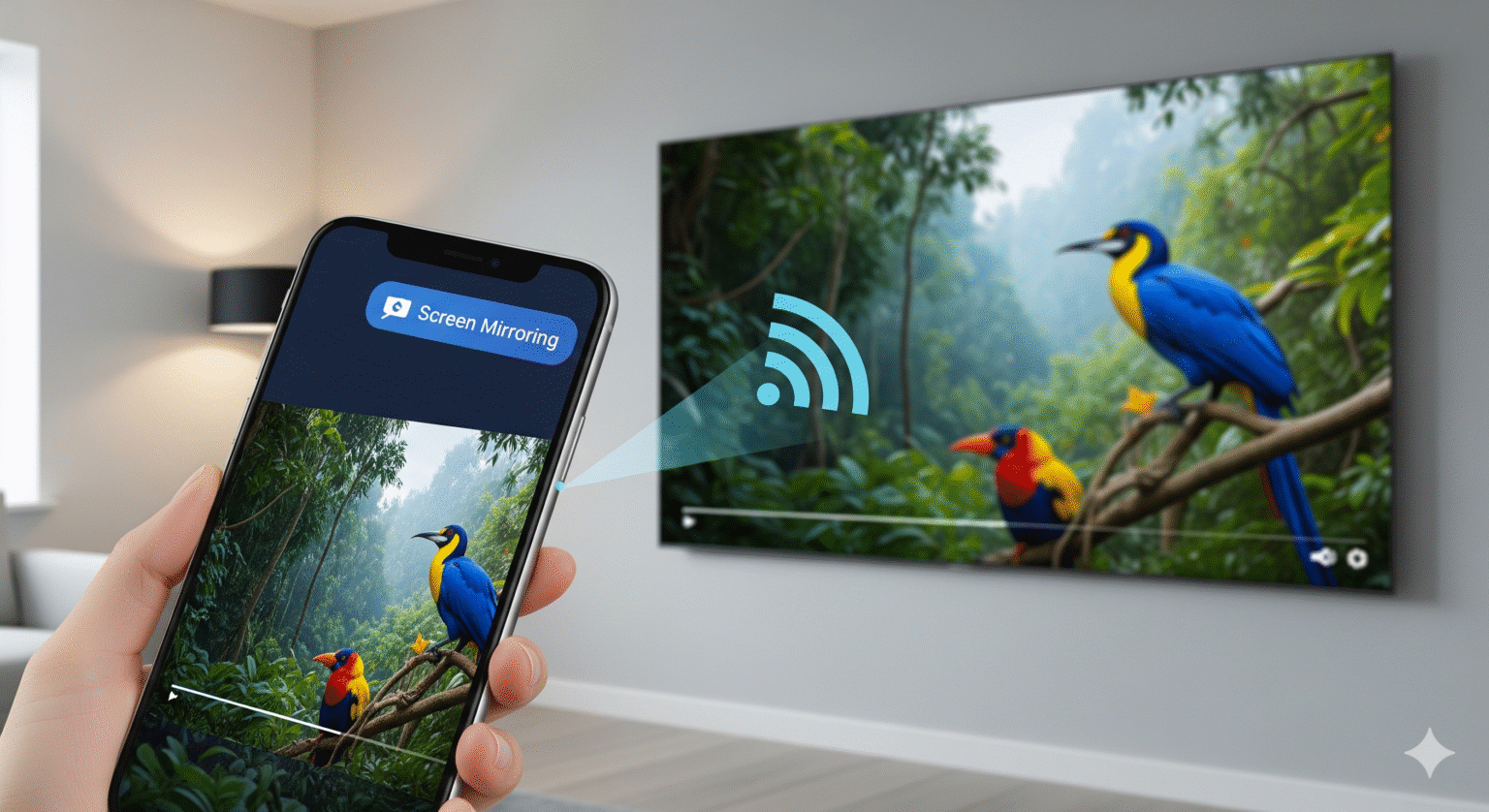
📱 The Backup Plan
If Method 1 isn’t working and you can’t find a store app, your last resort is direct screen mirroring.
The Downside: Your phone screen must stay ON the entire time. If you get a phone call, it shows up on the TV. It drains battery fast.
iPhone Users: Ensure AirPlay is ON in your Roku settings. Open your IPTV app on iPhone, swipe down to Control Center, tap the Mirroring icon, and pick your Roku.
Android Users: Go to Roku Settings > System > Screen Mirroring > Set to “Always Allow”. On your phone, tap Smart View or Cast and select the Roku.
Methods to AVOID (Don't Waste Your Time)
1. The “Sideloading” Myth
You will see guides telling you to enter “Developer Mode” on your Roku to install apps. This is useless for 99% of users.
You cannot install APKs (Android apps) on Roku.
You need a specific file type written in Roku’s coding language (BrightScript).
Unless you are a developer, this method is too complex and files are hard to find.
2. Fake “TiviMate” Apps
Let me be crystal clear: TiviMate does not exist for Roku. The developer has confirmed this multiple times. Any app on the Roku store named “TiviMate” is a clone designed to steal your login credentials. Do not download it.
The Honest Verdict: Should You Stick with Roku?
I love Roku for Netflix and Hulu. The interface is clean and snappy.
But for IPTV? It’s a nightmare.
If you watch live TV daily, using “workarounds” gets annoying fast. You miss out on features like Recording, Multi-View, and a proper EPG (TV Guide).
💡 My Professional Advice: Keep your Roku for streaming apps, but spend the $30–$50 to buy an Amazon Fire TV Stick 4K.
It plugs into the HDMI port right next to your Roku.
You can install the real TiviMate or Smarters Pro natively.
The performance is 10x better for live TV.
FAQ: Roku IPTV
Can I jailbreak my Roku to install Android apps? No. Roku uses a proprietary Linux-based OS. It is impossible to install Android APKs on a Roku device.
Is there a way to watch IPTV on Roku for free? The methods listed above (like Web Video Caster) have free versions, but you still need a paid subscription from an IPTV provider to get the actual channels.
Why does Roku keep removing IPTV apps? Roku is under immense pressure from cable companies and copyright holders to keep their platform “clean.” They aggressively remove any app that facilitates unlicensed streaming.
 English (UK)
  English (United States)
  German
  Dutch
Dutch  Swedish
  Danish
  English (Australia)
  English (New Zealand)
  Norwegian