
Setting up IPTV shouldn’t be complicated. Yet thousands of users search every month for how to add an M3U playlist to IBO Player because one small mistake can stop channels from loading.
This guide shows you exactly how to add, activate, and manage M3U playlists in IBO Player, with clear steps, fixes, and best practices for smooth, buffer-free IPTV streaming.
What Is IBO Player?
IBO Player is a popular IPTV player designed for Smart TVs and streaming devices.
Important to know:
❌ IBO Player does not provide channels
✅ It plays IPTV using M3U playlists or Xtream Codes
✅ Optimized for Samsung, LG, Android TV & Fire TV
High-intent searches this answers:
IBO Player playlist
IBO Player M3U
How to use IBO Player
IBO Player Smart TV setup
What Is an M3U Playlist (And Why It Matters)?
An M3U playlist is a link or file provided by your IPTV service that contains:
Live TV channels
Movies & series (VOD)
Channel groups & logos
EPG (TV guide data)
Without a valid M3U playlist, IBO Player will show no channels.
How to Add an M3U Playlist to IBO Player (Step-by-Step)
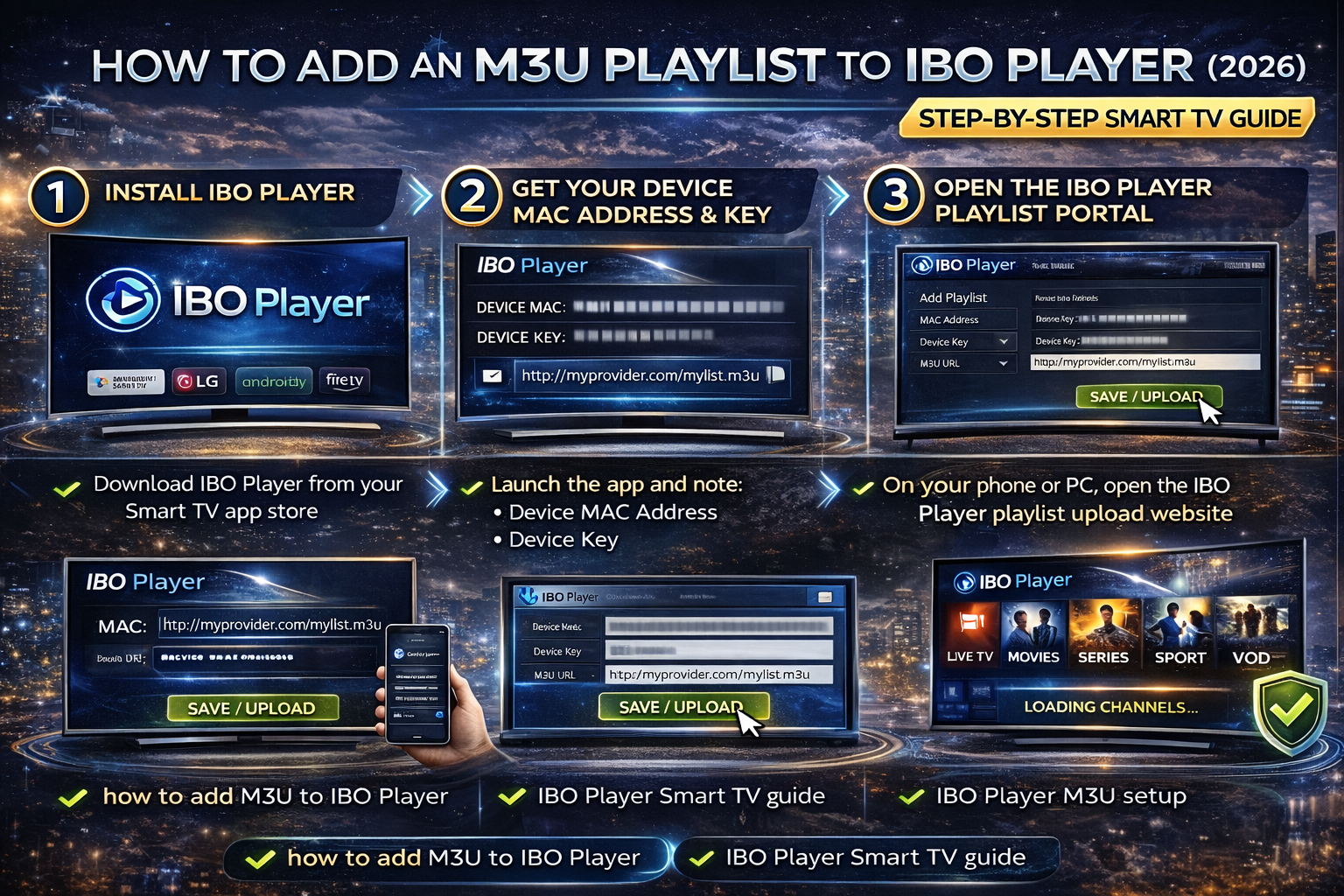
Step 1: Install IBO Player on Your Smart TV
Download IBO Player from your TV’s official app store:
Samsung Smart TV
LG Smart TV (webOS)
Android TV / Google TV
Open the app once installation is complete.
Step 2: Get Your Device MAC Address & Key
When you open IBO Player, you’ll see:
MAC Address
Device Key
These two values uniquely identify your TV and are required to upload playlists.
Step 3: Open the IBO Player Playlist Portal
On your phone or computer:
Open the official IBO Player playlist upload website
Enter your MAC address and Device Key
Step 4: Add Your M3U Playlist URL
Paste your IPTV provider’s M3U URL into the playlist field.
✔ Click Save / Upload
✔ Wait for confirmation
Step 5: Restart IBO Player
Close and reopen IBO Player on your TV.
Channels should load automatically
If not, restart the TV once
How to Manage M3U Playlists in IBO Player
Once your playlist is active, you can easily manage it.
Playlist & Channel Management
Hide unwanted channels
Enable / disable categories
Add favorites
Switch between Live TV & VOD
Enable EPG (TV Guide)
This keeps navigation fast and clutter-free.
How to Update or Replace an M3U Playlist
If your playlist expires or changes:
Go back to the IBO Player upload portal
Replace the old M3U URL
Save changes
Restart the app
✔ No reinstallation needed
✔ Channels refresh instantly
Common IBO Player M3U Problems (And Fixes)
❌ Playlist Not Loading
✔ Check M3U URL spelling
✔ Make sure your IPTV subscription is active
✔ Restart IBO Player
❌ No Channels Appearing
✔ Confirm the playlist format is M3U
✔ Re-upload the playlist
✔ Check internet connection
❌ EPG Not Working
✔ IPTV provider must include EPG
✔ Refresh data
✔ Check time & region settings
Best Settings for Smooth IPTV Playback
For the best IBO Player experience:
✔ Use a stable internet connection
✔ Prefer wired Ethernet over Wi-Fi
✔ Avoid loading multiple playlists
✔ Restart the app weekly
✔ Keep your Smart TV firmware updated
IBO Player vs Other IPTV Players
| Feature | IBO Player | Other Players |
|---|---|---|
| Smart TV Optimization | ✅ Excellent | ⚠️ Varies |
| M3U Support | ✅ Yes | ✅ Yes |
| Ease of Setup | ⭐⭐⭐⭐⭐ | ⭐⭐⭐ |
| Performance | Fast & stable | Depends |
| Beginner Friendly | ✅ Yes | ❌ Often complex |
Who Should Use IBO Player?
IBO Player is perfect if you:
Use a Smart TV
Have an M3U playlist
Want fast, simple IPTV setup
Prefer a clean interface
Want stable, buffer-free playback
Not ideal if you:
Expect built-in channels
Need recording features
Final Verdict: Best Way to Use IBO Player in 2026
IBO Player is one of the easiest and most reliable IPTV players for M3U playlists in 2026.
When paired with a quality IPTV provider, it delivers fast channel loading, clean navigation, and smooth playback.
If you want zero confusion, quick setup, and full control over your IPTV playlists, this is the right approach.
 English (UK)
  English (United States)
  German
  Dutch
Dutch  Swedish
  Danish
  English (Australia)
  English (New Zealand)
  Norwegian