
Tired of expensive cable bills? You aren’t alone. Millions are cutting the cord and switching to IPTV to get more content for a fraction of the price.
In this guide, I will show you exactly how to install the best IPTV players on your Amazon Firestick or Android TV in under 5 minutes. No technical degree required just follow these simple steps to unlock your device’s full potential.
Step 0: Don't Stream Without Protection (Critical)
Before we start, let’s talk about safety. Your Internet Service Provider (ISP) can see everything you stream. If they detect IPTV traffic, they often throttle your speed, leading to endless buffering and lag.
Pro Tip: Use a reliable VPN (Virtual Private Network) to encrypt your connection. This hides your activity from your ISP, prevents throttling, and keeps your data private.
Step 1: Prepare Your Firestick ("Jailbreak" Mode)
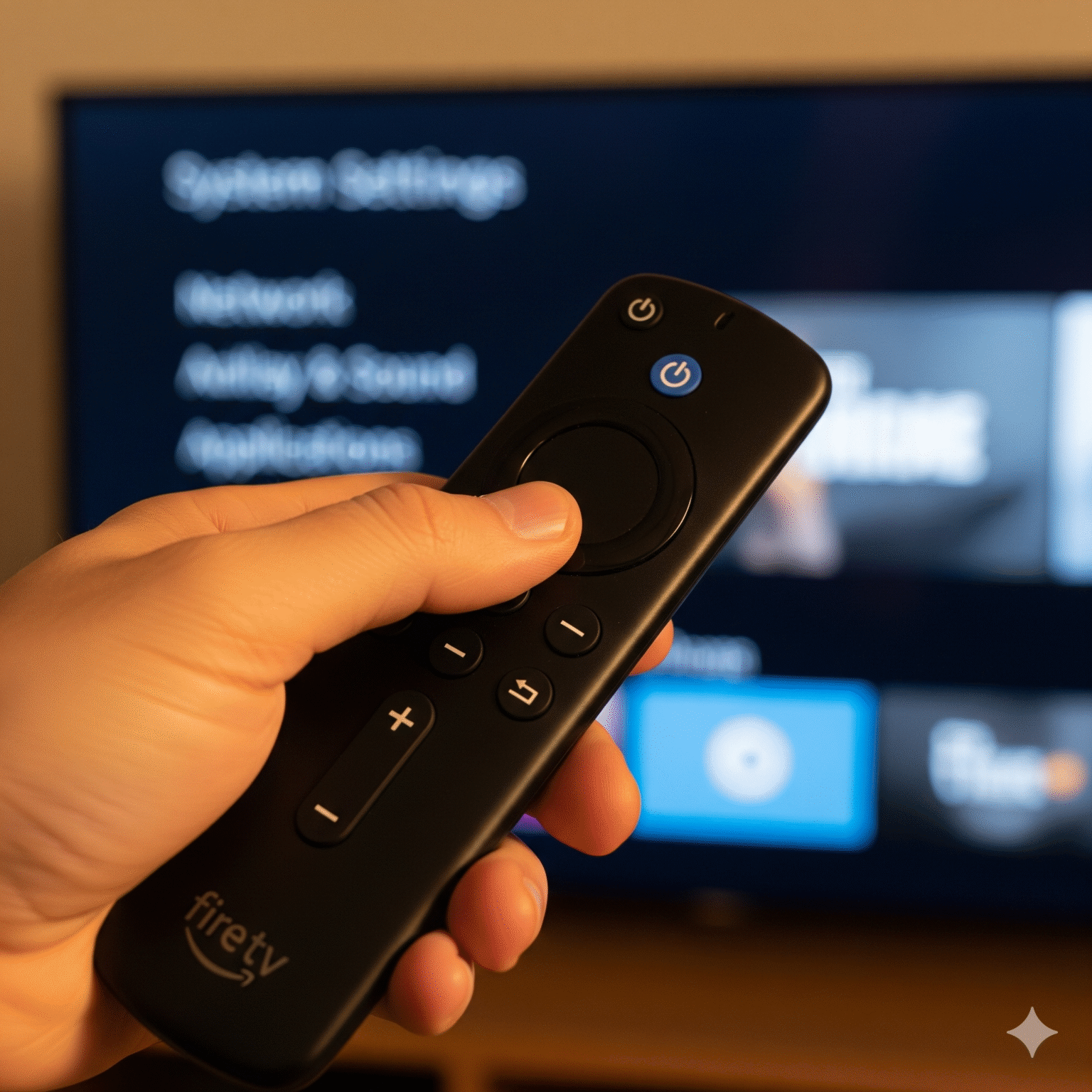
To install apps like TiviMate or Smarters that aren’t in the official Amazon App Store, we need to enable “Developer Options.” This is often called “jailbreaking,” but it’s 100% safe and reversible.
For Firestick / Fire TV Users:
Navigate to Settings (Gear icon on the far right).
Select My Fire TV.
Click About.
The Secret Trick: Hover over Fire TV Stick (the first item) and click your remote’s Select/Center Button 7 times rapidly.
Look for the pop-up: “No need, you are already a developer.”
Press the Back button once.
Open the new Developer Options menu.
Turn ON “Install unknown apps” (or “Apps from Unknown Sources”).
Note: If you see a list of apps, find “Downloader” and turn it ON after Step 2.
For Android TV (Nvidia Shield / ONN Box):
Go to Settings > System > About.
Click Android TV OS Build 7 times to unlock Developer Mode.
Go to Settings > Apps > Security & Restrictions > Unknown Sources.
Set Downloader to Allowed.
Step 2: Get the "Downloader" App
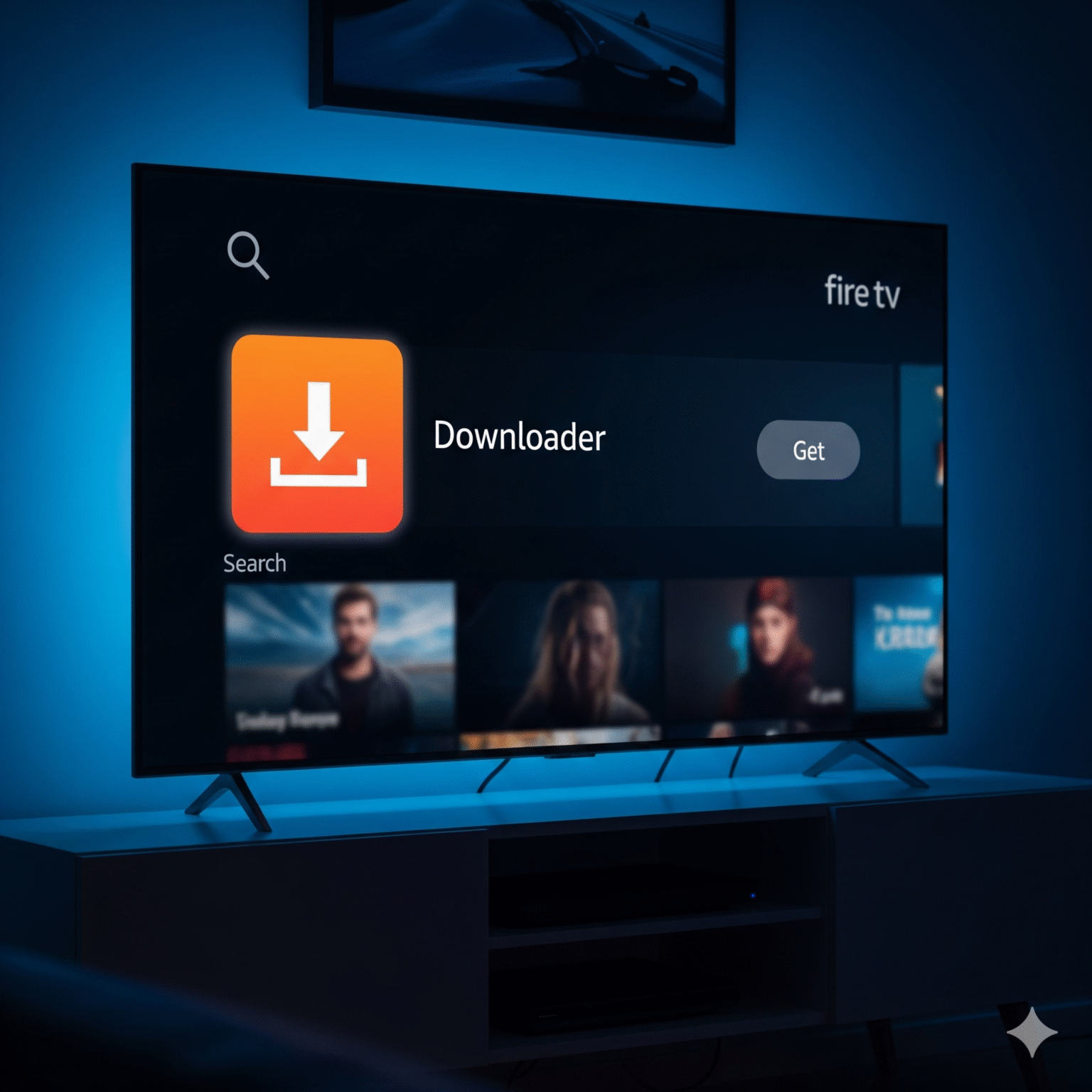
This is the bridge between your TV and the apps you actually want.
Go to the Home Screen and click the Find/Search (magnifying glass).
Type
Downloader.Select the Downloader app (Orange icon).
Click Download or Get.
Important: When you open it, click Allow for media permissions. If you deny this, the app cannot save the installation files.
Step 3: Install the Best IPTV Player
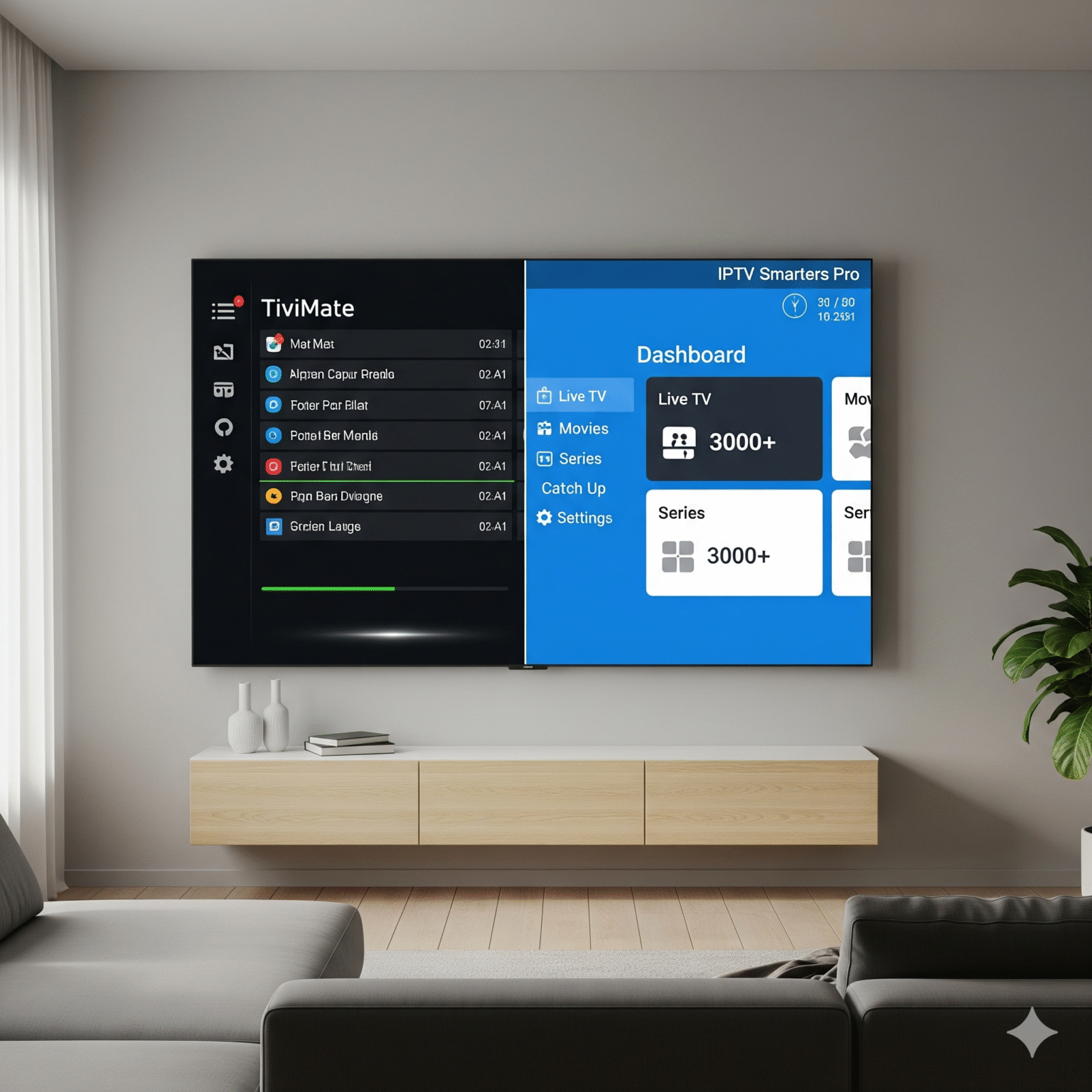
You need a “container” to play your channels. I’ve listed the two absolute best options for 2026. Choose one.
🏆 Choice A: TiviMate (The Premium Choice)
Verdict: If you want your IPTV to look and feel exactly like cable TV with a sleek guide, this is the one. It is unrivaled in speed and design.
Open Downloader.
In the URL box, enter this shortcode: 272483
Click Go.
Wait for the file to download, then click Install.
Once installed, click Done (do not open yet).
Space Saving Tip: Click Delete on the APK file prompt, then Delete again. You don’t need the installation file anymore.
🥈 Choice B: IPTV Smarters Pro (The Best Free Option)
Verdict: A solid, reliable workhorse. It’s not as pretty as TiviMate, but it’s free and very easy to navigate.
Open Downloader.
In the URL box, enter this shortcode: 78522 or 222010
Backup URL:
iptvsmarters.com/smarters.apk
Click Go and wait for the download.
Click Install.
Click Done > Delete > Delete.
Step 4: Login & Activation
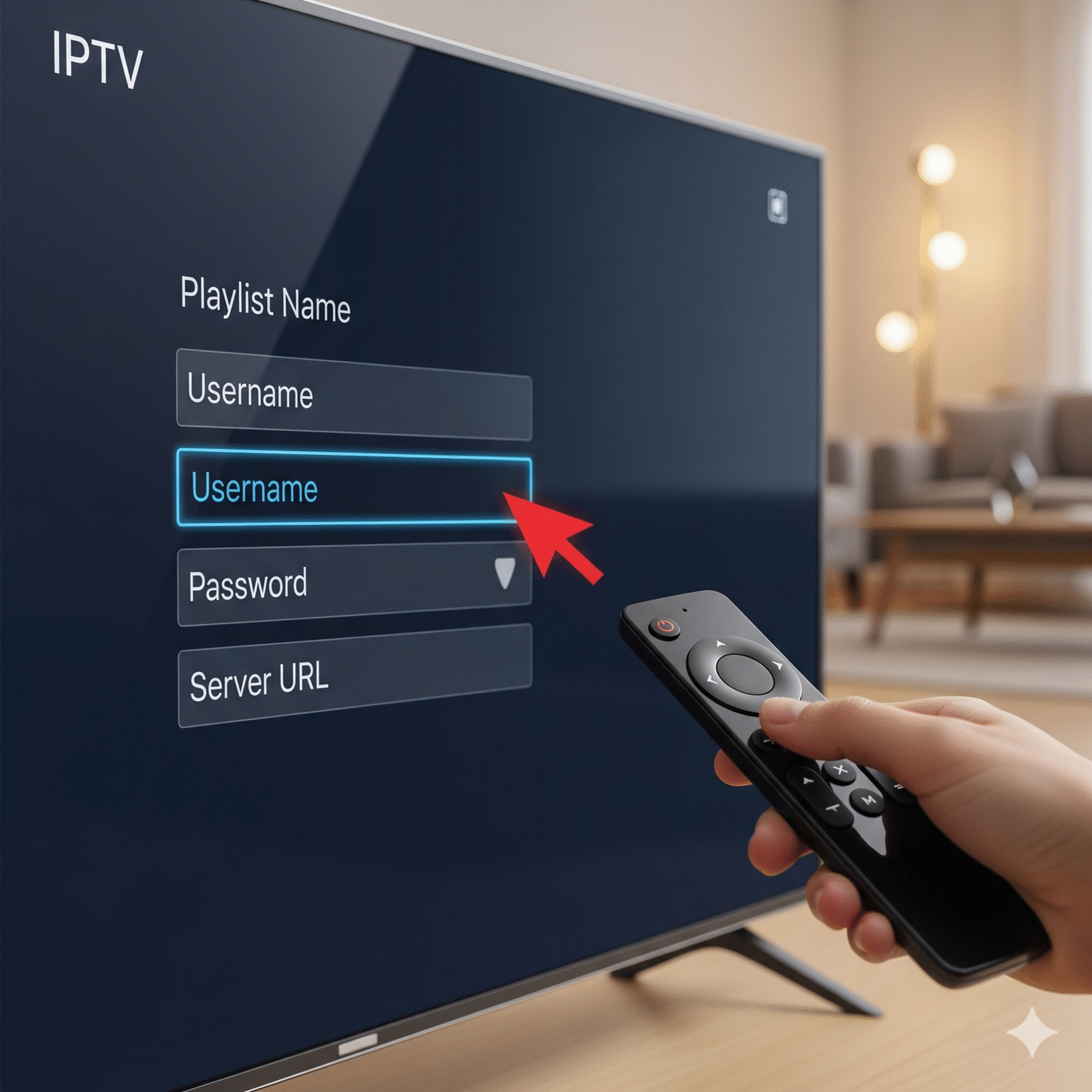
This is where the magic happens. You need the login details sent to you by your IPTV provider (usually via email).
If you chose TiviMate:
Open TiviMate.
Select Add Playlist.
Choose Xtream Codes (The industry standard method).
Enter the Server URL (often starts with
http://), your Username, and your Password.Check “Include VOD” if you want movies and TV shows.
Click Next and watch it load your channels!
If you chose IPTV Smarters:
Open the app.
Select Login with Xtream Codes API.
Playlist Name: Type anything (e.g., “Bedroom TV”).
Enter your Username, Password, and Server URL.
Click Add User.
Frequently Asked Questions (FAQ)
Q: Why is my stream buffering? A: 90% of the time, this is ISP throttling. Turn on your VPN. If that doesn’t work, reboot your router or try a hardwired Ethernet connection instead of WiFi.
Q: Is TiviMate free? A: TiviMate has a free version, but the Premium version (about $10/year) unlocks the TV guide (EPG), catch-up, and favorites. It is highly recommended.
Q: My remote isn’t working with the app. A: Ensure you installed the correct version. The codes provided above (272483 for TiviMate) are optimized for TV remotes. Avoid “Touch” versions of apps meant for phones.
Q: Can I get in trouble for this? A: The players themselves (TiviMate/Smarters) are 100% legal software. However, accessing copyrighted content without a license is illegal in many jurisdictions. Always protect your privacy.
 English (United States)
  German
  Dutch
Dutch  Swedish
  Danish
  English (UK)
  English (Australia)
  English (New Zealand)
  Norwegian