
You’ve been waiting all week for the big match. The snacks are ready, you’re on the edge of your seat, the striker breaks past the defense, lines up the shot, and… spinning circle. The stream freezes. By the time it comes back, the players are celebrating, and you’re left yelling at your screen.
If you use Internet Protocol Television, you’ve probably noticed that buffering and freezing are incredibly common during major live sports events, even if your streaming works perfectly the rest of the week.
So, why does IPTV freeze exactly when you need it most?
Let’s pull back the curtain on how these streams actually reach your living room, analyze where the bottlenecks happen, and figure out how to stop the stuttering for good.
The Real Reasons Your Stream is Stuttering
When your broadcast chokes, it’s easy to blame your internet speed. But if a quick speed test shows you’re pulling 100 Mbps or more, your home network probably isn’t the root cause. The real issue almost always falls into one of three distinct categories.
1. The Provider’s Infrastructure is Cracking Under Pressure
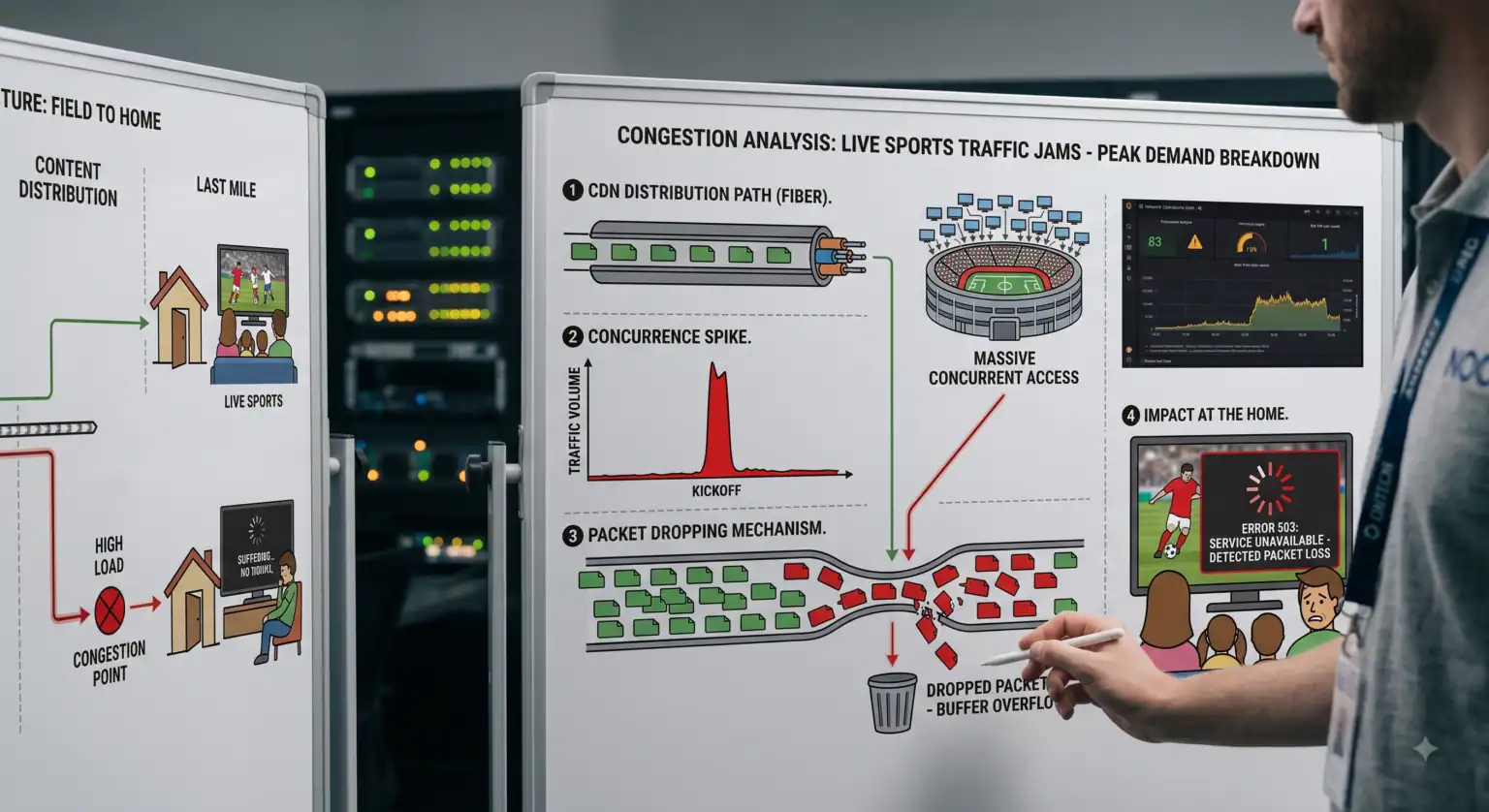
Unlike on-demand Netflix shows that sit on optimized servers all over the globe, live sports are broadcast in real-time. When a massive event like the Champions League final kicks off, hundreds of thousands of users attempt to connect to the same IPTV-Server simultaneously.
If you’re using a budget provider, they likely don’t own their infrastructure. Instead, they rent generic servers that lack the bandwidth to handle extreme traffic spikes. When server capacity maxes out, packets of data are dropped. The result on your end? The dreaded freeze. High-quality providers mitigate this using load-balanced servers and anti-freeze technology, but cheaper services simply let the servers choke.
2. ISP Throttling (Your Internet Provider is Watching)
Internet Service Providers (ISPs) actively monitor what you do online. During peak evening hours right when major sporting events happen network congestion spikes across the entire city.
To keep the broader network stable, ISPs often engage in bandwidth throttling. They specifically target heavy bandwidth activities like high-definition IPTV-Streaming and artificially slow down your connection. If your stream plays flawlessly on a Tuesday afternoon but turns into a slideshow on a Saturday night, your ISP is almost certainly throttling your traffic.
3. The Wi-Fi Interference Trap
Live video requires a constant, unbroken chain of data. On-demand video can buffer minutes ahead, so if your Wi-Fi blips, you never notice. Live TV doesn’t have that luxury; it’s happening now.
If your streaming device is connected via Wi-Fi, it’s fighting through interference from microwaves, smart home devices, and your neighbor’s router. Packet loss over a 2.4GHz Wi-Fi network translates directly into stream stuttering.
Comparing the Causes: Who is at Fault?
To fix the problem, you need to diagnose where it’s coming from. Here is a breakdown of the typical symptoms and exactly where the fault lies.
| The Symptom | The Likely Cause | Who is at Fault? | The Quick Fix |
| Buffers nur during big games or peak hours | Server capacity overloaded | IPTV-Anbieter | Try a backup channel or switch to a premium provider. |
| Speed test is fast, but stream buffers at night | Bandwidth throttling | Your ISP | Route your traffic through a reliable VPN to hide it. |
| Random stutters all day, on all channels | Packet loss or interference | Your Network (User) | Switch from Wi-Fi to a wired Ethernet cable. |
| App crashes or screen goes entirely black | Device runs out of memory | Your Hardware (User) | Clear the app cache or increase the buffer size in app settings. |
How to Stop the Freezing (Actionable Steps)
If you’re tired of watching a loading screen instead of the game, run through this checklist before kickoff:
Hardwire your connection: Ditch the Wi-Fi. Run an Ethernet cable directly from your router to your smart TV or Android box. If you absolutely must use Wi-Fi, ensure you are on the 5GHz band, not 2.4GHz.
Mask your traffic with a VPN: If your ISP is throttling your sports streams, a Virtual Private Network (VPN) encrypts your data. When your ISP can’t see was you’re streaming, they can’t throttle it. Connect via the UDP protocol for the fastest streaming speeds.
Tweak your app settings: Dive into your IPTV player’s settings (like TiviMate or Smarters). Change the buffer size to “Large” or “Very Large,” and try switching your video decoder from Hardware to Software to see which handles the stream better.
Change your DNS: Default ISP servers are notoriously slow. Switching your router or device DNS to Cloudflare (1.1.1.1) or Google (8.8.8.8) can speed up how fast your stream connects.
Wrapping Up
Streaming live sports flawlessly requires everything to go right: a robust provider server, a neutral ISP, and a stable home network. When your IPTV freezes, it’s simply a breakdown in that chain.
Stop throwing money at faster internet packages hoping it will fix the issue. Instead, grab an Ethernet cable, set up a good VPN, and if things still stutter during the big derby, it might be time to drop your budget provider for one with the infrastructure to handle the crowd.
 German
  English (United States)
  Dutch
Dutch  Danish
  English (UK)
  Norwegian
  Swedish