
There is nothing quite as frustrating as watching your favorite team make a run for the goal, only for the screen to freeze on a spinning wheel. If you are constantly asking yourself, “why is my IPTV buffering?”, you are not alone. Even with high-speed internet, IPTV freezing and stuttering are incredibly common issues.
The good news? You can usually stop IPTV buffering with a few straightforward tweaks to your network, hardware, or streaming app. In this guide, we are breaking down the real reasons your streams lag and walking you through exact, step-by-step solutions to fix IPTV buffering for good.
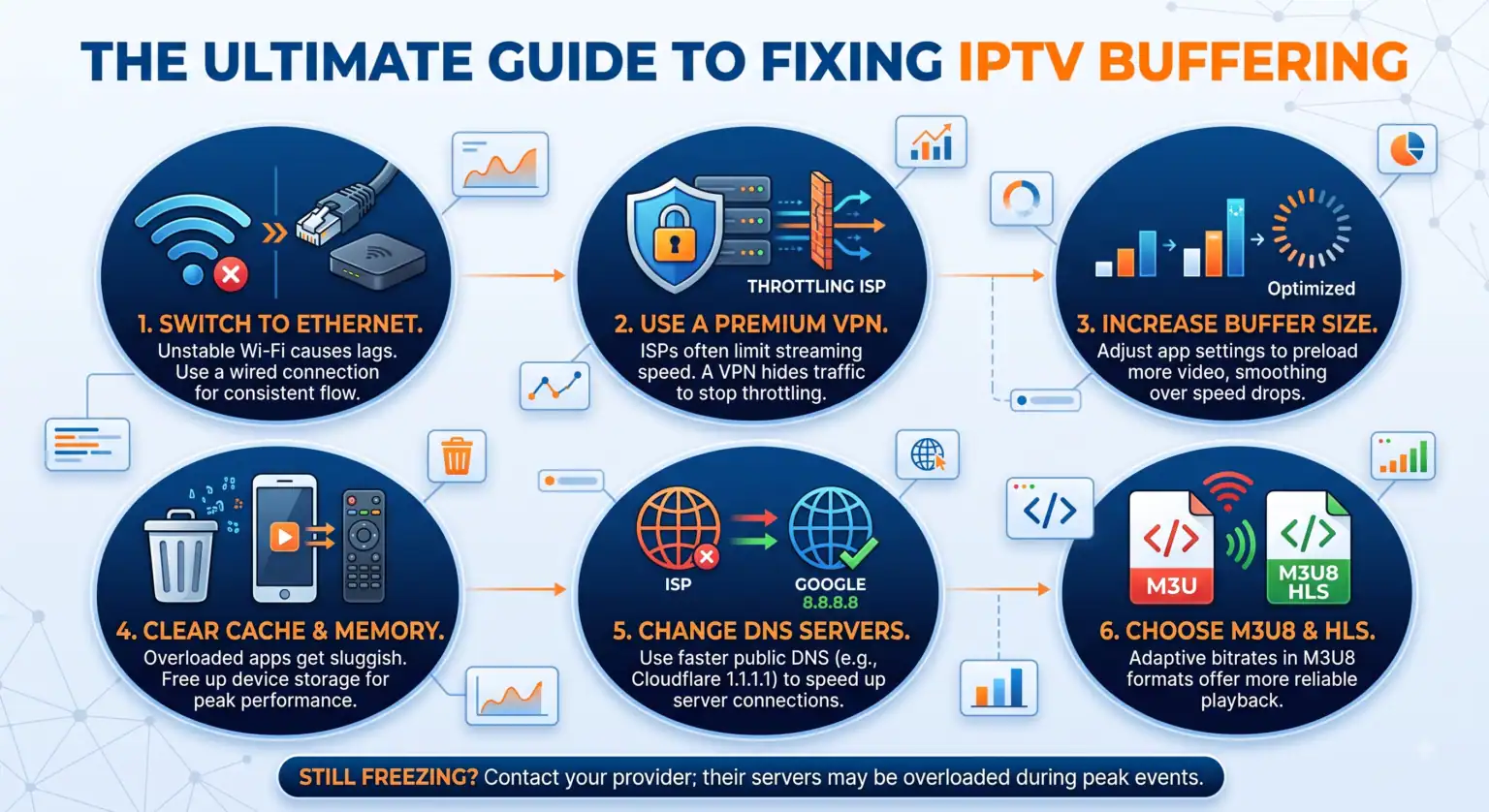
Why Does My IPTV Keep Buffering?
Before jumping into the fixes, it helps to know what you are up against. Most IPTV streaming issues boil down to four main culprits:
Your Internet Connection: Your speed might be fast enough on paper, but Wi-Fi interference can wreck live streaming.
ISP Throttling: Internet Service Providers (ISPs) often monitor traffic and slow down heavy streaming data, especially during peak evening hours.
Hardware Limitations: Older Smart TVs or cheap Android boxes simply lack the processing power to handle high-definition streams efficiently.
The IPTV Provider: Sometimes, the servers on their end are overloaded during major live events.
How to Fix IPTV Buffering: Step-by-Step Solutions
1. Ditch the Wi-Fi for an Ethernet Cable
Wi-Fi is incredibly convenient, but it is prone to interference from walls, appliances, and even your neighbor’s network. Live IPTV streams require a constant, unbroken flow of data.
The Fix: Hardwire your streaming device directly into your router using an Ethernet cable. Wired connections minimize packet loss and latency. If your router is in another room, consider using a Powerline adapter. If you absolutely must use Wi-Fi, ensure your device is connected to the 5GHz band rather than the crowded 2.4GHz band.
2. Bypass ISP Throttling with a VPN
If your stream runs perfectly during the day but turns into a buffering nightmare between 8 PM and 11 PM, you are likely a victim of ISP throttling. Internet providers actively slow down bandwidth-heavy users to manage their network load.
The Fix: Using a high-quality VPN encrypts your traffic. When your ISP cannot see what you are streaming, they cannot throttle your connection. Look for a VPN that utilizes fast protocols (like WireGuard or UDP) and connect to a server close to your physical location to keep speeds high.
3. Clear App Cache and Free Up Memory
Streaming devices like the Amazon FireStick, Android TV boxes, and standard Smart TVs have limited RAM. Over time, your IPTV app accumulates cached data that bogs down overall performance.
The Fix: Dig into your device’s settings to perform a quick cleanup. For most Android-based devices, navigate to Settings > Applications > Manage Installed Applications. Find your IPTV player and hit Clear Cache. While you are in there, uninstall background apps you never use to free up system memory.
4. Optimize Your IPTV App Settings
Many users just install their player and leave it on default settings, but digging into the app preferences can yield massive improvements.
Increase Buffer Size: Many popular IPTV apps allow you to adjust the buffer size. Increasing this setting forces the app to download a larger chunk of the video before playing, which helps smooth over temporary internet hiccups.
Use M3U8 over M3U: If your provider offers different playlist formats, always choose the M3U8 link. M3U8 supports Adaptive Bitrate Streaming, meaning it can slightly lower the video quality dynamically if your speed drops, rather than completely freezing the picture.
Change the Video Decoder: Try switching between Hardware (HW) and Software (SW) decoding in your app’s playback settings to see which handles the stream better on your specific device.
5. Change Your DNS Servers
Your ISP’s default Domain Name System (DNS) is often sluggish, causing delays when your app tries to connect to the streaming server.
The Fix: Go into your device’s network settings and change the DNS to a fast public option, such as Google (8.8.8.8) or Cloudflare (1.1.1.1). This quick tweak improves domain resolution speed and reduces initial load times.
Comparing Network Setups for IPTV Stability
To give you a clearer picture of how your network hardware impacts performance, here is a breakdown of the most common connection methods.
| Setup Type | Stability | Speed Potential | Bypasses ISP Throttling? | Best For… |
| Standard Wi-Fi (2.4GHz) | Low | Moderate | No | Basic web browsing; terrible for live HD IPTV. |
| Fast Wi-Fi (5GHz) | Medium | High | No | Users streaming in the same room as the router. |
| Wired Ethernet | Very High | Maximum | No | The reliable baseline setup for serious streaming. |
| Ethernet + VPN | Maximum | High | Yes | Total stability, especially during evening peak hours. |
When It’s Actually Your Provider’s Fault
If you have hardwired your connection, turned on a VPN, cleared your cache, and you still cannot fix IPTV freezing, the problem might not be on your end. Budget IPTV providers often oversell their server capacity. When a major sporting event kicks off, thousands of users log in at once, causing the provider’s server to crash under the weight.
If you suspect this is the case, ask your provider for a test line from a different server, or consider testing out a more premium service with guaranteed uptime and dedicated support.
Final Thoughts
Fixing IPTV buffering usually comes down to eliminating bottlenecks. By switching to a wired connection, preventing ISP interference with a solid VPN, and keeping your streaming device’s cache clean, you can eliminate the vast majority of playback errors. Take a few minutes to optimize your setup, and you can get back to enjoying your favorite content without the endless loading screens.
 English (UK)
  English (United States)
  German
  Dutch
Dutch  Danish
  Norwegian
  Swedish