
You’ve just set up your new IPTV subscription, and the channel list looks incredible. Naturally, the first thing you want to do is load it onto the living room Smart TV, your bedroom Firestick, and maybe give the login to a friend.
But before you hand out your credentials, you need to know exactly how IPTV providers track account usage. Sharing an account the wrong way won’t just cause buffering it can get your subscription permanently banned.
Here is exactly how IPTV sharing works, what providers look for, and how to stream on multiple devices legally.
The Short Answer: It Depends on Your Plan
Most standard, entry-level IPTV accounts are strictly single-connection. This means you are paying for one active stream at a time.
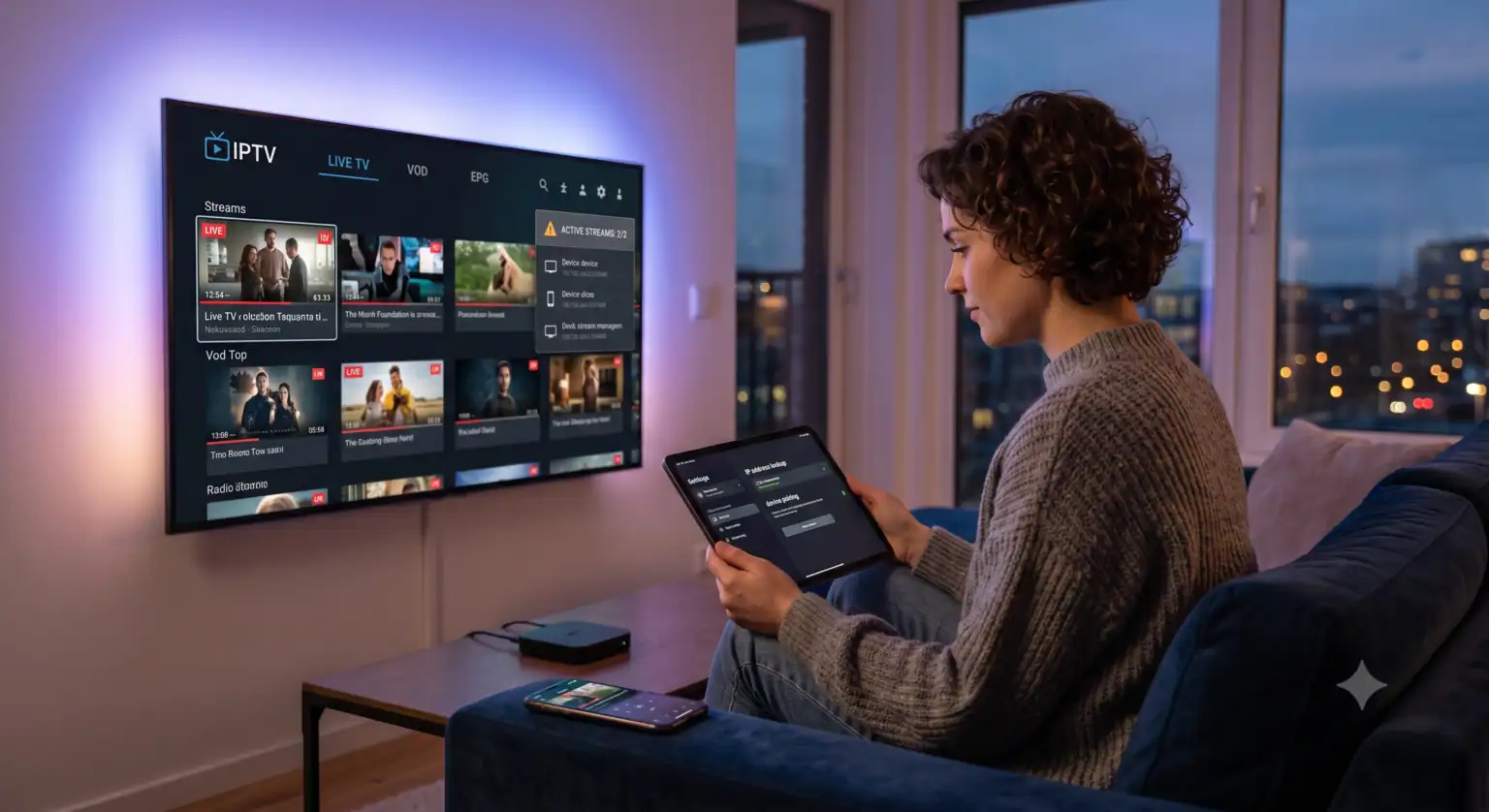
If you try to watch a live sports event on your TV while someone else uses your account to watch a movie on their tablet, you are opening two simultaneous streams. When the provider’s server detects this, one of three things will happen:
One device will constantly buffer or crash.
The stream will continuously flip between the two devices.
Your account will be automatically locked by the system.
To share an account safely, you need a plan that explicitly supports multiple connections (often called “multi-room” or “family” plans).
How Providers Track Your Usage
If you think you can outsmart the system, you should know that modern IPTV platforms have automated security protocols built in. They monitor two main data points:
1. IP Addresses (The Location Check)
Your public IP address tells the provider exactly where the stream is originating. If an automated system sees your account pulling a stream from an IP address in New York and another IP address in London at the same exact time, it flags the account for credential sharing. Many strict providers require all simultaneous streams to originate from the same household IP network.
2. MAC Addresses
If you use a MAG box or certain Smart TV apps, your subscription might be hardware-locked to the device’s specific MAC address. In these cases, you can’t just type your username and password into a second device; you physically have to contact support to update the MAC address on file or purchase a secondary line.
Multi-Connection vs. Multi-Device: Know the Difference
One of the biggest points of confusion in the IPTV world is the difference between installing the app on multiple devices and actually streaming on them simultaneously.
Multi-Device Installation: You can usually install your M3U link or Xtream Codes API on as many devices as you want. You can have the app on your phone, your PC, and three TVs. As long as you only turn one on at a time, you won’t violate a standard single-connection plan.
Multi-Connection Streaming: This dictates how many devices can pull data from the server at the exact same second. If you want the living room and the bedroom TVs running concurrently, you need a two-connection plan.
How to Check If a Provider Allows Sharing
Before committing to a long-term plan with a new provider, don’t just take their marketing at face value. A lot of budget services advertise “multi-device support” but actually only mean you can install the app in multiple places, not stream simultaneously.
Do your homework:
Check the Community: Jump into the provider’s Telegram support group and ask existing users if they experience IP-locking issues when traveling.
Verify the Reputation: Look for embedded TrustBox widgets or third-party reviews on their site to see if users complain about random account bans.
Read the Checkout Terms: Look closely at the pricing tiers. Often, a $15/month base plan is for one connection, and you’ll see add-ons during the checkout process (frequently powered by standard e-commerce setups like WooCommerce) offering a second or third connection for an extra $5.
The Right Way to Watch on Multiple Screens
If your household needs entertainment on several screens, the solution is straightforward: upgrade your package.
Many premium services offer “Sub-Device” codes or “Family Packages.” With these setups, you have a Master Device that holds the main subscription, and you purchase discounted sub-codes for the 2nd, 3rd, and 4th screens. This ensures everyone gets their own dedicated bandwidth on the server, eliminating the dreaded buffering wheel.
The Golden Rule: Never post your M3U link or Xtream credentials online, and don’t split a standard single-connection bill with a neighbor across town. Pay for the extra connections you need, keep your network secure, and your streams will stay flawless.
 English (UK)
  English (United States)
  German
  Dutch
Dutch  Danish
  Norwegian
  Swedish