
It is one of the most frustrating experiences in modern entertainment: you have a blazing-fast gigabit internet connection, yet your video stream suddenly freezes, displaying that dreaded spinning loading wheel.
If your internet speed is well above the recommended requirements, buffering seems mathematically impossible. However, video streaming especially live Internet Protocol Television (IPTV) relies on a complex digital supply chain. Your home internet speed is only the final link in that chain.
Here is a comprehensive breakdown of exactly why fast streams buffer and how the technology operates behind the scenes.
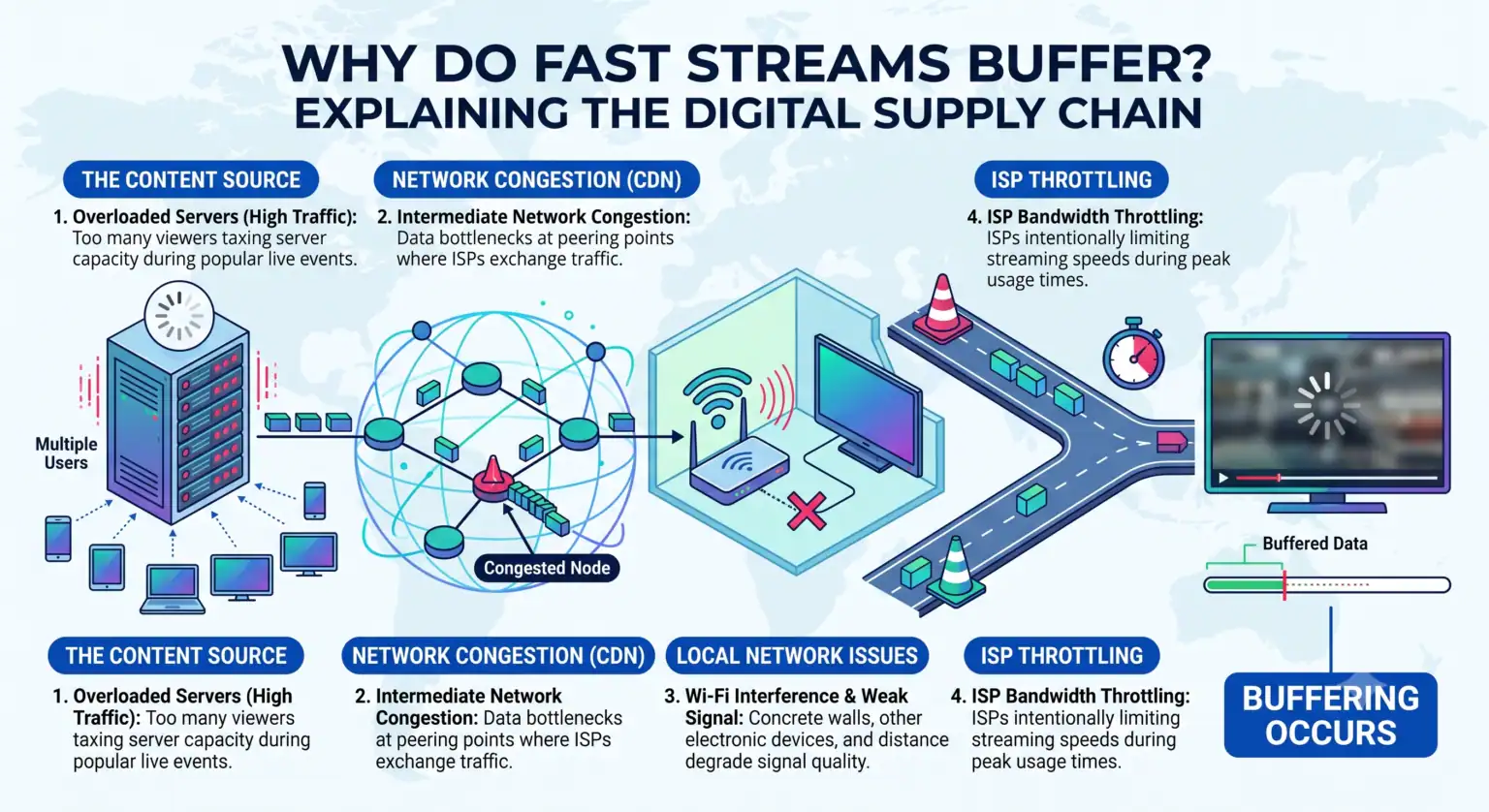
1. The Real-Time Bottleneck: Server Capacity vs. User Demand
When you stream content, you are downloading a continuous file from a remote host server. If millions of users attempt to access the same host server simultaneously such as during a live sporting event the server’s outbound bandwidth becomes overwhelmed.
[Host Server] —> (Server Bandwidth Limit) —> [Content Delivery Network] —> [Your ISP] —> [Your Router]
Even if your local downstream pipe is wide enough to handle 1,000 Mbps, the server might only be capable of allocating 2 Mbps to your specific connection during peak traffic hours. If the video stream requires 8 Mbps to play smoothly in high definition, your player will rapidly run out of data, forcing it to pause and rebuild its cache.
2. The Mechanics of the "Buffer Cache"
To understand why playback halts, it helps to understand how media players handle data. Players do not render video frame-by-frame in real-time raw transmission. Instead, they use a temporary storage reservoir known as a buffer.
Healthy Streaming: The download speed exceeds the playback speed. The buffer stays full, keeping a few seconds or minutes of video pre-loaded ahead of your current viewing position.
Starved Buffer: If a momentary drop in data transmission occurs, the playhead catches up to the edge of the downloaded data. Playback freezes instantly until the reservoir replenishes.
3. Network Routing and "Peering" Issues
Data does not travel in a straight line from the streaming source to your home. It passes through multiple networks owned by different infrastructure providers. The intersections where these networks exchange traffic are called peering points.
Sometimes, your Internet Service Provider (ISP) may have congested peering points with the specific data centers hosting your stream. Even though an online speed test shows your connection is fast overall, the specific pathway to your streaming provider might be severely throttled or congested.
4. UDP vs. TCP Transmission Protocols
Most standard video-on-demand services (like Netflix or YouTube) use the TCP (Transmission Control Protocol). TCP guarantees data delivery by forcing the receiver to acknowledge every packet. If a packet is lost, it is re-sent. This prevents visual artifacts but can cause brief pauses while waiting for missing data.
Many live IPTV streams utilize UDP (User Datagram Protocol) or variants optimized for low latency. UDP streams data continuously without checking if your device successfully received it. While this reduces latency, severe packet loss over a poor Wi-Fi connection or congested node will cause the stream to drop frames, stutter, or freeze entirely while the decoder attempts to sync back up with the live feed.
Technical Troubleshooting Matrix
If you are experiencing persistent buffering on a high-speed connection, use this diagnostic matrix to identify and isolate the root cause:
| Symptom | Potential Source | Diagnostic Action |
| Buffering only occurs during live, high-demand events. | Server Side (Overloaded Host) | Test an on-demand video or lower the stream resolution to reduce bandwidth demand. |
| Speed tests are high, but streaming performance drops significantly at night. | ISP Throttling / Congestion | Test the connection using a high-quality Virtual Private Network (VPN) to bypass local routing bottlenecks. |
| Buffering stops when switching from Wi-Fi to an ethernet cable. | Local Network Interference | Change Wi-Fi channels (switch to 5 GHz or 6 GHz bands) or keep the device hardwired. |
| Stream freezes completely and requires a channel restart. | Protocol Drop (Packet Loss) | Clear the media player’s cache or switch the stream format inside the application settings (e.g., from HLS to MPEG-TS). |
To help visualize how these different variables interact to cause or prevent buffering, you can use the interactive simulation below. Adjust the network conditions, server load, and stream quality to see how they impact the playback buffer in real time.
 English (United States)
  German
  Dutch
Dutch  Danish
  English (UK)
  Norwegian
  Swedish