
Are you settling in to watch the game or catch up on your favorite show, only to be greeted by the dreaded “Authorization failed for above host” error on IPTV Smarters Pro? It’s incredibly frustrating. You haven’t changed anything, your internet is working perfectly fine, but the app just refuses to let you in.
If you’re dealing with the IPTV Smarters failed to authorize error, you’re definitely not the only one. It’s one of the most common hiccups users face, whether they are watching on a Samsung Smart TV, Firestick, or Android box.
Fortunately, getting past this roadblock is usually pretty simple. Here is a no-nonsense guide to figuring out why it happened and exactly how to fix it.
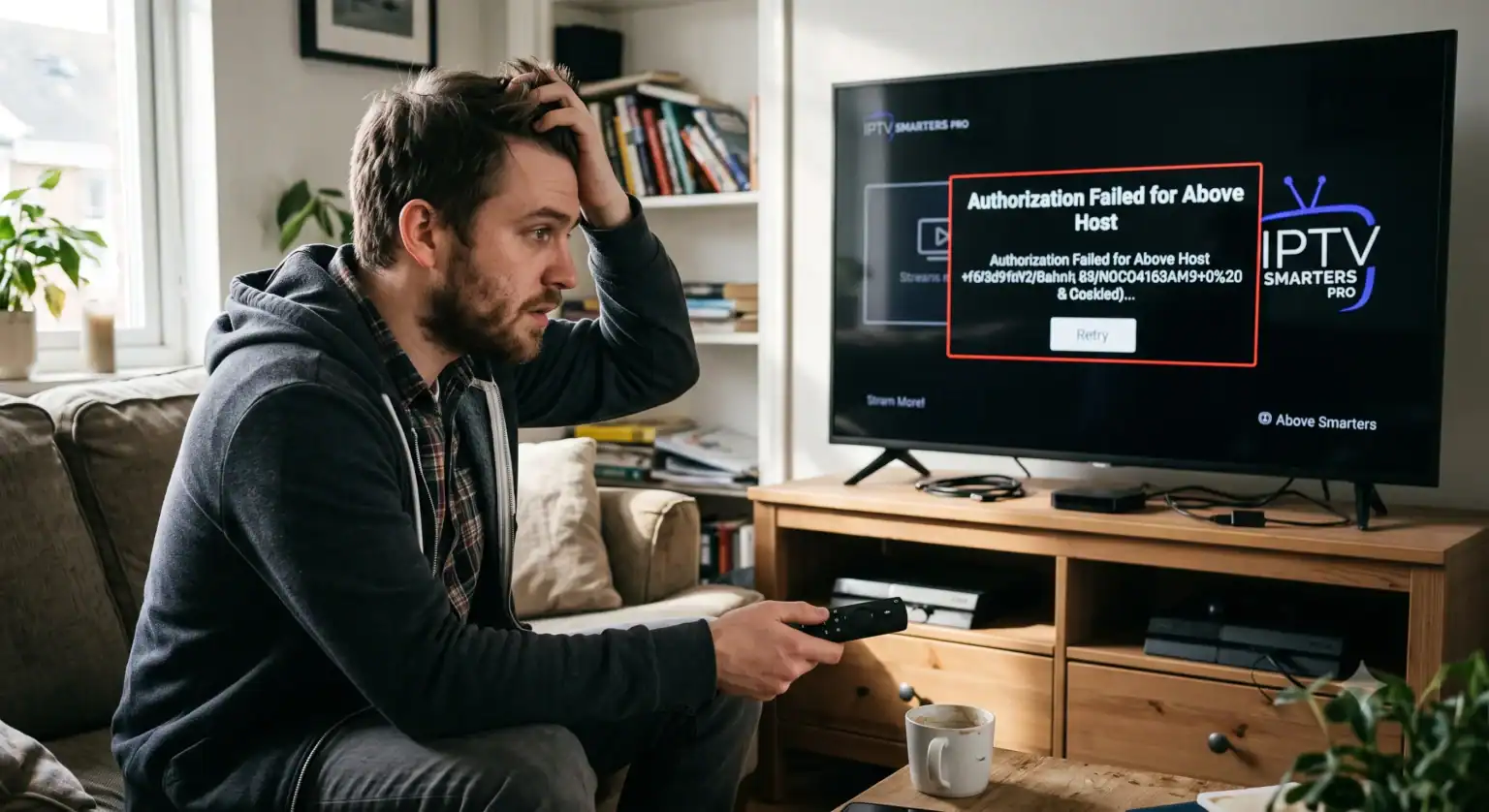
Why is IPTV Smarters Failing to Authorize?
When Smarters Pro throws this error, it essentially means the app cannot establish a handshake with your IPTV provider’s servers. This usually boils down to a few basic culprits:
A typo in your username, password, or portal URL.
Your Internet Service Provider (ISP) is quietly blocking the connection.
A glitch in the way the app reads the URL (more on this weird bug later).
Your provider hasn’t registered their DNS with the Smarters app developers.
Here are the most effective ways to fix the problem, ranked from the easiest to the slightly more technical.
Step 1: Double-Check the Basics (And Fix the Hidden Typos)
It sounds obvious, but 90% of the time, the issue is a simple typo. IPTV credentials are often long strings of random letters and numbers, making them incredibly easy to mess up.
When re-entering your details, pay close attention to:
Capitalization: Usernames and passwords are case-sensitive.
Zeroes vs. O’s: Make sure you aren’t mistaking a zero for the letter “O”.
The URL formatting: Ensure you have the exact portal URL your provider gave you, including the port number at the end (e.g., :80 or :8080).
Step 2: The "URL Slash" Trick (A Weird But Proven Fix)
If you are 100% sure your credentials are correct, try this bizarre workaround that has saved thousands of frustrated users on Reddit and tech forums.
Sometimes, IPTV Smarters gets confused by duplicate slashes in the server address.
Go to the login screen where you enter your URL.
If your URL looks like this: (http://portal.example.com:80)
Change it to this: http:/portal.example.com:80 (remove one of the forward slashes).
Alternatively, if you have a slash at the very end of your URL like (http://portal.example.com:80/), delete that trailing slash. It sounds ridiculous, but this simple formatting tweak forces the app to bypass a known authorization bug.
Step 3: Change Your Device's DNS Settings
Sometimes the issue isn’t the app; it’s your router struggling to route the connection to your IPTV provider. Switching your device’s DNS to a reliable public server often instantly resolves the authorization fail.
Whether you are using a Smart TV, Android box, or Firestick, you can usually find this in your network settings:
Go to your device’s Network Settings.
Select your active Wi-Fi or Ethernet connection.
Look for Advanced Settings or IP Settings.
Change the DNS from “Automatic” to “Static” or “Manual”.
Enter Google’s DNS: 8.8.8.8 (and 8.8.4.4 as the secondary, if asked) or Cloudflare’s DNS: 1.1.1.1.
Save, restart your device, and open Smarters again.
Step 4: Turn On a VPN
Internet Service Providers (especially in the UK, US, and parts of Europe) actively block or throttle connections to IPTV servers, particularly during major sporting events.
If your ISP is blocking the server, IPTV Smarters simply won’t be able to reach the host to authorize your login.
The test: Download a reputable VPN on your device (like ExpressVPN, NordVPN, or Surfshark). Connect to a server in a different country or city, and try logging in again. If it works immediately, your ISP was the culprit all along.
Step 5: The "DNS Registration" Wall
Recently, the developers behind IPTV Smarters Pro implemented a strict new rule: IPTV service providers must officially register their DNS (server URLs) with them.
If your provider hasn’t registered their web address with the app developers, Smarters will actively block the connection and spit out the “Authorization Failed” error, sometimes even displaying a QR code.
What you can do:
Reach out to your IPTV provider’s support team. Let them know you are getting the authorization error on Smarters Pro and ask if their DNS is registered.
If they say no, or if they take too long to fix it, you will need to switch apps.
When All Else Fails: Try a Different Player
If you’ve tried the URL trick, changed your DNS, and used a VPN, but you are still locked out, it’s time to ditch the app. Smarters is great, but it’s not the only player in the game.
Download an alternative app and enter your exact same login details. If your provider gave you an Xtream Codes login, you can easily use:
TiviMate: Arguably the best, most modern interface available for Android and Firestick devices.
XCIPTV: Very reliable and rarely suffers from the strict authorization bugs that plague Smarters.
OTT Navigator: A bit more technical, but highly customizable and stable.
If your details work flawlessly on a different app, you know the issue was entirely isolated to IPTV Smarters.
 English (United States)
  German
  Dutch
Dutch  Danish
  English (UK)
  Norwegian
  Swedish