
If you’ve been jumping from one IPTV app to another trying to find something that doesn’t crash when you load a heavy playlist, you know the struggle. Finding a reliable, lag-free media player for your Smart TV is surprisingly difficult. Enter HotPlayer (sometimes searched as Hot Player) an application that has been quietly climbing the ranks on Samsung, LG, Android, and Roku stores.
But is it actually worth your time?
This guide breaks down exactly what HotPlayer is, its best features, how much it costs, and most importantly, how to set it up without a headache.
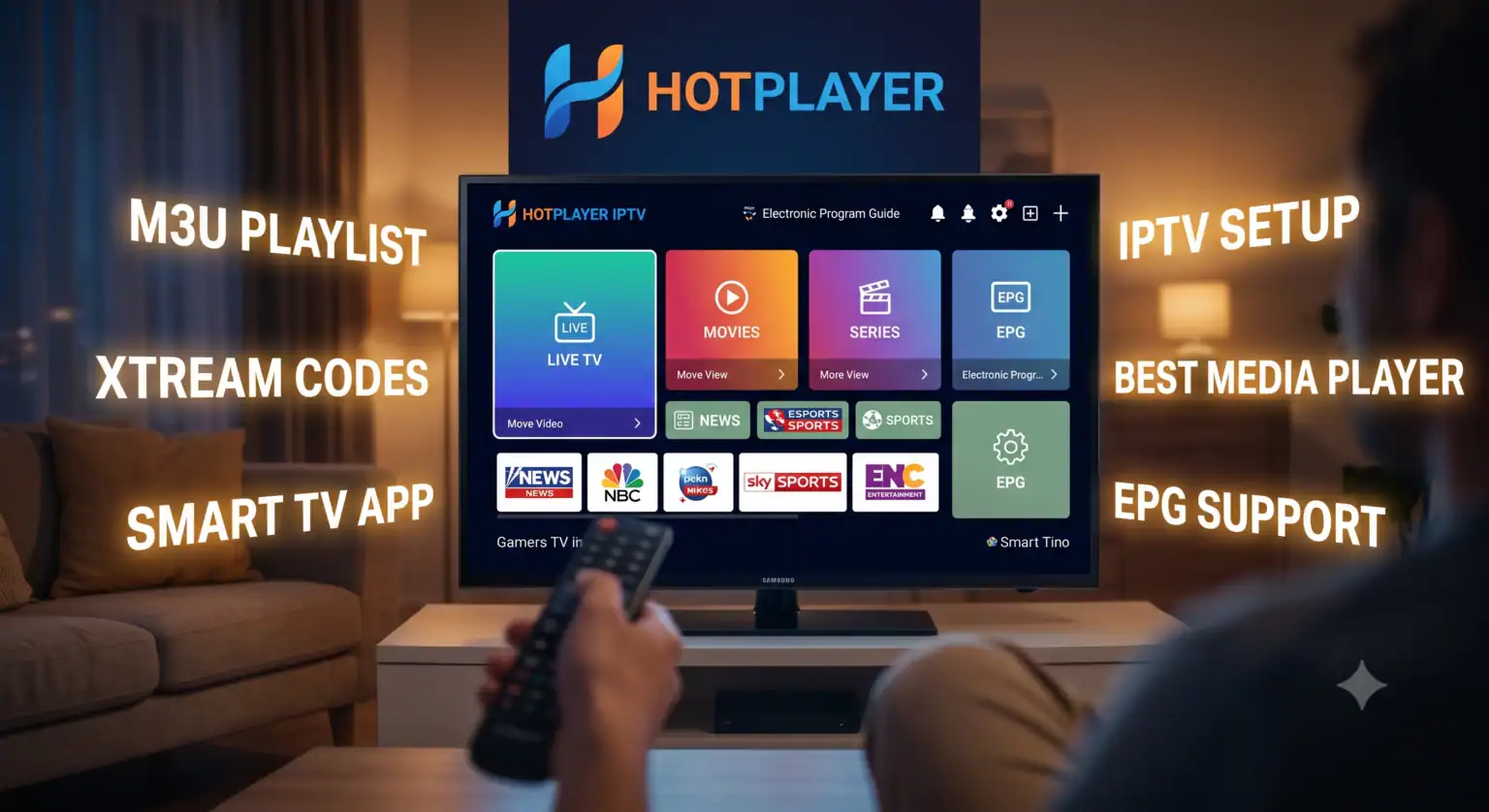
What Exactly is HotPlayer?
First, let’s clear up the biggest misconception: HotPlayer does not include any channels or subscriptions. It is a “pure media player”. Think of it like an empty DVD player you need to bring your own DVD (in this case, an M3U playlist or Xtream Codes from your provider) to watch anything.
Its main job is to take the raw playlist link your provider gives you and organize it into a clean, easy-to-navigate TV guide interface on your screen.
Standout Features
Why pick this app over other heavyweights? HotPlayer keeps things incredibly lightweight, which makes it lightning-fast on older Smart TVs. Here is what makes it stand out:
Multi-List Support: You aren’t stuck with just one provider. You can upload up to 3 different playlists and switch between them instantly from the main menu.
MAC Address Lock: This is a highly underrated security feature. You can lock your MAC address in the settings so nobody else can accidentally (or intentionally) overwrite your playlist remotely.
Built-in Parental Controls: Easily hide specific categories or lock mature content behind a custom PIN.
Universal Search & Z-A Sorting: If you have a list with thousands of movies, the responsive keyword search and alphabetical sorting save you from endless scrolling.
Step-by-Step HotPlayer Setup Guide
Getting your channels onto the app takes about two minutes. You will need a phone or computer, and the playlist details from your IPTV provider.
1. Download the App
Search for “HotPlayer” in the app store of your Samsung Tizen TV, LG WebOS, Roku, or Google Play Store. Download and open the application.
2. Find Your MAC Address
When you open the app for the first time, the home screen will display a unique MAC Address (it looks like a mix of letters and numbers, e.g., a1:b2:c3:d4:e5:f6). Write this down you need it to link your TV to your playlist.
3. Upload Your Playlist
Open a web browser on your phone or computer and go to the official upload portal: hotplayer.app/upload.
Enter the MAC Address displayed on your TV screen.
Choose your upload method. You can upload standard M3U content or use Xtream Codes (username, password, and portal URL). Xtream Codes are generally recommended as they tend to update your channel guide (EPG) much faster.
Click upload or save.
4. Restart Your TV App
Go back to your TV, close the HotPlayer app, and reopen it. Your channels, movies, and series should now begin loading automatically.
Activation and Pricing
Like most premium Smart TV media players, HotPlayer is not entirely free. After a short trial period to test if it runs smoothly on your specific TV model, you have two payment options:
1-Year License: 65 Moroccan Dirhams (roughly €5.99 or $6.50).
Lifetime Activation: A one-time payment of 162 Moroccan Dirhams (roughly €14.99 or $16.50) per TV or device.
Tip: Always buy the activation directly through their official website (hotplayer.app/activation). Never pay a random third-party seller to “activate” your app, as that is a common scam.
Final Verdict
If you use an Android TV box, you might still prefer something highly customizable like TiviMate. However, if you are using the built-in operating system on a Samsung or LG Smart TV, HotPlayer is easily one of the best options available right now. It is snappy, rarely buffers (assuming your internet and provider are solid), and the interface is incredibly easy for non-tech-savvy family members to navigate.
 English (United States)
  German
  Dutch
Dutch  Danish
  English (UK)
  Norwegian
  Swedish